

What are these words?
A database is an organised store of information. Many websites, such as WordPress sites, keep their posts and settings in one. MySQL is a popular kind of database. phpMyAdmin is a web tool that lets you look inside a MySQL database with clicks instead of code.
Exporting means saving the database as a file. Importing means loading a file into a database.
Open phpMyAdmin
- Log in to DirectAdmin.
- Click MySQL Management in the Extra Features or Account Manager section.

- Click the database name, or the link to phpMyAdmin.
- Log in with the database user name and password if asked.
Export a database
- In phpMyAdmin, click your database name on the left.
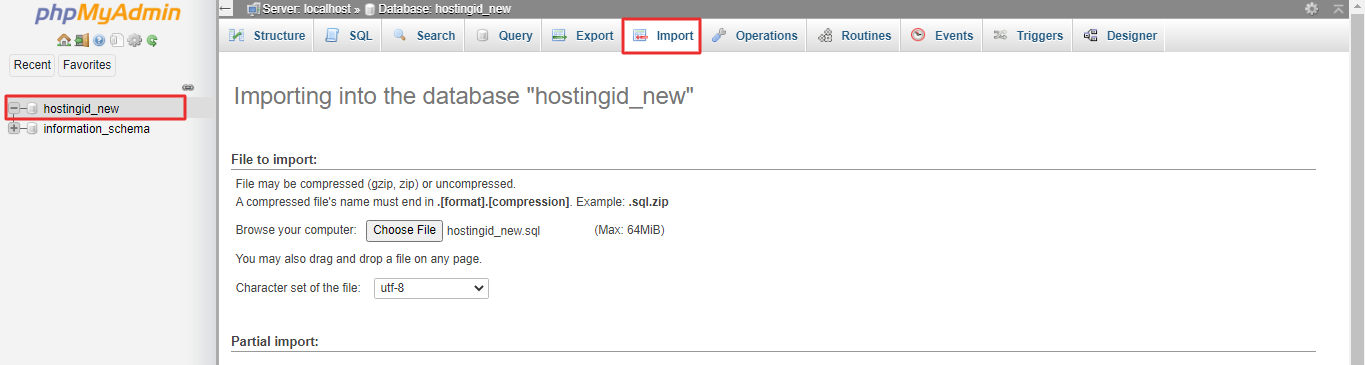
- Click the Export tab at the top.
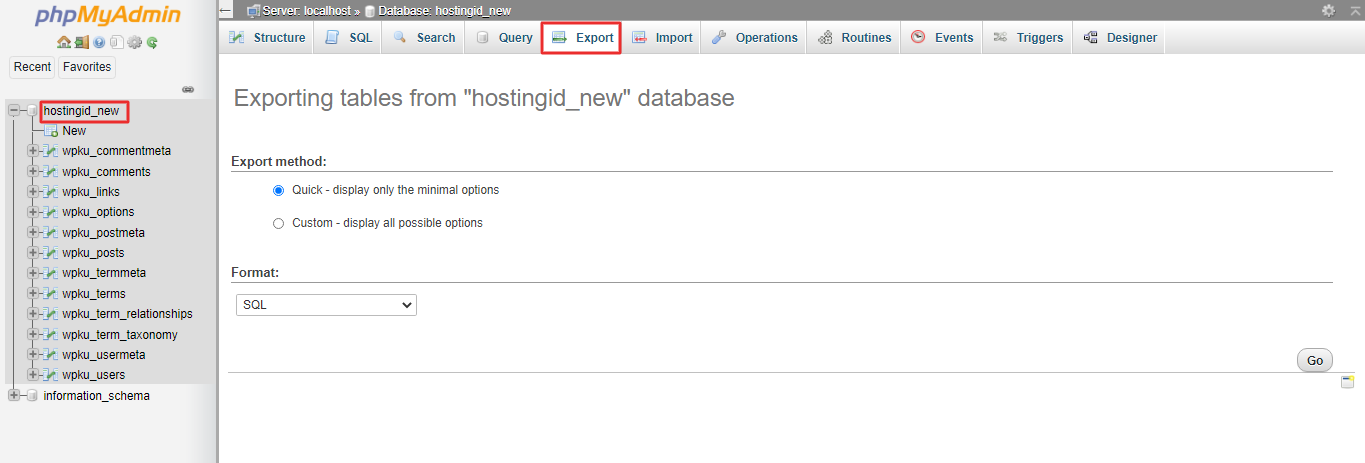
- Choose Quick to export everything with default settings.
- Make sure the format is SQL.
- Click Export (or Go).
- Your browser downloads a file ending in
.sql. Keep it safe.
Import a database
Warning: Importing can overwrite tables that already exist. Export a backup of the current database first.
- In phpMyAdmin, click the database you want to fill. It must exist already. Create it in MySQL Management if needed.
- Click the Import tab.
- Click Choose File and pick your
.sqlfile. A.zipor.gzfile also works. - Leave the other settings as they are.
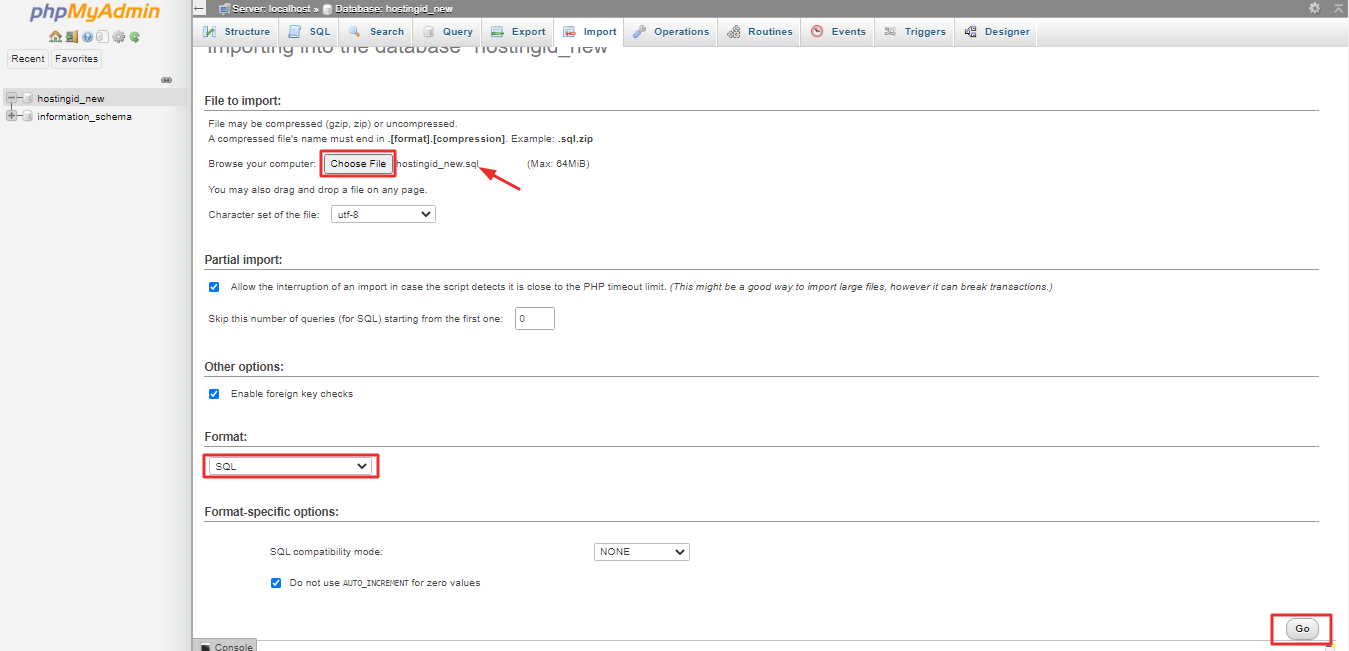
- Click Import (or Go) at the bottom.
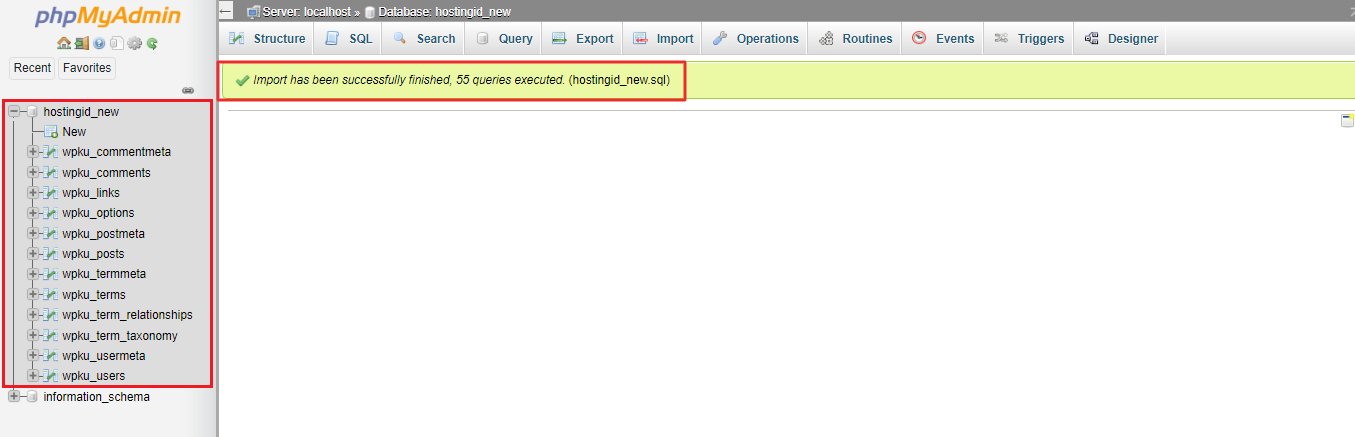
- Wait for the green success message.
If the import fails
- File too big: phpMyAdmin has an upload limit. Compress the file as
.zip, or ask Hostvento support to import it. - Timeout: The task took too long. Split the file or ask support.
- Errors about existing tables: Clear the old tables first, after taking a backup.
After importing a website database, check that your site's config file points to the right database name, user and password.
Quick recap
- Open phpMyAdmin from MySQL Management in DirectAdmin.
- Use Export to save a
.sqlfile.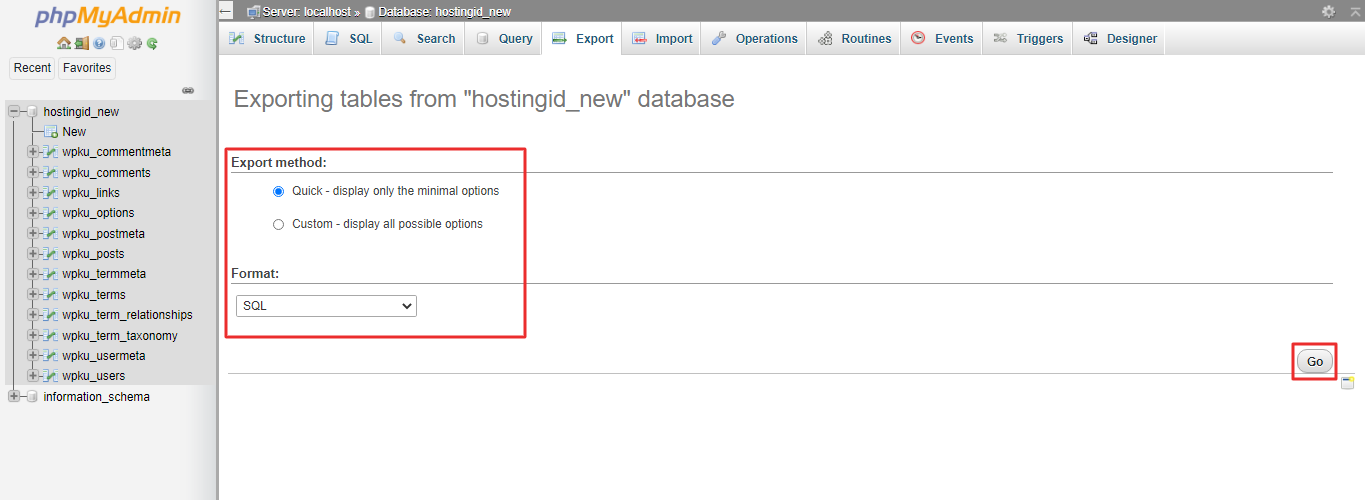
- Use Import to load a file into a database.
- Always back up before importing.