

What are PrestaShop and Softaculous?
PrestaShop is free software for running an online store. You add products, take orders and manage customers. Softaculous is an auto-installer. Think of it as an app store inside your hosting panel. It sets up the software for you, so you do not have to copy files by hand.
Softaculous may not be on every plan. If you do not see it, ask Hostvento support whether it is included in yours.
Before you start
- Your domain should already point to your hosting account.
- Consider installing SSL first, so your shop runs on
https://. - Pick an admin username and a strong password.
Steps
- Log in to DirectAdmin.
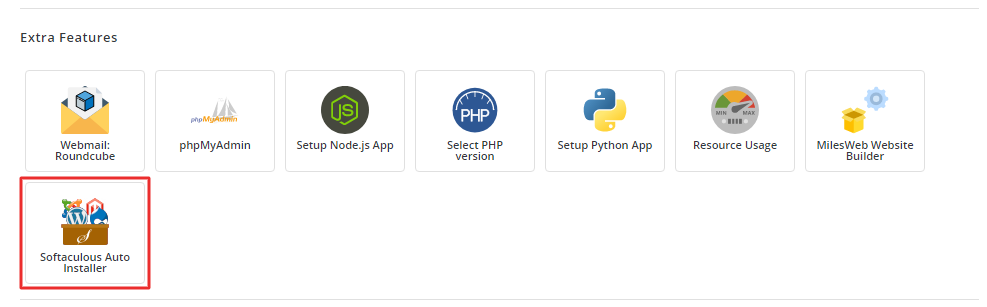
- Find Softaculous Auto Installer on the main page. You can also use the search box.
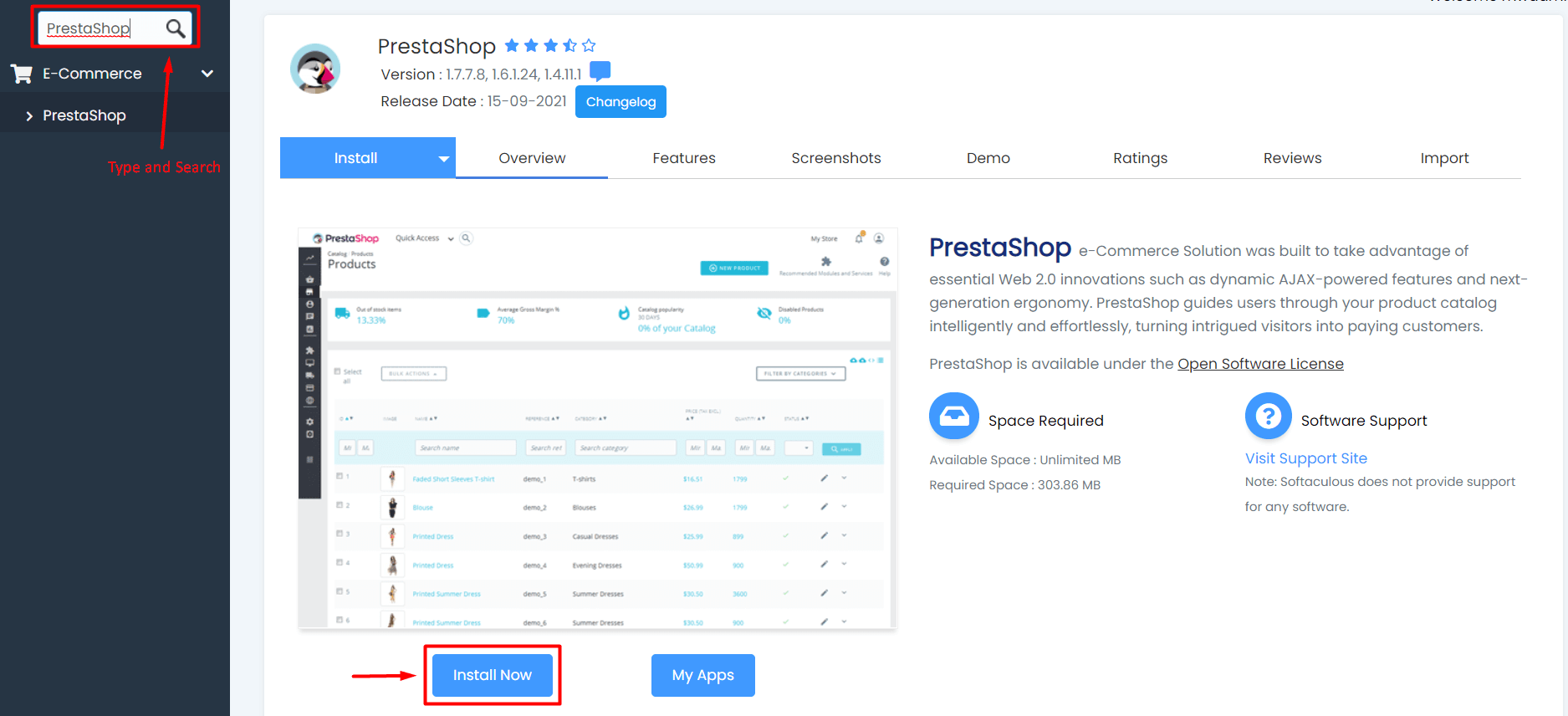
- In the left list, open E-Commerce and click PrestaShop. Or type PrestaShop in the search box.
- Click Install Now.
- Choose the protocol. Pick
https://if you have SSL. - Choose the domain.
- Leave In Directory empty to install on the main address. Type a folder name such as
shopto install inyourdomain.com/shop.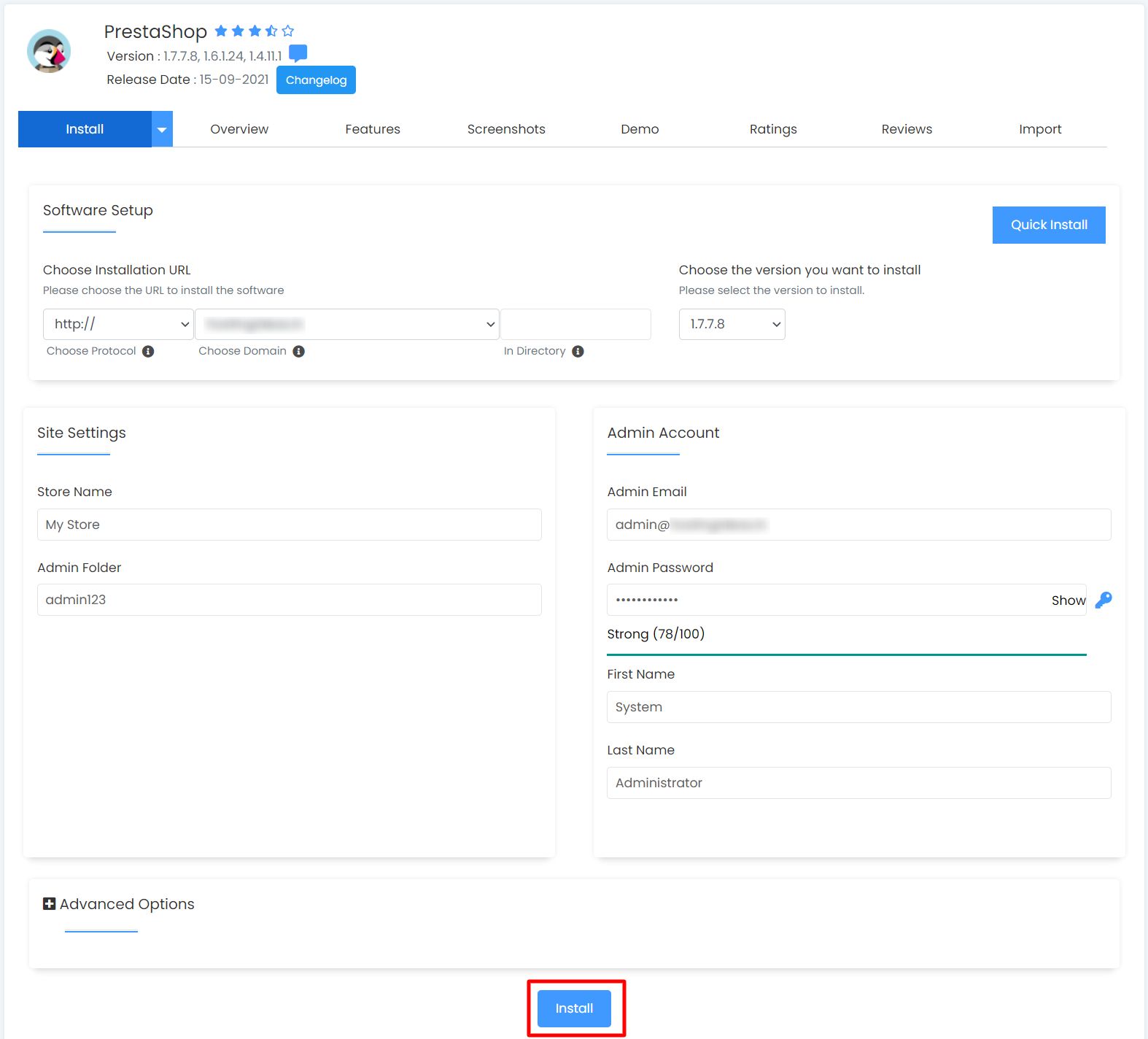
- Type your shop name under Site Settings.
- Under Admin Account, enter a username, a strong password and your email address.
- Choose your language.
- Click Install at the bottom.
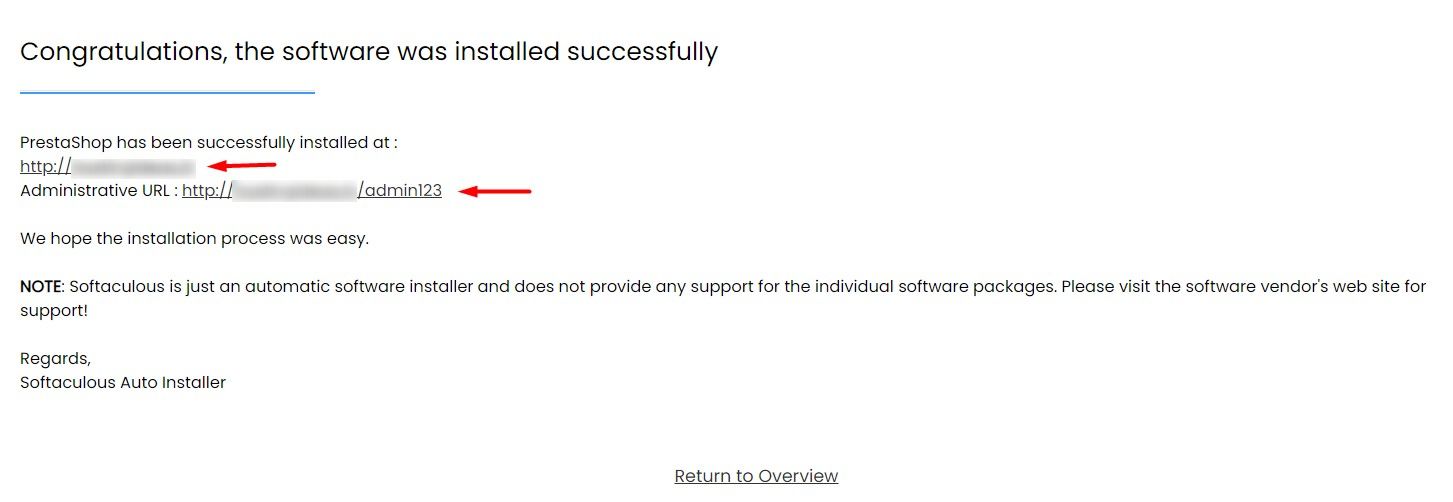
- Wait until the progress bar finishes. You will see links to your shop and its admin area.
Warning: If files already exist in the folder you choose, Softaculous can overwrite them. Back up first.
After the install
- Open the admin link. PrestaShop uses a special admin folder with a random name. Save this link.
- Log in with the details you chose.
- Set up your shop name, products, payment methods and shipping.
PrestaShop may ask you to delete an install folder. Softaculous usually handles this for you. If a message remains, follow it.
Keep your shop safe
- Update PrestaShop and its modules.
- Use a strong password.
- Take regular backups.
Need help? Open a support ticket.
Quick recap
- Softaculous installs apps in a few clicks.
- Find PrestaShop under E-Commerce and click Install Now.
- Fill in the domain, shop name and admin account.
- Save your admin link after the install.