

What is a third-party SSL?
SSL is a lock for your website. It scrambles data between your visitors and your site and shows a padlock in the browser. A third-party certificate is one you got from a company other than your host. You can buy one from a certificate authority. That is a company trusted to confirm who owns a website.
You will usually have three things:
- The certificate, often a file ending in
.crt. - The private key, a secret file made when you asked for the certificate. Never share it.
- The CA bundle, also called the intermediate certificate. It links your certificate to the trusted company.
Before you start
- Turn on Secure SSL for the domain in Domain Setup.
- Have the three items ready. Open each file in a plain text editor. The text starts with a line like
-----BEGIN CERTIFICATE-----.
Steps
- Log in to DirectAdmin.
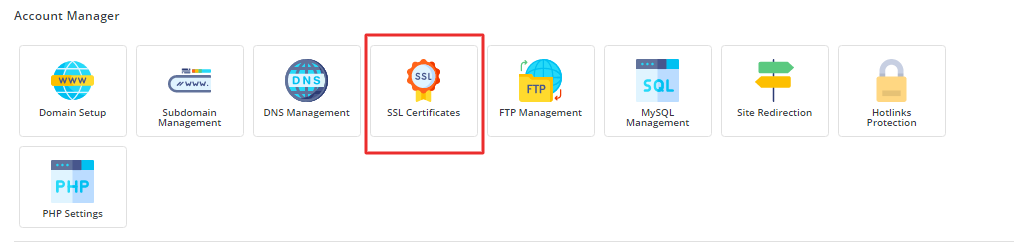
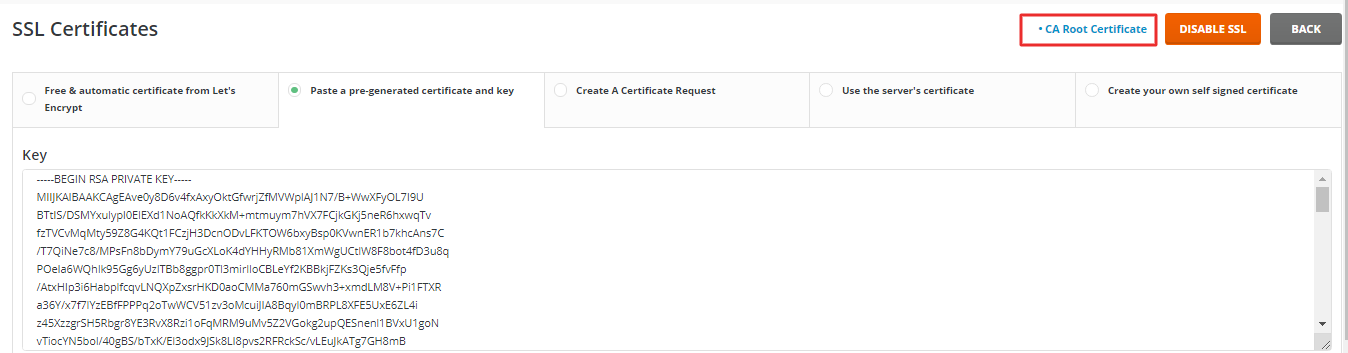
- Click SSL Certificates.
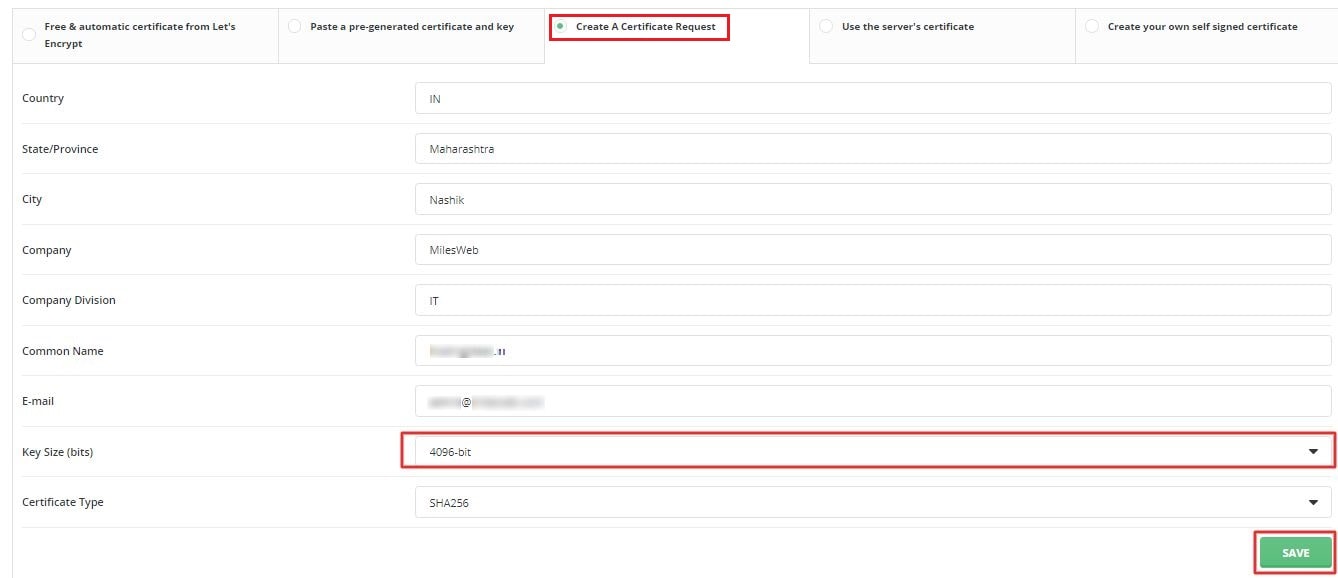
- Choose Paste a pre-generated certificate and key.
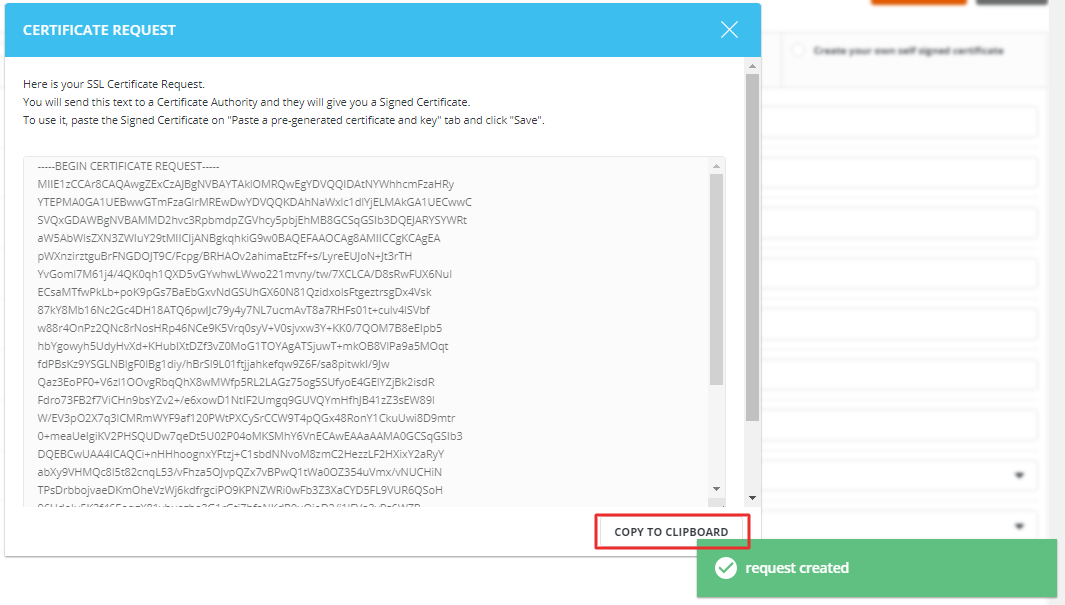
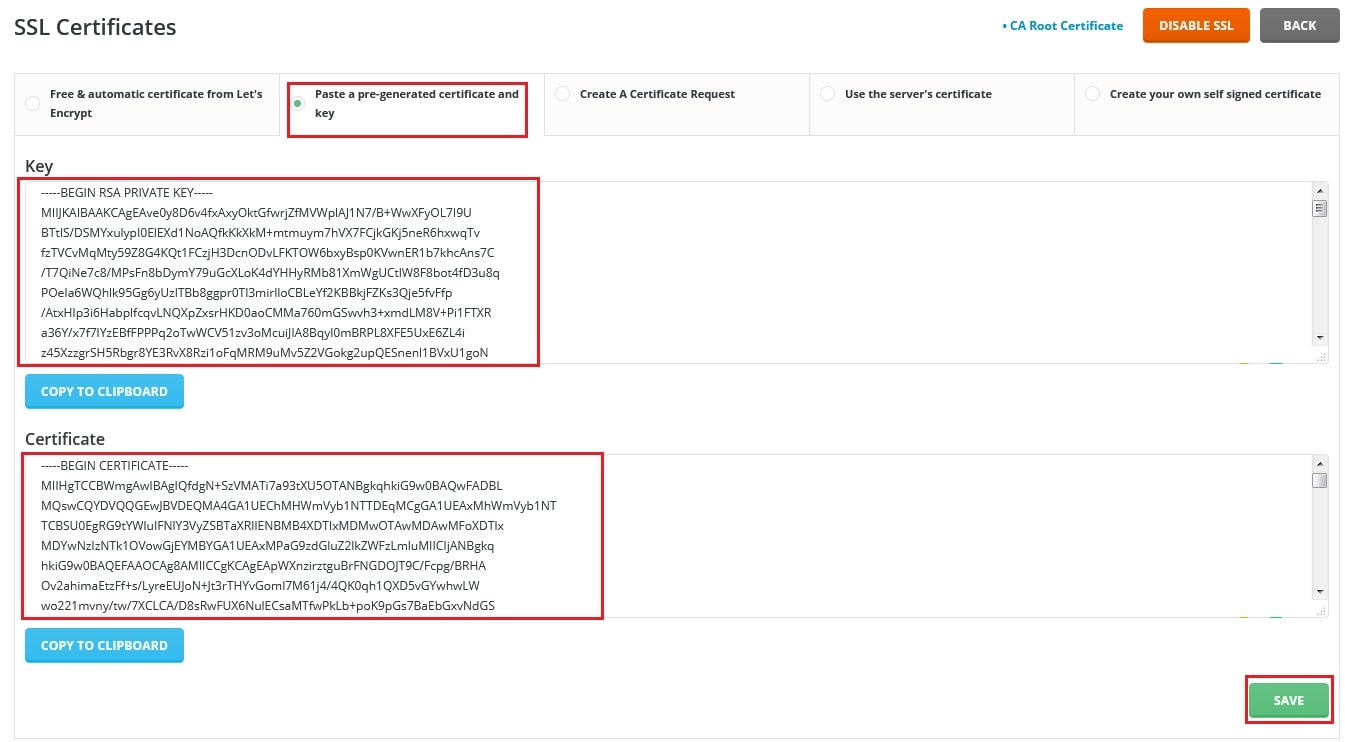
- In the first box, paste the private key. If you made the certificate request in DirectAdmin, the key may already be saved. Then paste only the certificate.
- Paste the certificate text right after it, or in its own box if the page has one.
- Click Save.
- Go back and open SSL Certificates again.
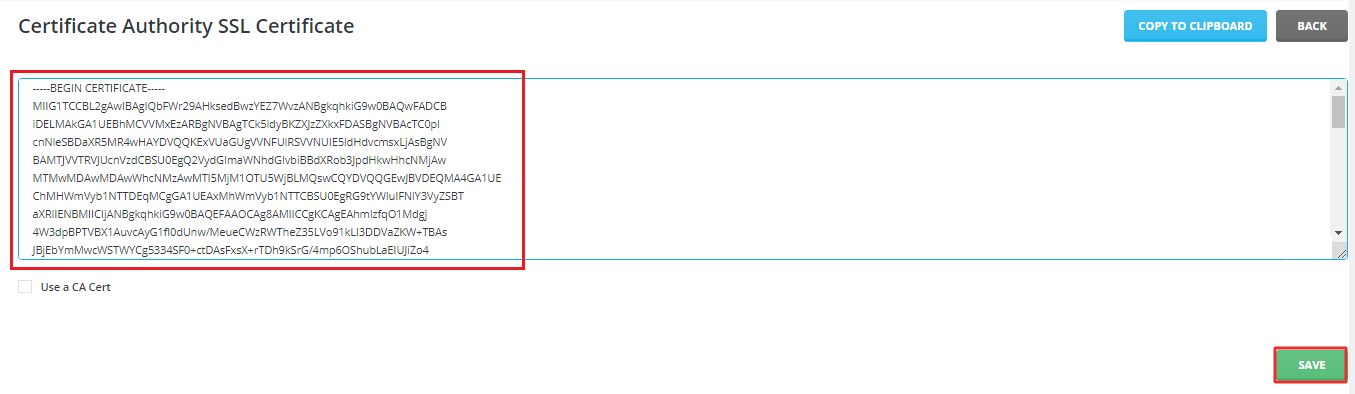
- Choose the option for the CA Root Certificate, or tick Use a CA Root Certificate.
- Paste the CA bundle text.
- Click Save.
Tip: Copy all lines, including the BEGIN and END lines. Do not add spaces or blank lines in the middle.
Check that it works
- Open your site with
https://in a new browser window. - Look for the padlock.
- Click the padlock to see the certificate details.
Common problems
- Key does not match: The key must be the one made with the certificate request.
- Browser warning: The CA bundle may be missing.
- Still old certificate: Clear the cache and wait a little.
Need a hand? Open a support ticket.
Quick recap
- You need the certificate, the private key and the CA bundle.
- Paste them into SSL Certificates in DirectAdmin.
- Save after each part.
- Test with
https://.