

What are WordPress and Softaculous?
WordPress is free software for building websites and blogs. You do not need to write code. Softaculous is an auto-installer. It works like an app store inside your hosting panel. It copies the files and creates the database for you.
If you do not see Softaculous in DirectAdmin, ask Hostvento support if it is on your plan.
Before you start
- Point your domain to your hosting account.
- Install SSL if you can, so your site opens on
https://. - Think of an admin username and a strong password.
Steps
- Log in to DirectAdmin.
- Click Softaculous Auto Installer. Use the search box if you cannot see it.
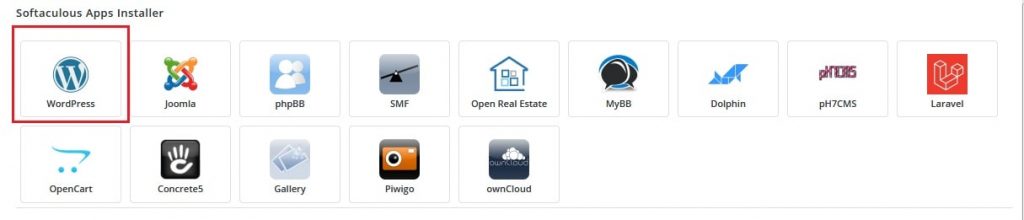
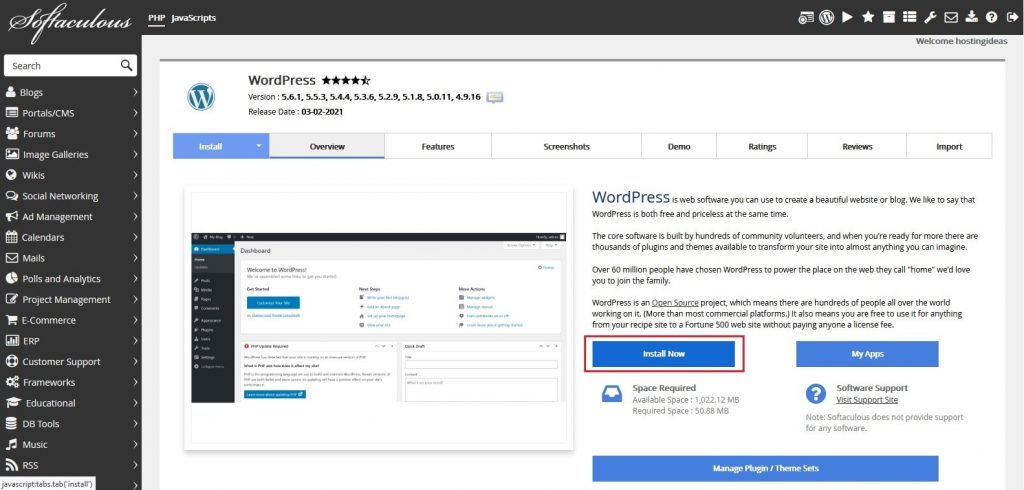
- Click WordPress, then Install Now.
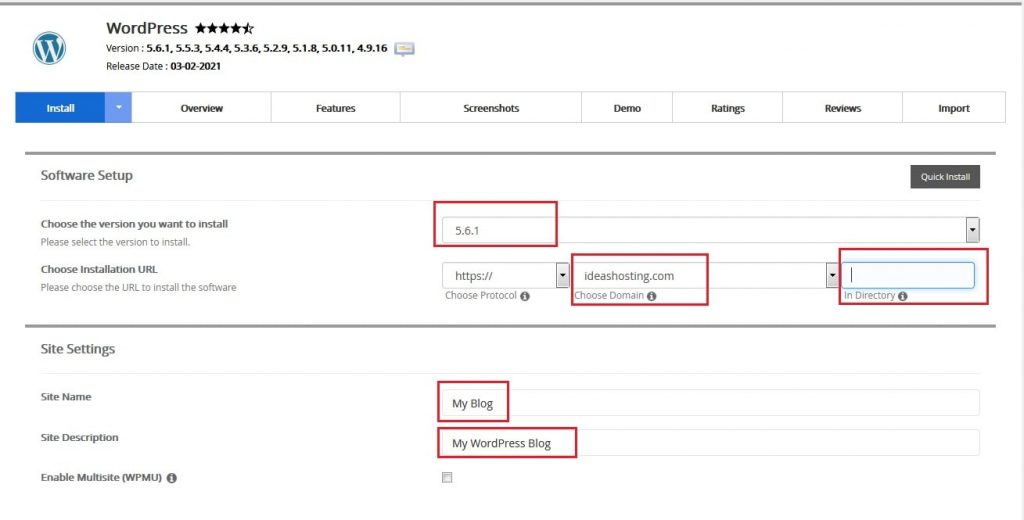
- Choose the protocol,
https://if you have SSL. You can pick thewwwversion too. - Choose your domain.
- Clear the In Directory box so WordPress lands on your main address. Type a name such as
blogto useyourdomain.com/blog. - Enter a Site Name and Site Description. You can change them later.
- Under Admin Account, set the username, password and email. Avoid the name "admin".
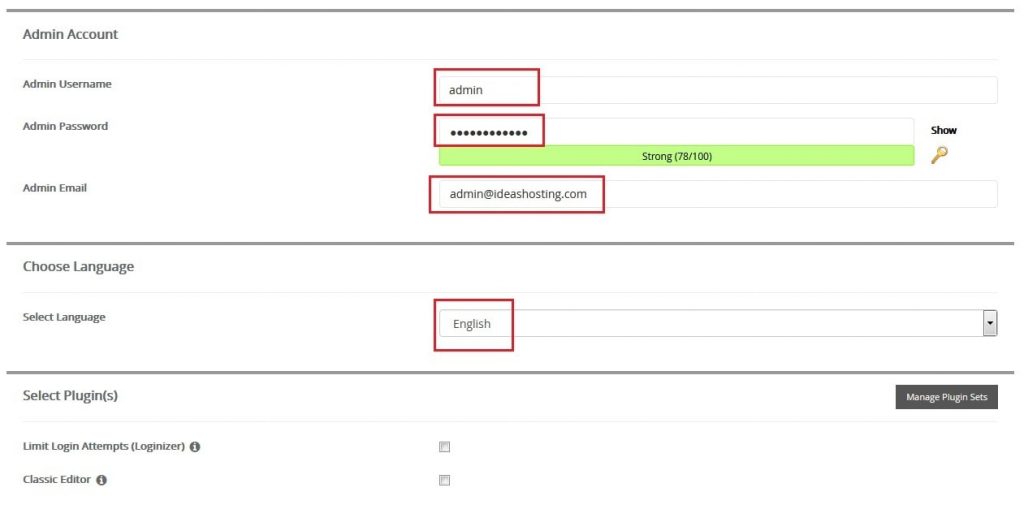
- Choose a language.
- Leave the other options as they are.
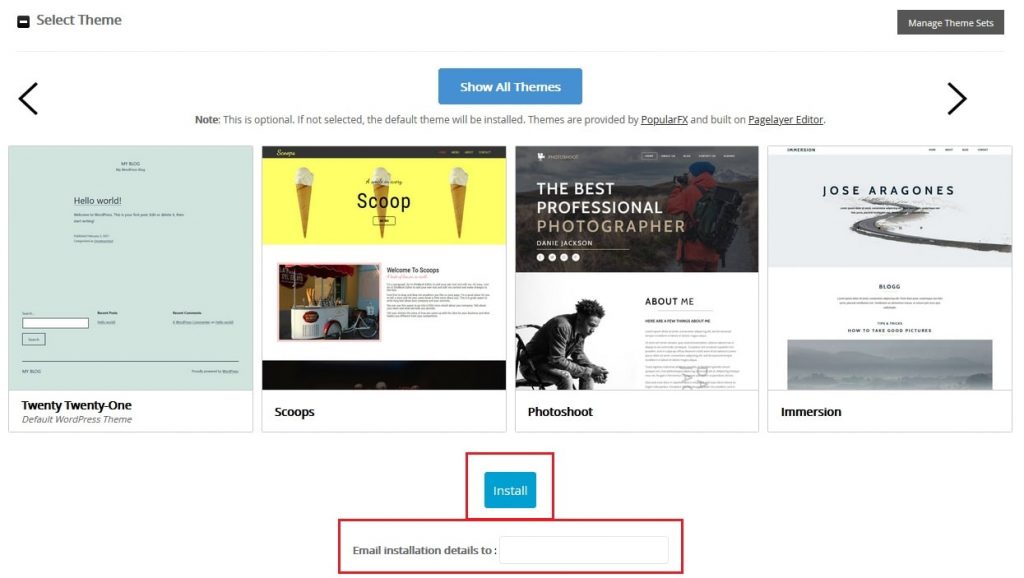
- Click Install.
- Wait for the progress bar to finish.
Warning: If the folder already has files, an install might replace them. Take a backup first.
After the install
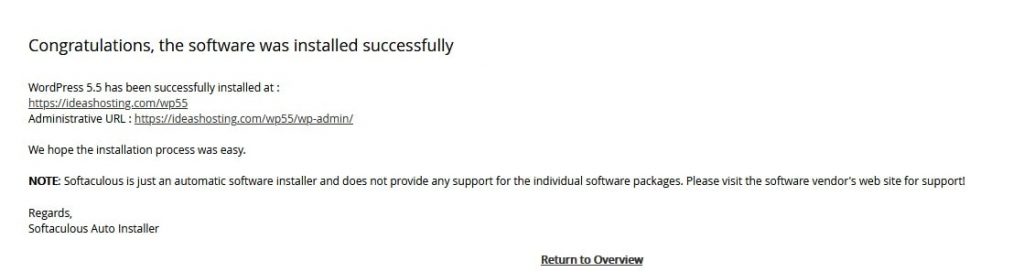
- Softaculous shows two links. One is your site. The other is the admin page, usually
yourdomain.com/wp-admin. - Open the admin link and log in.
- Go to Appearance to pick a theme. A theme is the look of your site.
- Go to Posts or Pages to add content.
Keep it safe
- Keep WordPress, themes and plugins updated.
- Use a strong password.
- Delete themes and plugins you do not use.
- Make regular backups.
Having trouble? Open a support ticket.
Quick recap
- Find WordPress in Softaculous and click Install Now.
- Pick the domain, folder and admin details.
- Click Install and wait.
- Log in at
/wp-admin.