

What is DirectAdmin?
DirectAdmin is a control panel. A control panel is a web page where you manage your hosting with buttons instead of commands. A user account is one hosting space. It has its own websites, emails and limits.
You need a Reseller or Admin login to change other users. A normal user can only change a few of their own settings. If you are unsure which login you have, check your welcome email or ask Hostvento support.
Before you start
Lowering limits such as disk space can break a site that already uses more. Check how much the user uses first.
Steps
- Log in to DirectAdmin as the reseller or admin.

- Find the menu item for user accounts. In the Reseller level it is often called Manage User Accounts or User Administration.
- Click the user name you want to change.
- Look for the Modify User or Modify Account link.

- Change what you need. Common choices are:
- The package, which is a ready set of limits.
- Disk space (quota) and bandwidth. Bandwidth is how much data visitors can download.
- The number of email accounts and databases.
- Extra features such as SSH access or CGI.
- Click Save.
- Reopen the account page to confirm the new values.
Change the user password or email
- Open the same user page.
- Look for Change Password or Modify E-Mail.
- Type the new value. For passwords, use a long mix of letters, numbers and symbols.
- Click Save.
Tip: Menu names change a little between DirectAdmin skins and versions. If you cannot find a link, use the search box at the top of the panel.
If an option is missing, the owner of your server may have switched it off. Open a ticket at the support page to ask.
Quick recap
- Reseller or Admin users can change other accounts.
- Open the user list, pick the user, and choose Modify User.
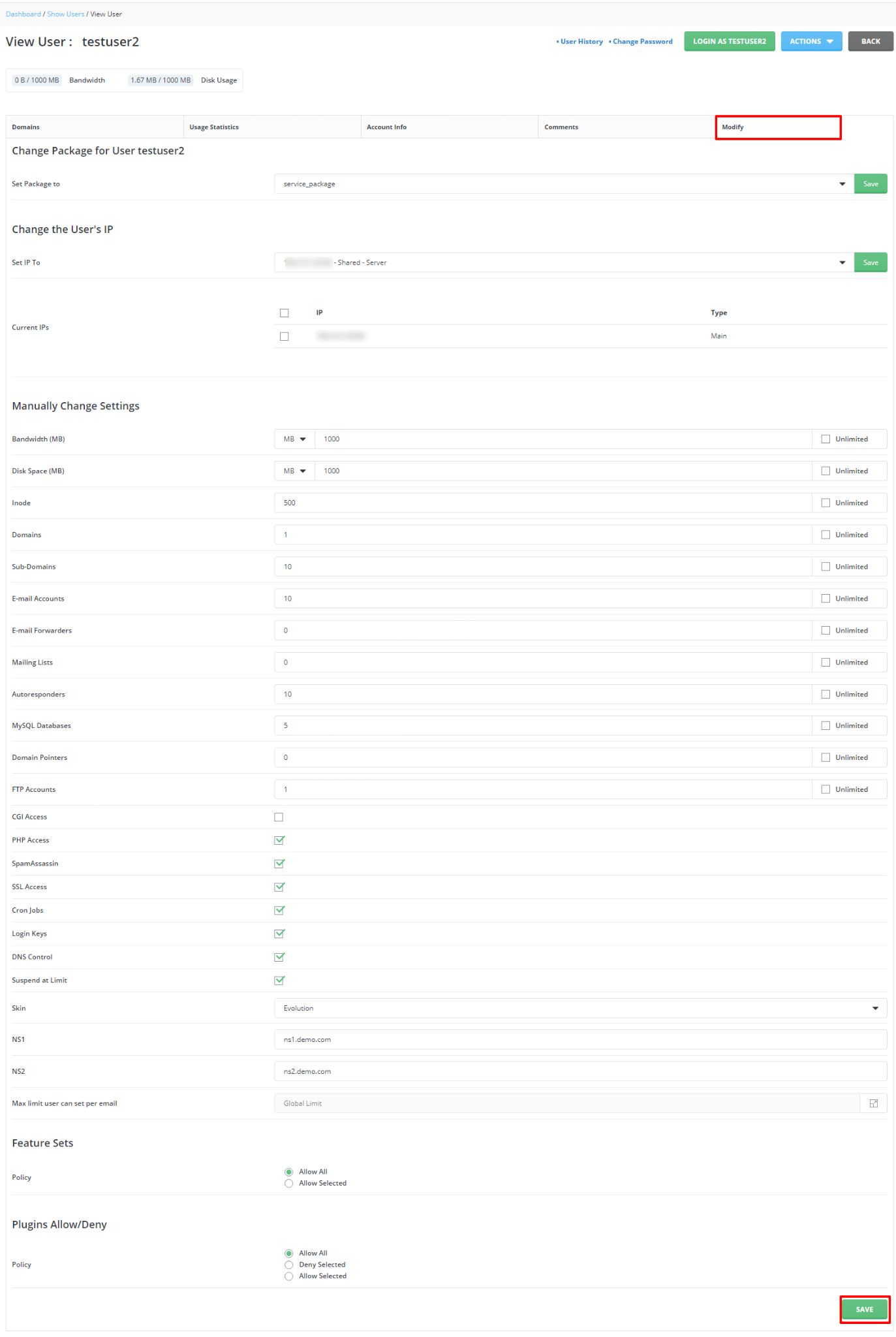
- Change the package, limits, features or password, then click Save.
- Do not set limits lower than what the user already uses.