

What is the File Manager?
The File Manager is a tool in your hosting panel. It shows the files of your website in a window, like the folders on your own computer. You can add, move, edit and rename files there.
Warning before you rename
Websites find files by their exact names. If you rename a file that your site uses, the site may break. For example, renaming index.php or a WordPress plugin folder can cause errors. Take a backup first. Also note the old name so you can change it back.
Names are case sensitive on a hosting server. Logo.png and logo.png are different files.
Steps
- Log in to DirectAdmin.
- Click File Manager under System Info and Files.

- Open the folder that holds your file. Your main site is usually in
domains/yourdomain.com/public_html. - Find the file or folder you want to change.
- Right-click it, or select it and use the toolbar, then click Rename.
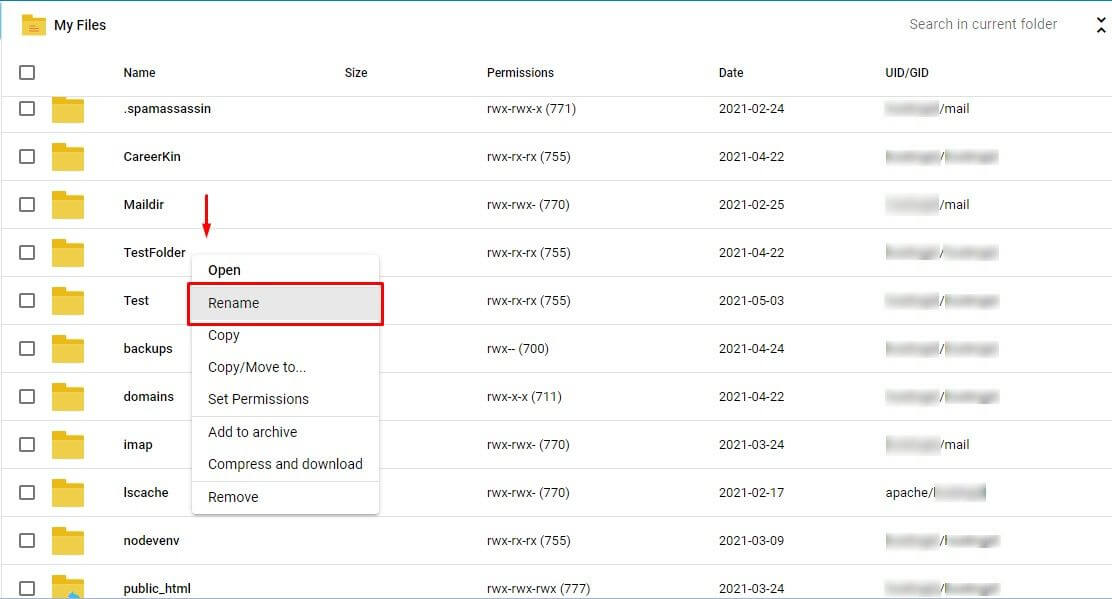
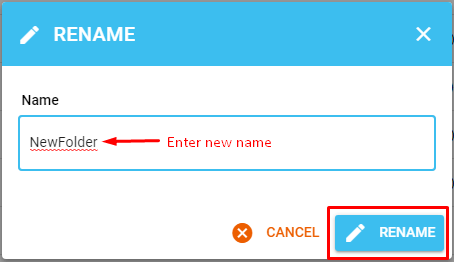
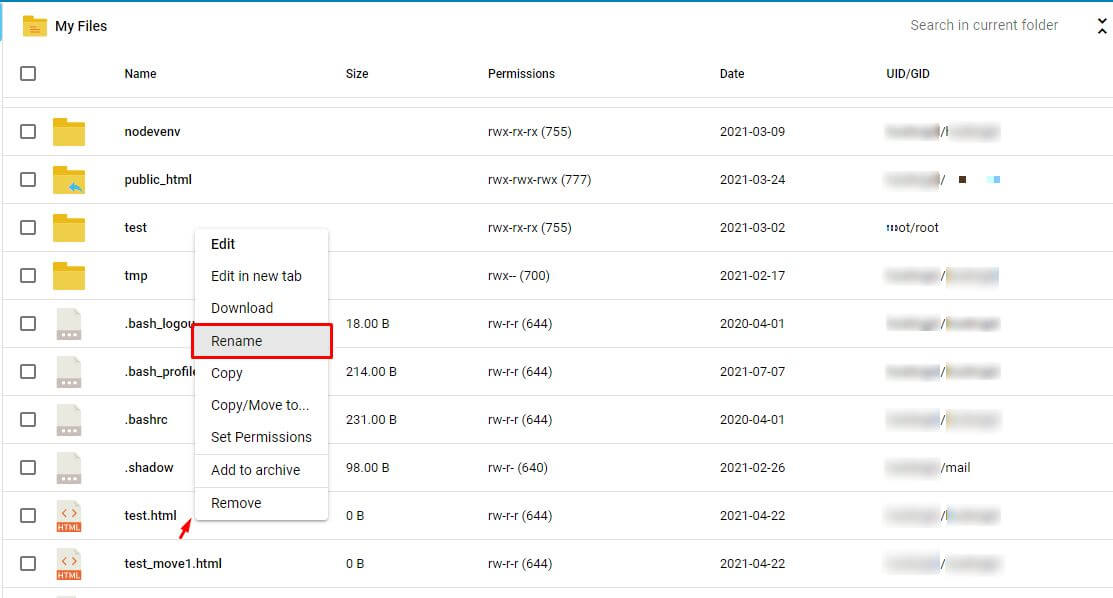
- Type the new name in the box.
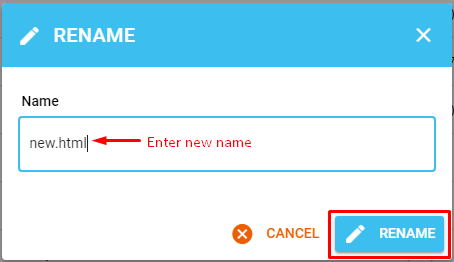
- Click Rename or Save to confirm.
- Check that the list now shows the new name.
Tips for good names
- Use small letters, numbers, dashes and underscores.
- Avoid spaces and special marks like & or %.
- Keep the file ending, such as
.jpgor.php. If you remove it, the file may stop working.
Rename a whole folder
You can do the same with a folder. Everything inside it stays. But any link or setting that points to the old folder name will break. After renaming, update those places.
Rename many files at once
The File Manager renames one file at a time. For many files, download them, rename them on your computer, and upload them again. Or ask Hostvento support whether command line access is part of your plan.
-old at the end. You can rename it back later.Quick recap
- Use File Manager, select the item, and click Rename.
- Back up first, because websites depend on exact names.
- Keep file endings and avoid spaces.
- Update links or settings that used the old name.