

What is a database?
A database is an organized store of information. Sites such as WordPress keep posts, users and settings in it. MySQL is a popular type of database. A database is made of tables, which are like spreadsheets. A table can become damaged if the server stops suddenly or the disk is full.
Signs of damage include messages such as "Table is marked as crashed" or "Error establishing a database connection".
Warning
A repair changes your data. Most repairs are safe, but take a backup first. Do not skip it.
Step 1: Back up the database
- Log in to DirectAdmin.
- Open MySQL Management.
- Click your database name.
- Click the button to download a backup, often Download beside the database.
- Save the file on your computer.
Step 2: Repair it
- Go back to MySQL Management.
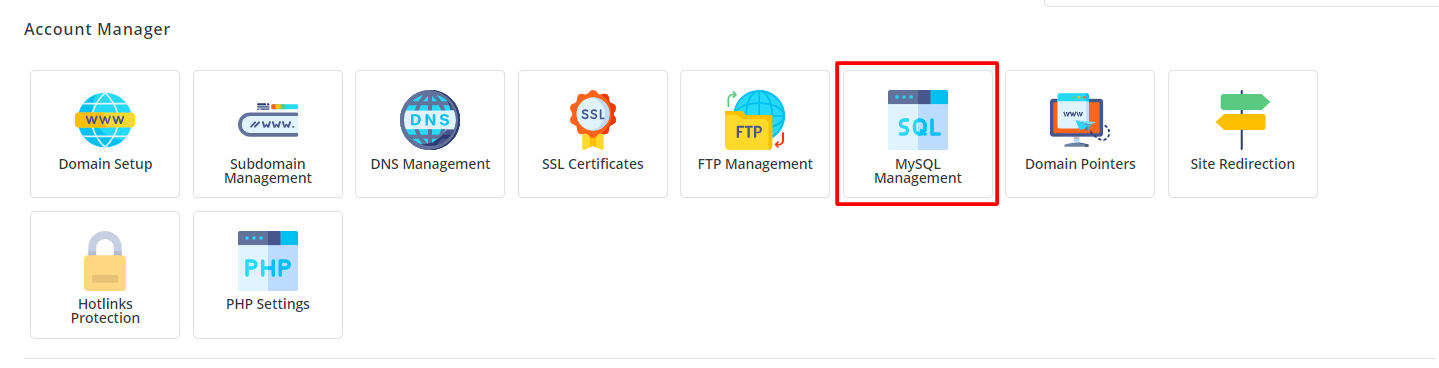
- Find the database that has the problem.
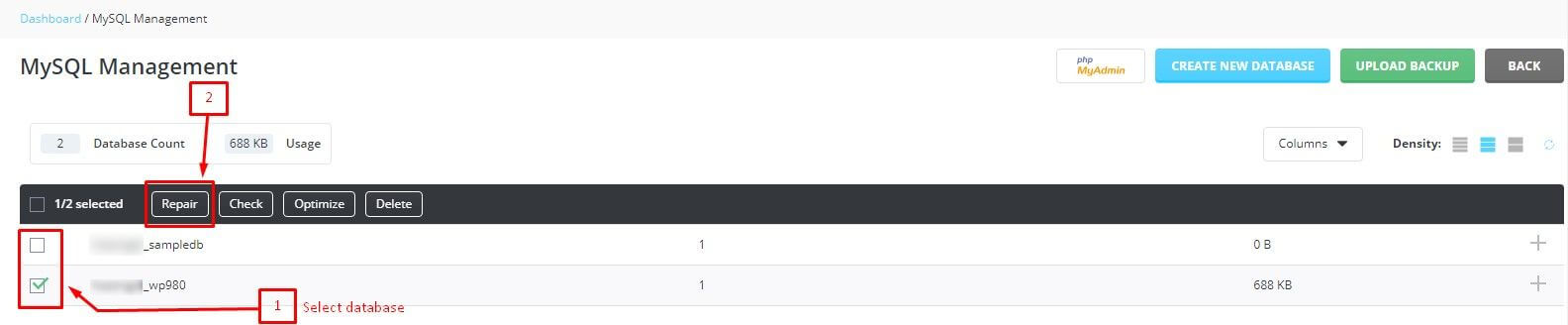
- Look for buttons or links named Check, Repair and Optimize. They may sit next to the database or inside its page.
- Click Check first. It scans for damage.
- If it reports a problem, click Repair.
- Wait for the result. A good result says OK for each table.
- Click Optimize if you like. It tidies the tables and can speed them up.
- Reload your website.
Another way: phpMyAdmin
phpMyAdmin is a web tool for databases. Open it from DirectAdmin. Select your database. Tick the damaged tables. In the drop-down at the bottom choose Repair table.
If WordPress is your site
WordPress has its own repair mode. Add this line to wp-config.php, run the repair page, and remove the line afterward.
define('WP_ALLOW_REPAIR', true);This turns on a hidden repair page at /wp-admin/maint/repair.php.
Quick recap
- Back up the database first.
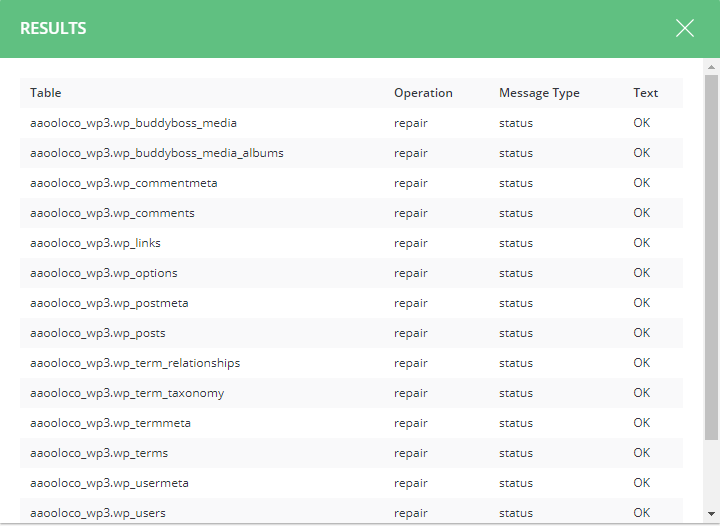
- Use MySQL Management, then Check, then Repair.
- phpMyAdmin has Repair table as a second option.
- Ask support if the damage stays.