

What is Softaculous?
Softaculous is a one-click installer that adds apps such as WordPress to your hosting. It keeps a list of your installs. It is a third-party tool. Ask Hostvento support if it is on your plan.
The admin account is the main login of your WordPress site. It can change everything. This guide changes its password only. Your posts and settings stay as they are.
Steps
- Log in to DirectAdmin.
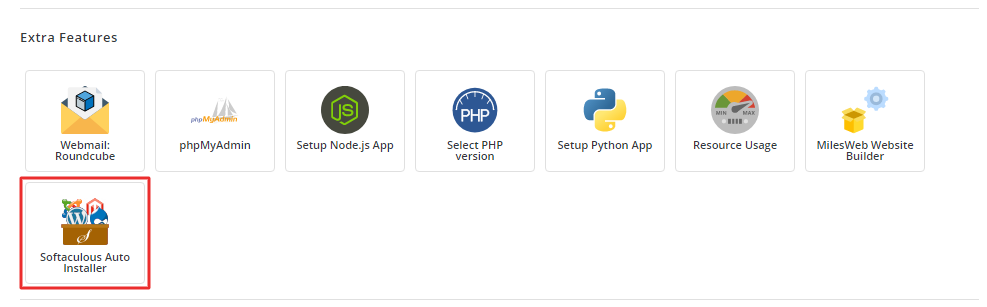
- Open Softaculous or Auto Installers.
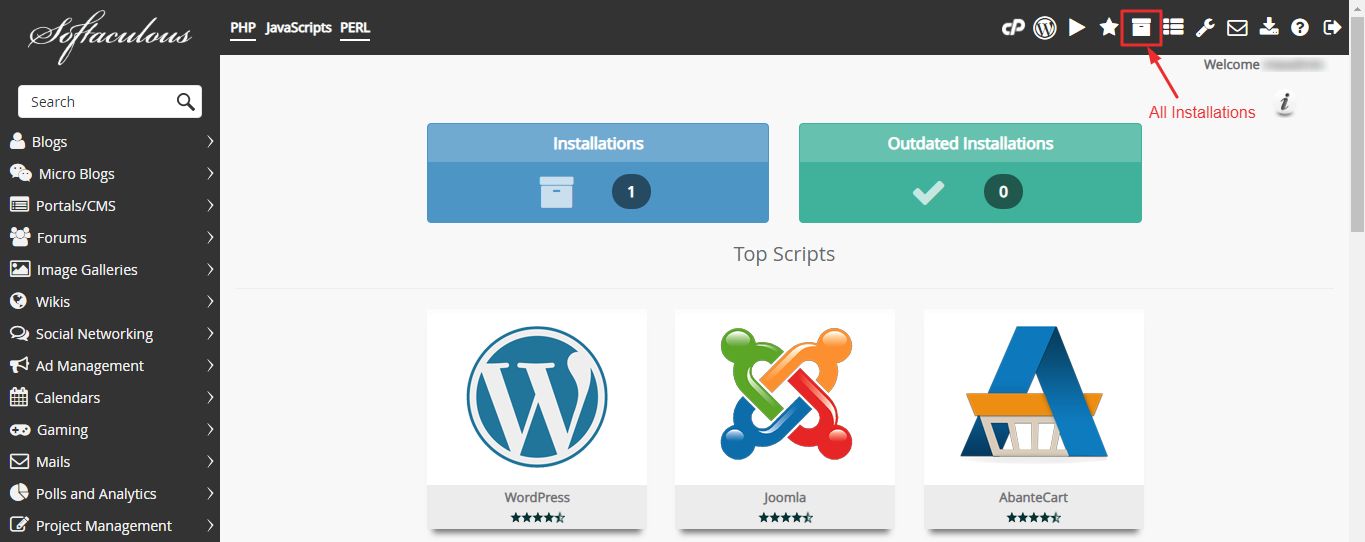
- Click Installations to see your installed apps.
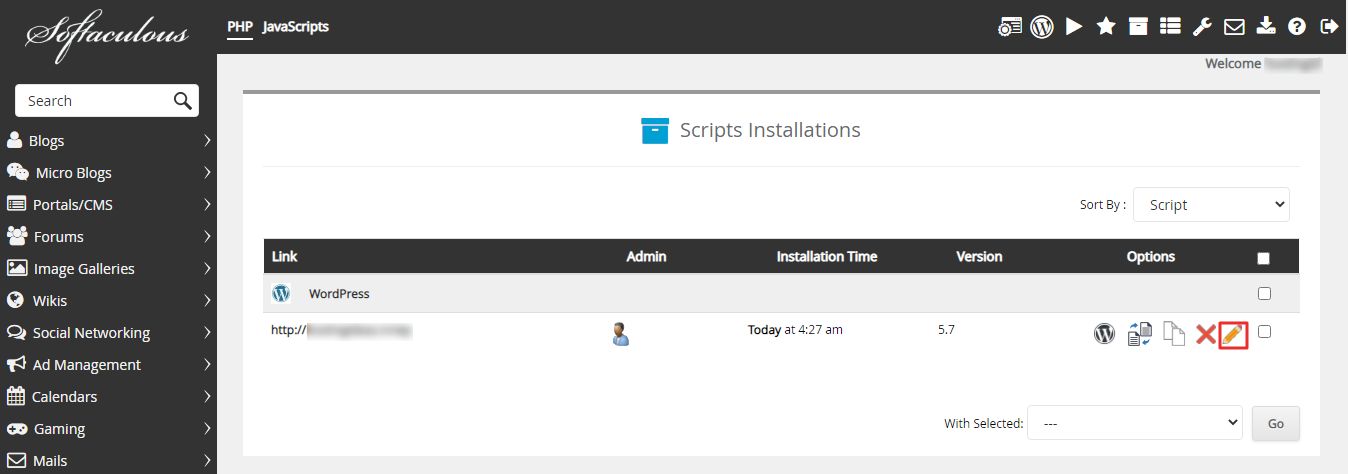
- Find the right WordPress site. Check the address.
- Click the Edit icon, a small pencil, at the end of the row.
- Scroll to the account area. Look for the Admin Password field.
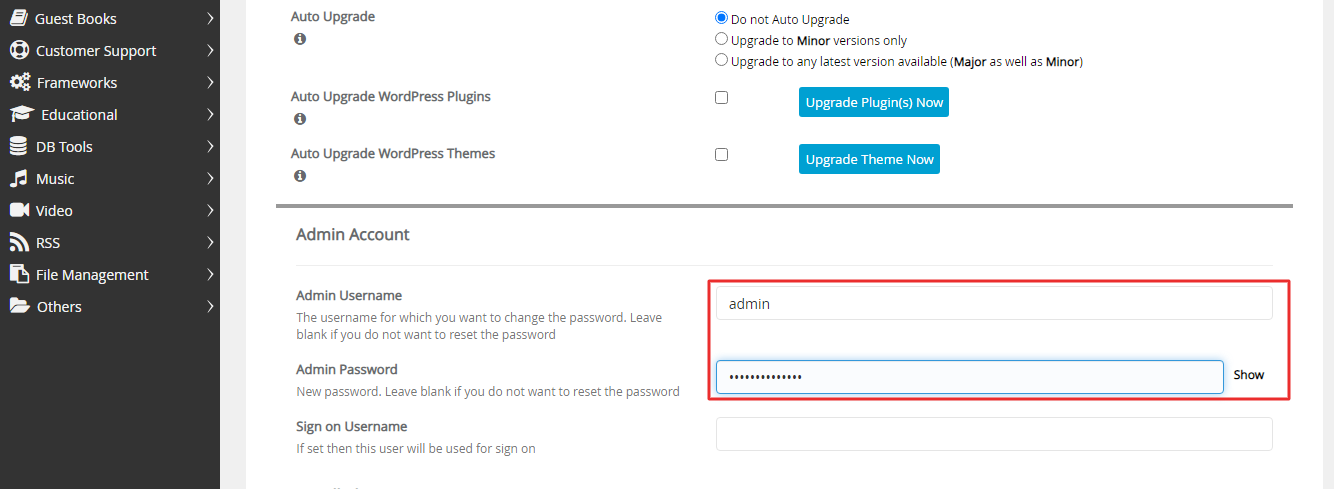
- Type a new password. Use a long mix of letters, numbers and symbols.
- Scroll to the bottom and click Save Installation Details.
- Go to your WordPress login page, usually
yourdomain.com/wp-admin. - Log in with the admin user name and the new password.
The edit page may also show the admin user name. Use it if you forgot that too.
If the password field is missing
Some versions of Softaculous do not show the password. You have two other options.
Option A: the lost password link
- Open the WordPress login page.
- Click Lost your password?
- Type your user name or email.
- Open the email from WordPress and click the link.
Option B: phpMyAdmin
- Back up the database first.
- Open phpMyAdmin and find the table that ends in
_users. - Click Edit beside your admin row.
- In
user_pass, choose the function MD5 and type the new password. - Click Go.
Tip: Use a password manager to store the new password, so you do not lose it again.
Quick recap
- Open Softaculous, Installations, then edit the WordPress install.
- Change the Admin Password field and save.
- If you do not see the field, use Lost your password or phpMyAdmin.
- Back up before touching the database.