

What is 2FA?
2FA means two-factor authentication. The first factor is your password. The second is a short code from an app on your phone. The code changes about every 30 seconds. It is like needing both a key and a secret handshake to enter.
You need an authenticator app on your phone. Google Authenticator, Microsoft Authenticator and Authy are common choices. Install one before you begin.
Steps to turn it on
- Log in to DirectAdmin.
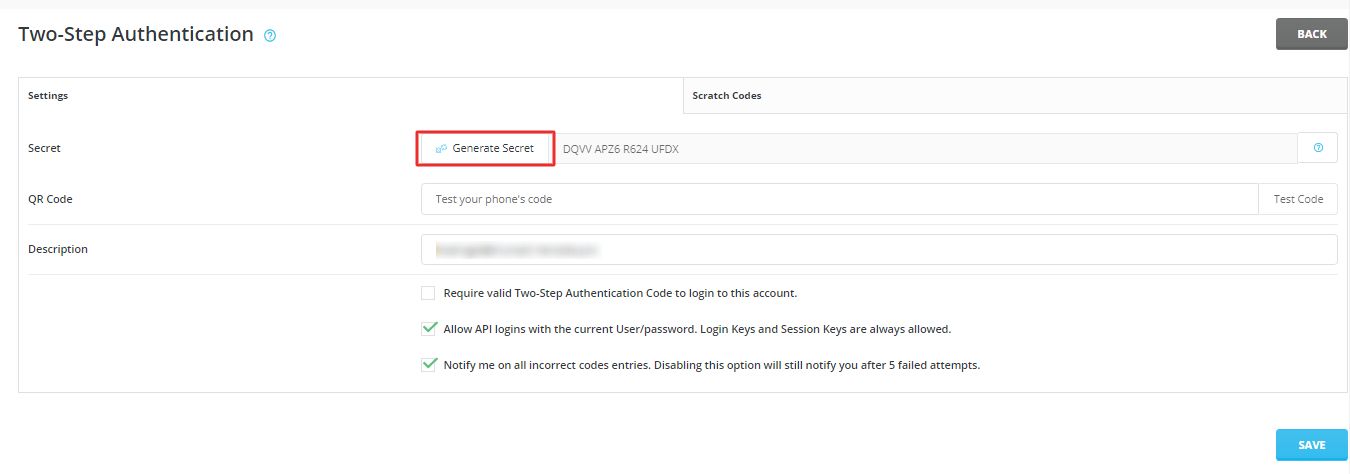
- Open Two Step Authentication. In many skins it is under Account Manager. Use the search box if you cannot find it.
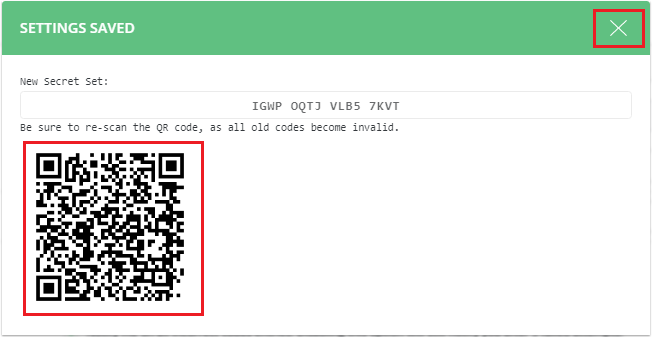
- Click the button to enable it. You will see a QR code. A QR code is a square picture that your phone can scan.
- Open the authenticator app on your phone.
- Choose the option to add an account and scan the QR code.
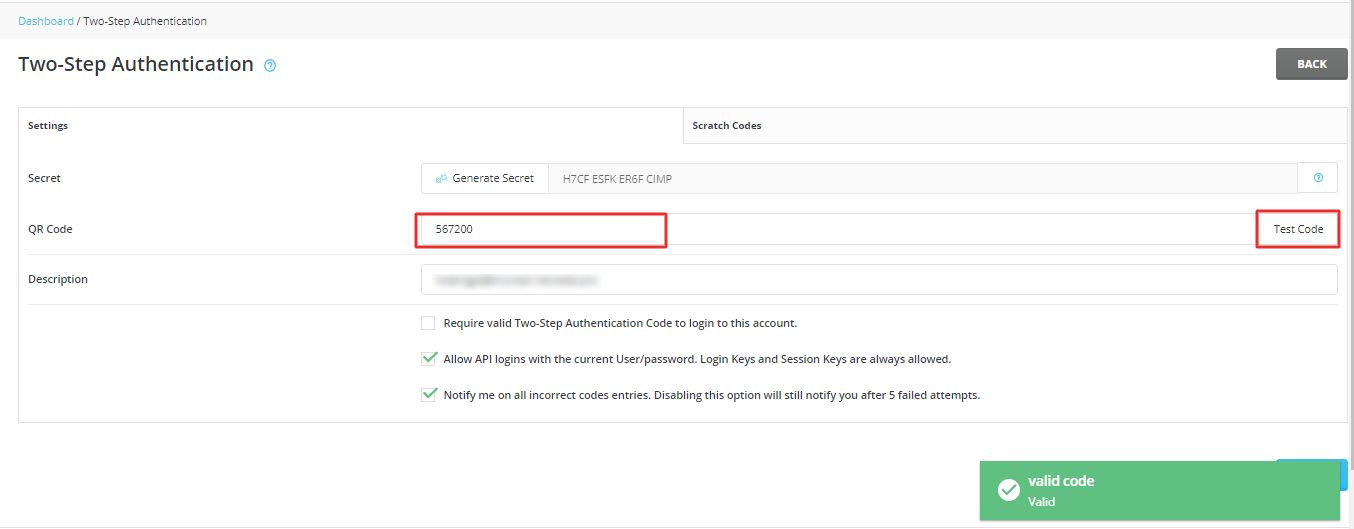
- The app now shows a six digit code for your DirectAdmin account.

- Type that code into the box on the DirectAdmin page.
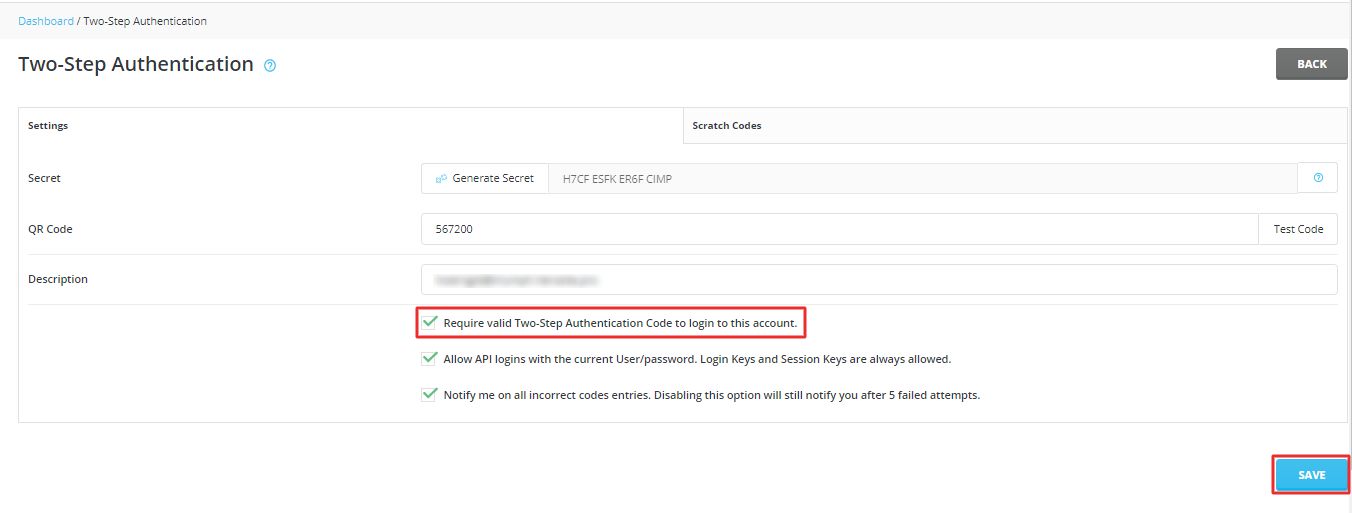
- Click Save or Verify.
Save your backup codes
If DirectAdmin shows emergency or recovery codes, write them down. Keep them somewhere safe, away from your computer. They help if you lose your phone. Without them, you may be locked out.
Test it
- Log out of DirectAdmin.
- Log in again with your user name and password.
- When asked, type the current code from your app.
- You should be in.
Turn it off
- Log in and open Two Step Authentication again.
- Click the option to disable it.
- Confirm with a current code if asked.
If you are locked out
Use a backup code first. If you have none, ask your reseller or Hostvento support. Open a ticket at the support page. They will need to verify that you own the account.
Tip: Make sure your phone clock is set to automatic time. Wrong time makes the codes fail.
Quick recap
- 2FA needs your password and a code from your phone.
- Install an authenticator app, open Two Step Authentication, and scan the QR code.
- Type the code to confirm, and save your backup codes.
- Test by logging out and in again.