

What is it?
A directory is another word for a folder. When you protect one, the browser shows a small login box before the page opens. It works like a locked door on one room of your site. It is handy for private files, a test version of a site, or an admin area.
The folder login is separate from your hosting login. These names and passwords work only for that folder.
Behind the scenes, DirectAdmin writes two small files in the folder. One is .htaccess, which tells Apache to ask for a login. The other holds the names and scrambled passwords.
Steps
- Log in to DirectAdmin.
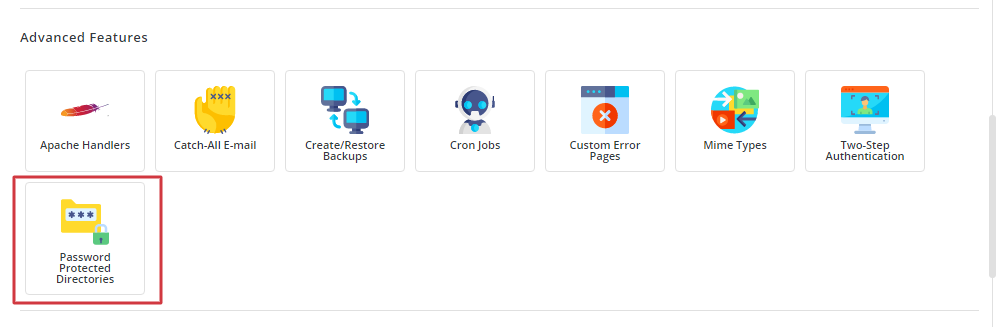
- Find Password Protected Directories. It is in the Advanced Features area or the main menu. Use the search box if needed.
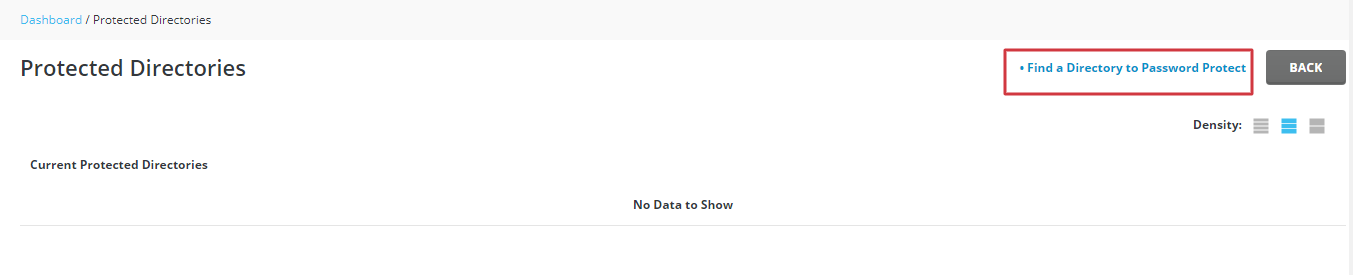
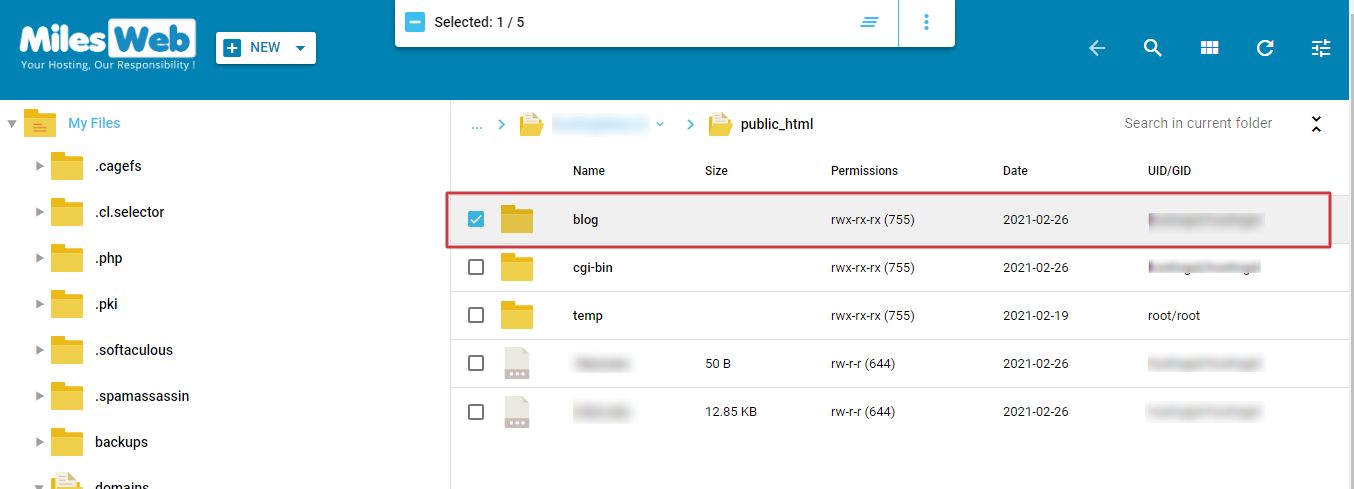
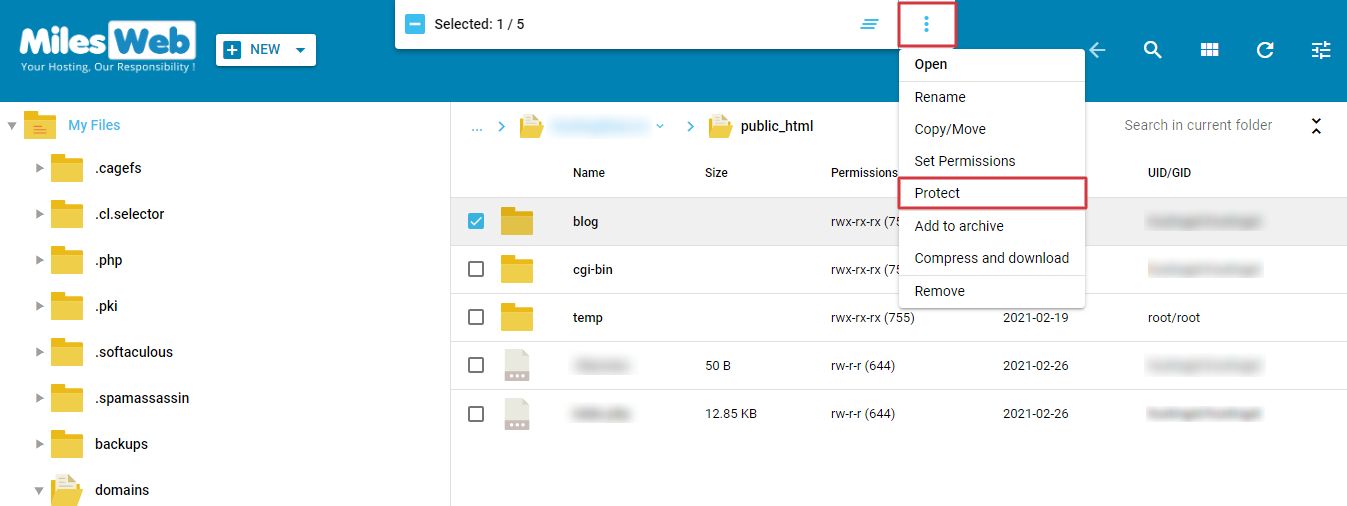
- You will see a folder tree of your site. Click the folder you want to lock. The main site folder is
public_html. - Tick the box Protect this directory with a password.
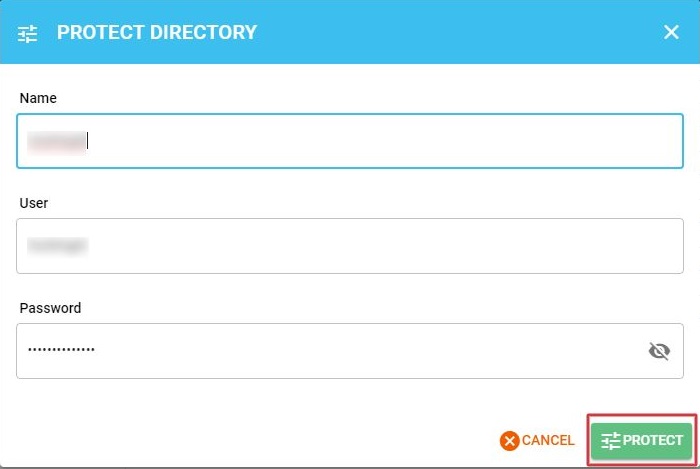
- Type a name in the Realm or title box. This text shows in the login box, for example "Private area".
- In the user section, type a user name.
- Type a password. Use a long mix of letters, numbers and symbols.
- Click Create or Add User.
- Click Save.
Test it
- Open a private browser window.
- Visit the folder address, for example
example.com/private. - A login box should appear.
- Type your new user name and password. The page should open.
Add more people
Go back to the same page and add another user name and password. Everyone in the list can log in. To remove a person, tick their name and click Delete.
Good to know
- The lock covers the chosen folder and all folders inside it.
- If you protect
public_html, the whole site is locked. Do this only for a test site. - Without SSL the password travels unscrambled. Use https if possible.
Tip: Do not lock the WordPress admin folder this way without testing. Some plugins and apps need to reach files inside it.
Quick recap
- Open Password Protected Directories and click the folder.
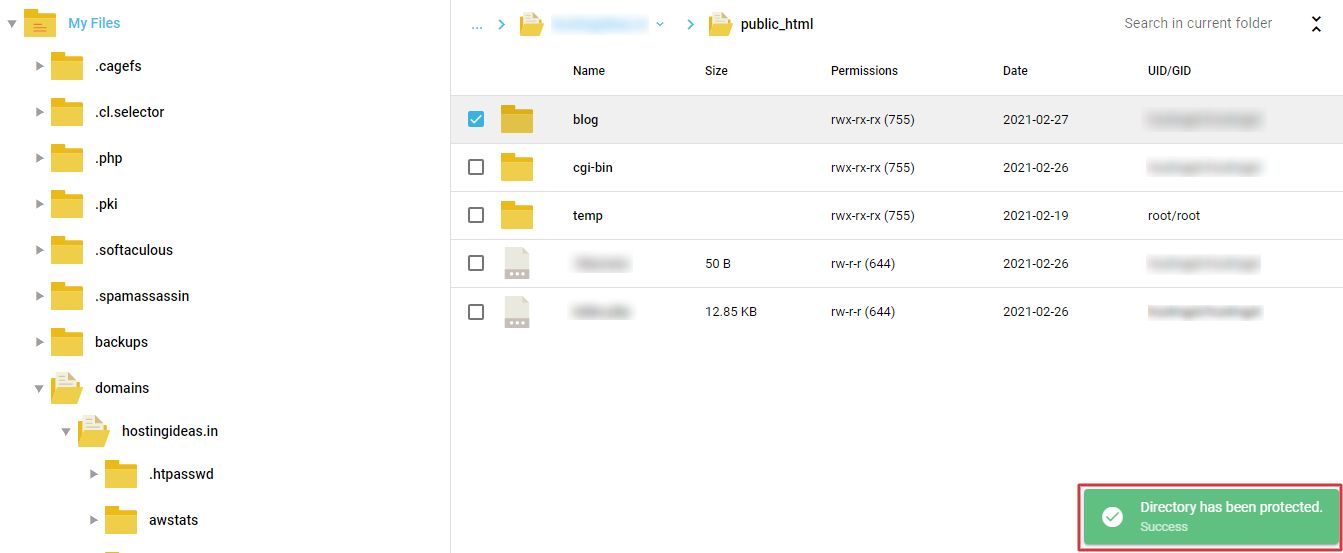
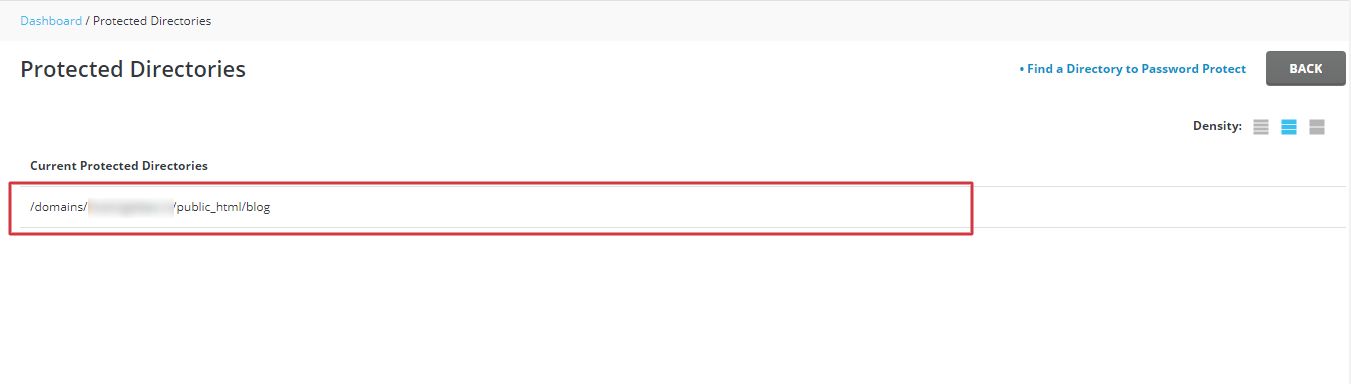
- Tick the protection box and add a user name and password.
- Click Save and test in a private window.
- Delete users or untick the box to remove the lock.