

What is Node.js?
Node.js lets you run JavaScript on a server, not only inside a browser. It is used to build web apps, chat tools and APIs. An API is a way for programs to talk to each other.
npm is the tool that installs add-on code packages for Node.js. A package is a ready-made piece of code you can reuse.
The Node.js Selector is a third-party feature. It may not be on every plan. Ask Hostvento support if it is on yours. If you cannot find it in your panel, it is probably not turned on.
Before you start
- Upload your app files with the File Manager or FTP. Put them in a folder outside
public_html, for examplenodeapp. - Know the name of your startup file. It is often
app.jsorserver.js.
Steps to create the app
- Log in to DirectAdmin.
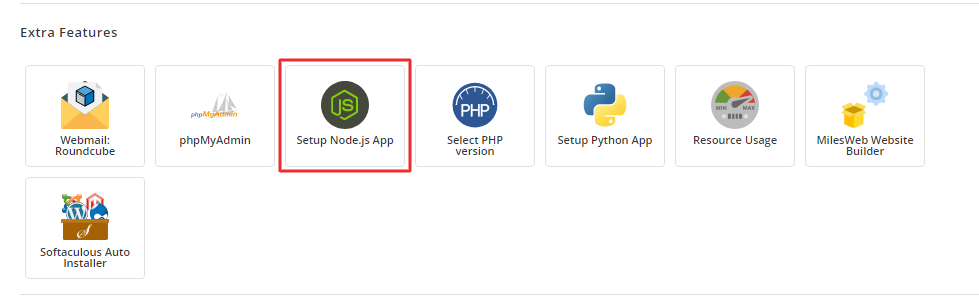
- Find Setup Node.js App in the menu. Use the search box if needed.
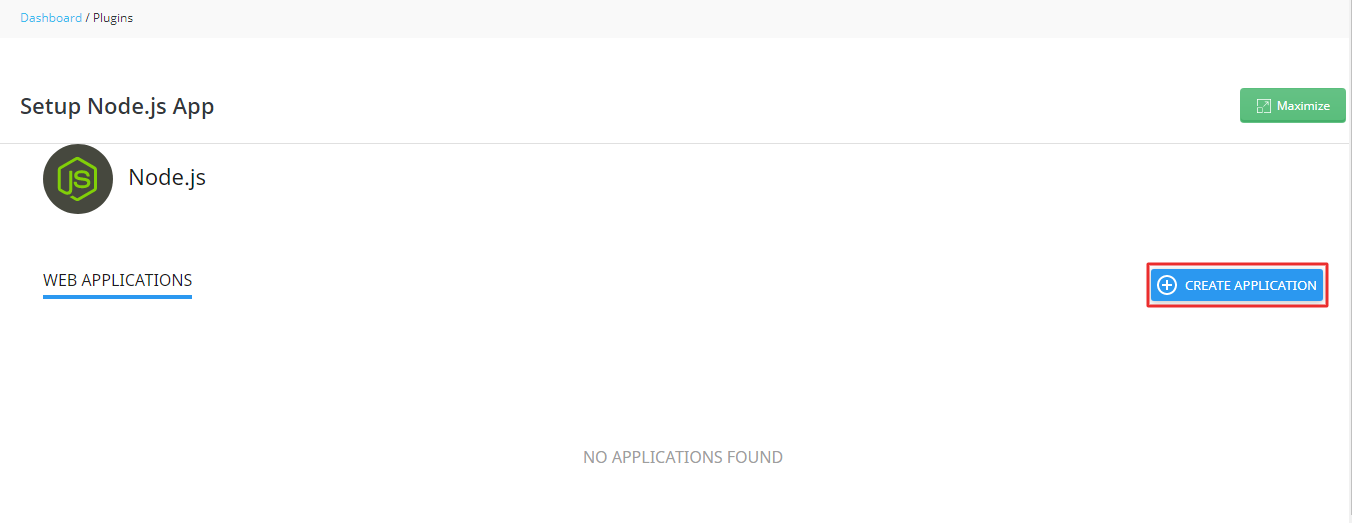
- Click Create Application.
- Choose the Node.js version. Pick one your app supports.
- Choose the Application mode. Use Production for a live site and Development for testing.
- Set the Application root. This is the folder with your app files, such as
nodeapp. - Set the Application URL. It is the web address where the app will show.
- Type the Application startup file, for example
app.js.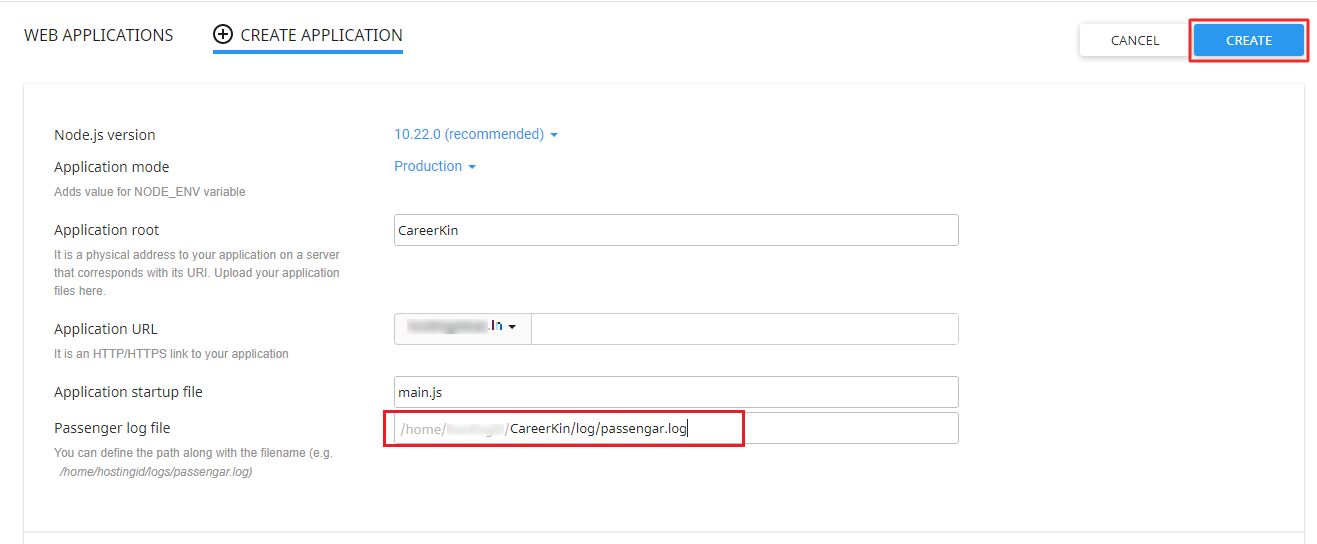
- Click Create.
Install packages
- Make sure your app folder has a
package.jsonfile. It lists the packages your app needs. - Open the app in the Node.js tool.


- Click Run NPM Install.
- Wait until it finishes.
Manage the app
- Restart after you change code or install packages.
- Stop to turn the app off.
- Edit to change the version, mode or URL.

- Destroy to delete the app setup. Back up your files first.
You can add environment variables in the same screen. They are settings like a database name, kept outside your code.
Test it
- Open the Application URL in your browser.
- If you see an error, check the log file in your app folder.
Tip: Do not hard-code a port number. The tool handles this for you through the server settings.
Quick recap
- Node.js runs JavaScript on the server.
- Use Setup Node.js App, then Create Application.
- Pick the version, mode, root folder, URL and startup file.
- Run NPM Install, then restart. Ask support if the tool is missing.