

What do we mean by uploading?
Uploading means copying a file from your computer to your hosting space. Think of it like putting a photo into a shared album. Once the file is there, other people can see it on the internet.
Where do website files go?
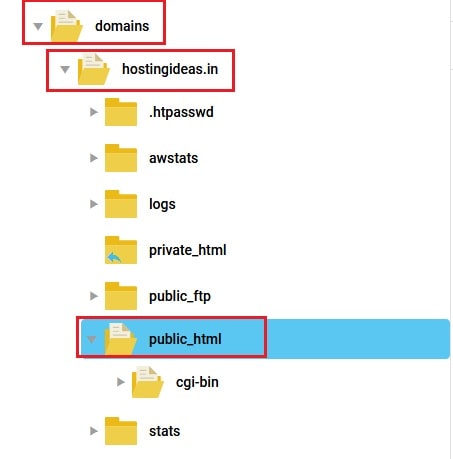
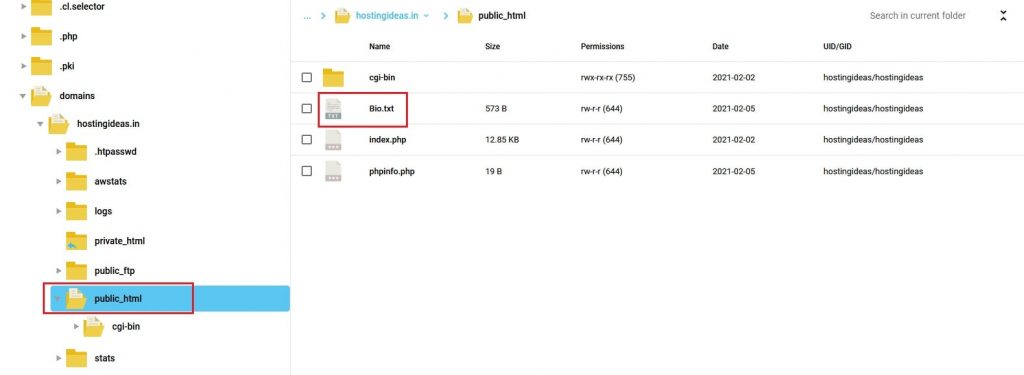
DirectAdmin is a control panel. That is a web page where you manage your hosting. Your website files live in a folder called public_html. A folder is like a drawer that holds files. Whatever you place inside public_html can be seen by visitors. For a main domain, the path is often domains/yourdomain.com/public_html. Replace yourdomain.com with your own domain name.
Steps to upload with File Manager
- Log in to DirectAdmin. Your login link and details are in your welcome email.
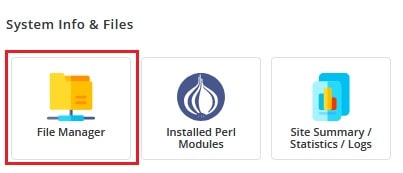
- In the Your Account area, click File Manager.
- Open the domains folder.
- Open the folder with your domain name.
- Open the public_html folder.
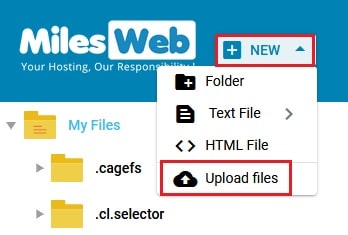
- Click the Upload Files button at the top.
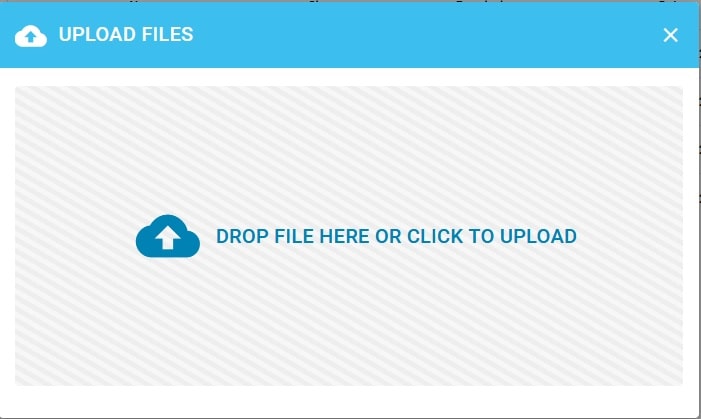
- Click Choose Files and select the files on your computer. You can also drag them into the box.
- Wait for the progress bar to finish.
Your files now show up in the list.
Uploading a whole website as a zip file
A zip file packs many files into one. It is faster to upload one zip than hundreds of small files.
- Make a zip of your website on your computer.
- Upload the zip into
public_htmlusing the steps above. - Click the zip file name in File Manager.
- Choose the option to Extract. This unpacks the files.
- Delete the zip file when you are done.
Check your site
Open your domain in a browser. If your main page is named index.html or index.php, it will load first. If you see an old page, press Ctrl and F5 to refresh.
Other ways to upload
You can also use FTP. FTP is a tool that moves files between your computer and your server. Ask Hostvento support if you need your FTP details.
Quick recap
- Uploading copies files from your computer to your hosting.
- Put website files inside
public_html. - Use File Manager and then Upload Files.


- Zip big sites and extract them on the server.
- Back up before replacing files.