

What is an email account?
An email account is a mailbox with its own address, like info@example.com. It has a password. Webuzo is a control panel, which is a web page where you manage your hosting. It lets you make and remove mailboxes.
Add an email account
- Log in to Webuzo. Your welcome email has the address and login. You can also check the Services menu in your client area.
- Find the Email section in the menu or search box.
- Click Email Accounts or Add Email Account.
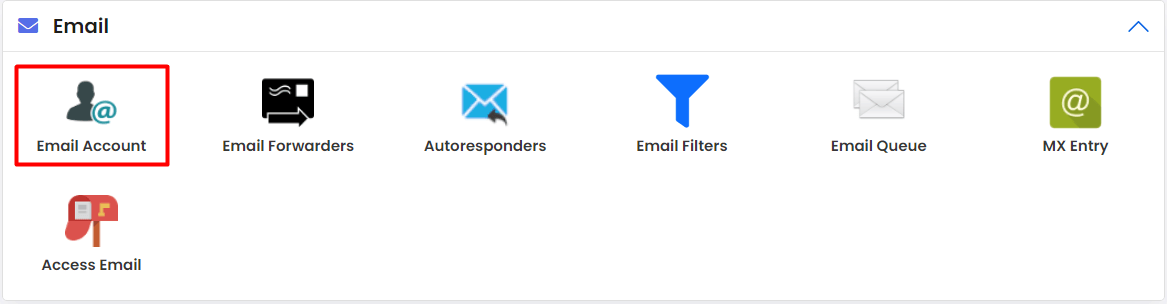
- Choose the domain from the list.
- Type the name before the @ sign, for example
info. - Type a strong password. Use a mix of letters, numbers and symbols.
- Set a mailbox size limit if the form asks.
- Click Create or Add.
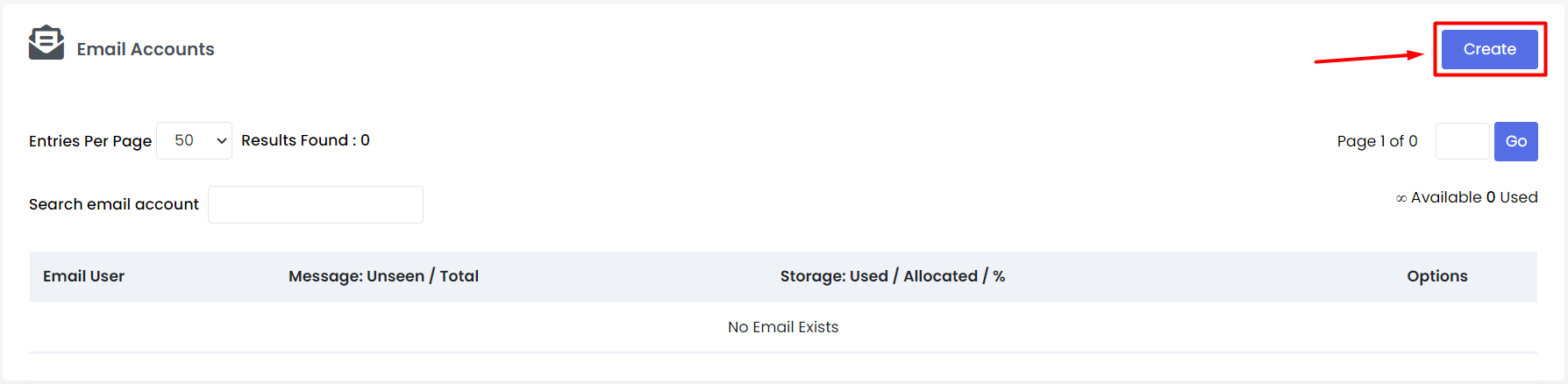
- Wait for the success message. The new address appears in the list.
You can now log in to webmail with the full address and password.
Delete an email account
Warning: Deleting an account removes every message in it. Download or forward any mail you want to keep first.
- Open the Email section again.
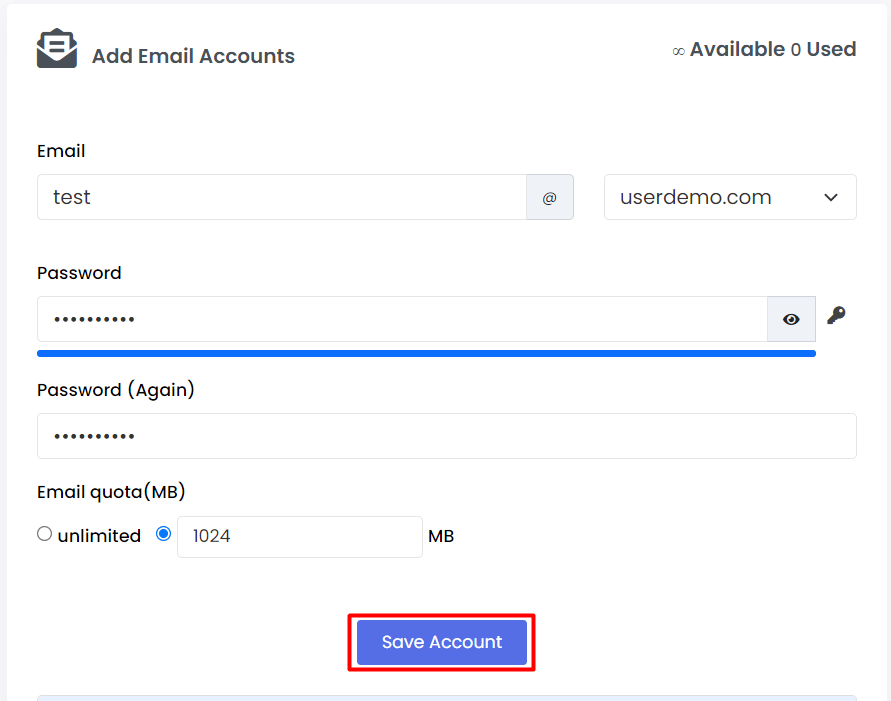
- Click List Email Accounts or the same Email Accounts page.
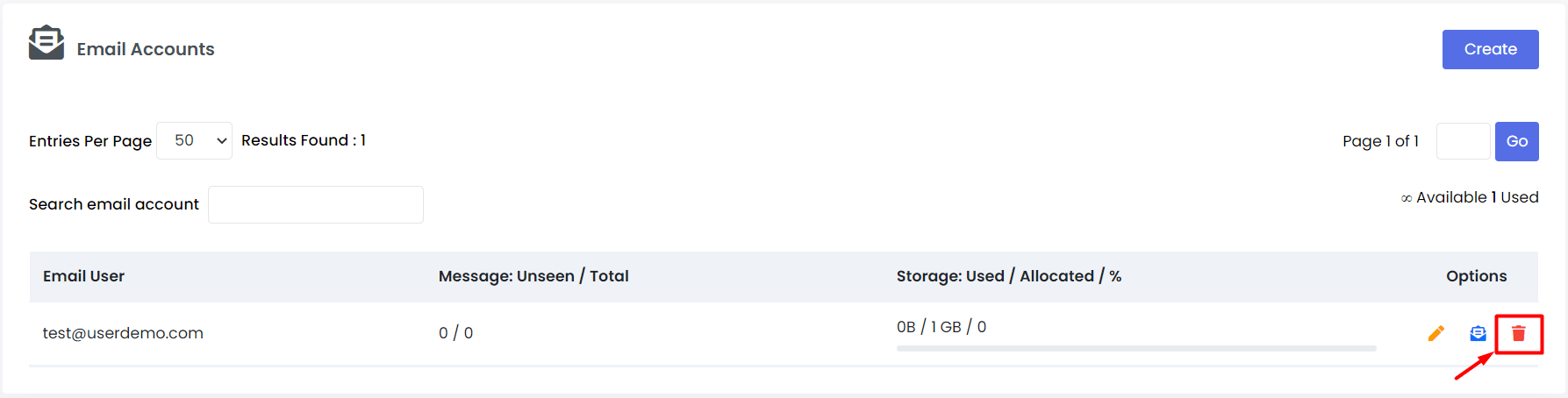
- Find the address you want to remove.
- Click the Delete icon or button beside it.
- Read the warning message.
- Click Yes or Confirm.
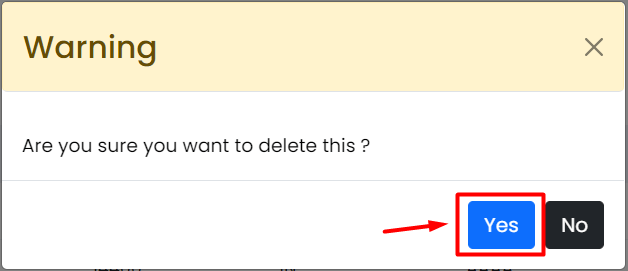
- Check that the address no longer shows in the list.
Change a password instead
If you only need a new password, do not delete the account. Use the edit or password option next to the address. This keeps all the mail.
Good habits
- Use one account per person or job.
- Never share passwords by email.
- Remove accounts for people who no longer need them.
Menu names can differ a little between Webuzo versions. If you cannot find an option, open a support ticket.
Quick recap
- Open Email in Webuzo and add an account with a name and password.
- Delete accounts from the same list.
- Deleting removes all messages, so save them first.
- Change the password instead if you only need access.