

What is a .pst file?
PST stands for Personal Storage Table. It is a single file that holds emails, contacts and calendar items. Think of it as a box with your old mail folders inside. You can make one as a backup, or to move your data to a new computer.
Before you start
- Copy the .pst file to your computer, for example to the Documents folder.
- Close other programs that use the file.
- Keep the original .pst file safe. Do not delete it until you have checked the import.
Steps
- Open Outlook.
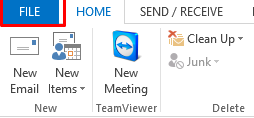
- Click File.
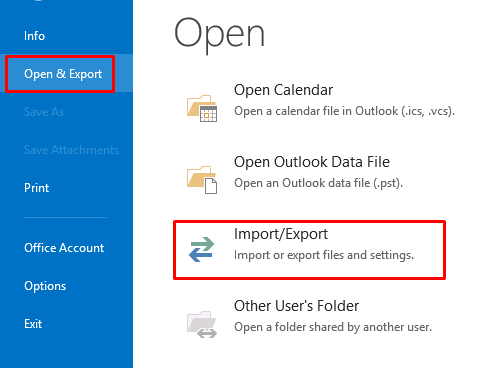
- Click Open & Export. In older versions this is Open.
- Click Import/Export.
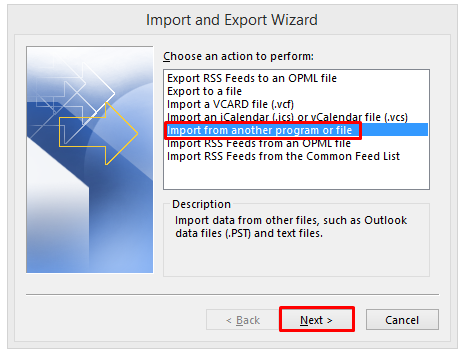
- Choose Import from another program or file. Click Next.
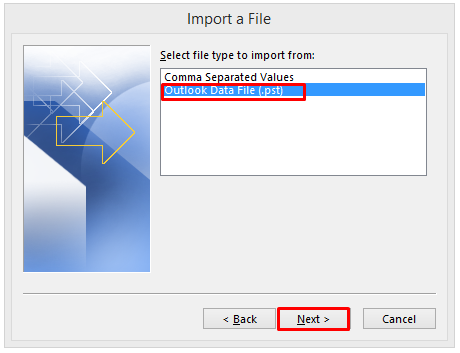
- Choose Outlook Data File (.pst). Click Next.
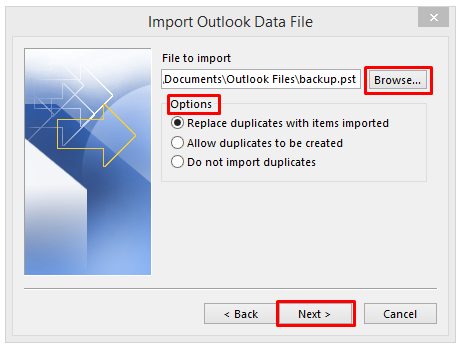
- Click Browse and find your .pst file.
- Pick how to handle duplicates. Do not import duplicates is the safest choice.
- Click Next.
- If the file has a password, type it.
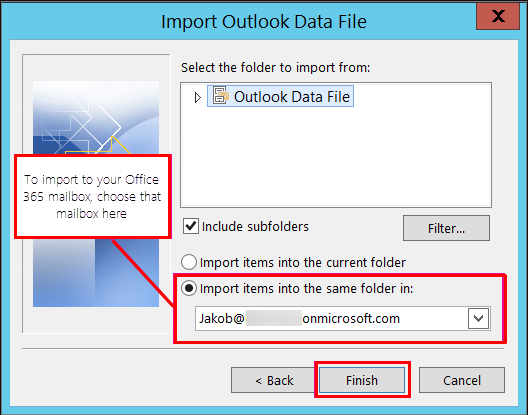
- Choose the folder to import. Select the top level to import everything. Keep Include subfolders ticked.
- Choose to import into the current folder, or into the same folders in your mailbox.
- Click Finish.
Large files can take many minutes. Wait until the progress window closes.
Check your data
- Open the Mail view and look through your folders.
- Click the People or Contacts icon and check your contacts.
- Click the Calendar icon and check your dates.
Another way: open the file without importing
- Click File, then Open & Export, then Open Outlook Data File.
- Pick the .pst file.
- It shows as a new folder list on the left side.
You can drag items from there into your own folders.
Tip: If you cannot import a file from an old Outlook, it may be damaged or very large. Ask your IT helper, or Hostvento support, for ideas.
Quick recap
- A .pst file stores mail, contacts and calendar.
- Use File, Open & Export, Import/Export.
- Choose Outlook Data File (.pst) and follow the wizard.
- Check mail, contacts and calendar afterwards.