

What is an email template?
An email template is a ready-made message. Webuzo sends it on its own when something happens. For example, it can send a welcome message when a new user is made. A template holds fixed text. It also holds placeholders. A placeholder is a blank that the system fills in, like a name or a date.
Webuzo is a control panel. It is a web page where you manage a server. Template editing is found in the admin side, so it needs the admin (root) login.
Warning: Do not delete placeholder codes you do not understand. The email may then show wrong or missing details. Copy the original text to a notepad before you change it.
Steps
- Log in to the Webuzo admin panel. This is the one for your server, not for a single user.
- Use the search box at the top. Type Email Templates.
- Click Email Templates in the results.
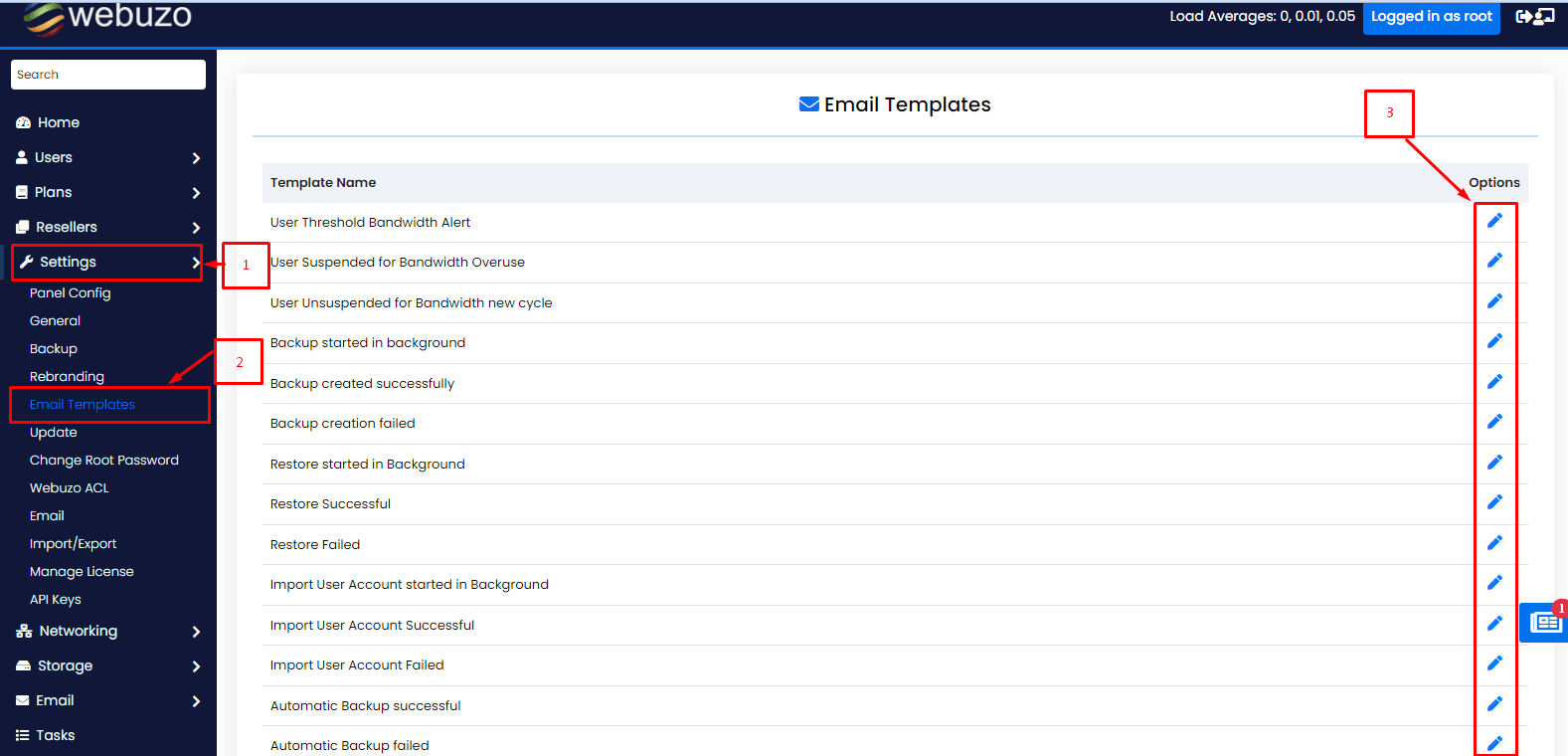
- A list of templates opens. Each row is one type of email.
- Click Edit next to the template you want to change.
- Change the Subject. This is the title line of the email.
- Change the message body. Keep the placeholders in place. They usually sit between special marks such as curly brackets.
- Click Save or Submit.
Adding a new template
If your version has an Add or Add Template button, you can make a new one.
- Click the Add button.
- Give the template a name.
- Type a subject.
- Type the message.
- Click Save.
Some versions only let you edit the built-in templates. Then edit the closest one.
Test your change
- Do the action that triggers the email, for example create a test user.
- Open the inbox that should receive the message.
- Check the text and the filled-in details.
- Look in your spam folder if it does not arrive.
Tip: Keep the message short and clear. Write as you would speak to a friend.
Menu names may differ slightly. If you are stuck, open a support ticket.
Quick recap
- A template is a ready-made automatic email.
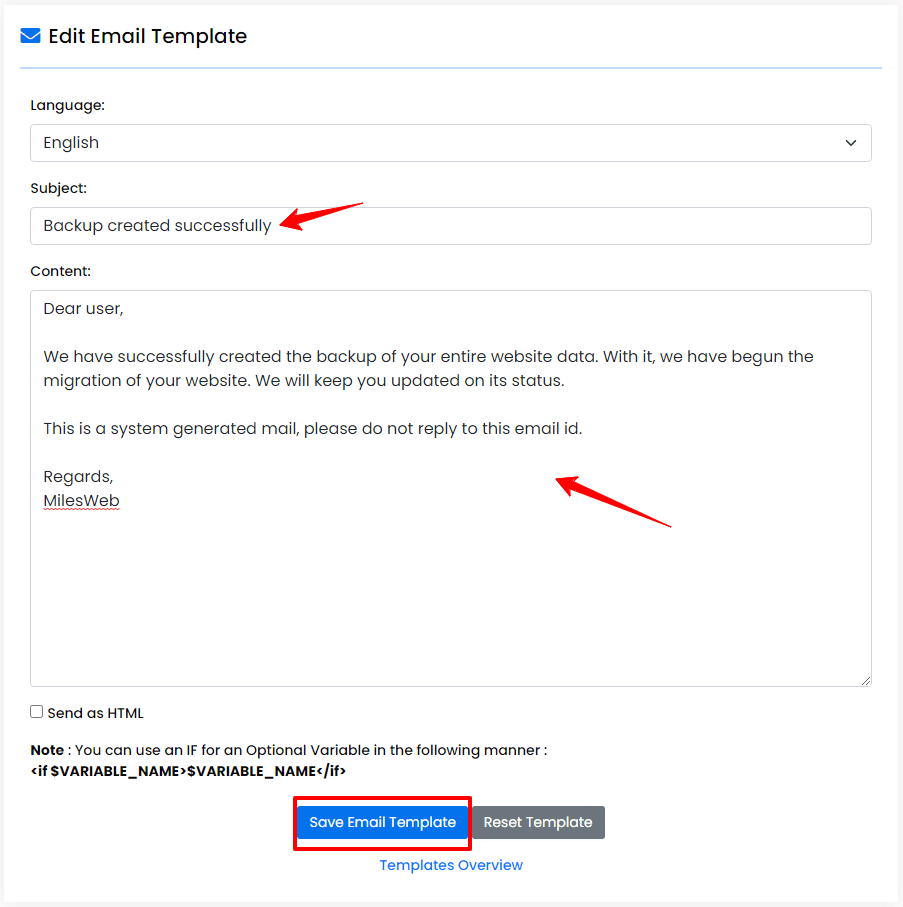
- Find Email Templates in the Webuzo admin panel.
- Edit the subject and body but keep the placeholders.
- Save a copy of the old text and send a test.