What is an email filter?
A filter is a rule for your inbox. It is like a helper who sorts your mail. You tell the helper what to look for. You also say what to do. For example, "if the sender is my boss, put the mail in the Work folder". Webmail is a way to read email in a browser. A folder is a place to keep related messages together.
The steps below use Roundcube, a common webmail program. Other programs look similar, but names can differ.
Steps in Roundcube
- Log in to webmail. Go to your domain followed by
/webmail. Use your full email address and password. - Choose Roundcube if you are asked to pick a program.
- Click Settings at the bottom or top of the left menu.
- Click Filters. If you do not see it, filters may be set in cPanel instead. See below.
- Click the + or Create button.
- Type a name for the filter, such as "Newsletters".
- Under the rule, pick what to check. Choices include From, Subject and To.
- Pick how to match. For example, contains.
- Type the word or address to look for.
- Under actions, pick what should happen. You can move the message to a folder, delete it, or forward it.
- Click Save.
Warning: Be careful with a rule that deletes mail. A rule that is too wide can delete real messages. Move to a folder first, and check it for a few days.
Filters in cPanel
If webmail has no Filters menu, use cPanel.
- Log in to cPanel. You can find it in the Services menu of your client area.
- Open Email Filters in the Email section.
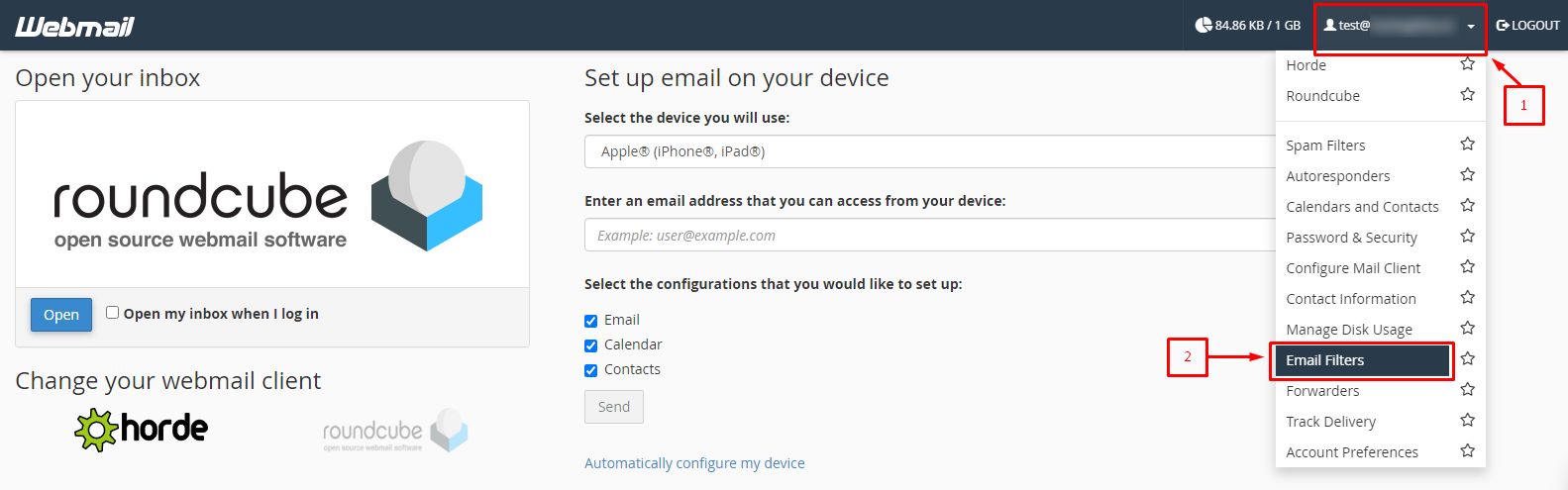
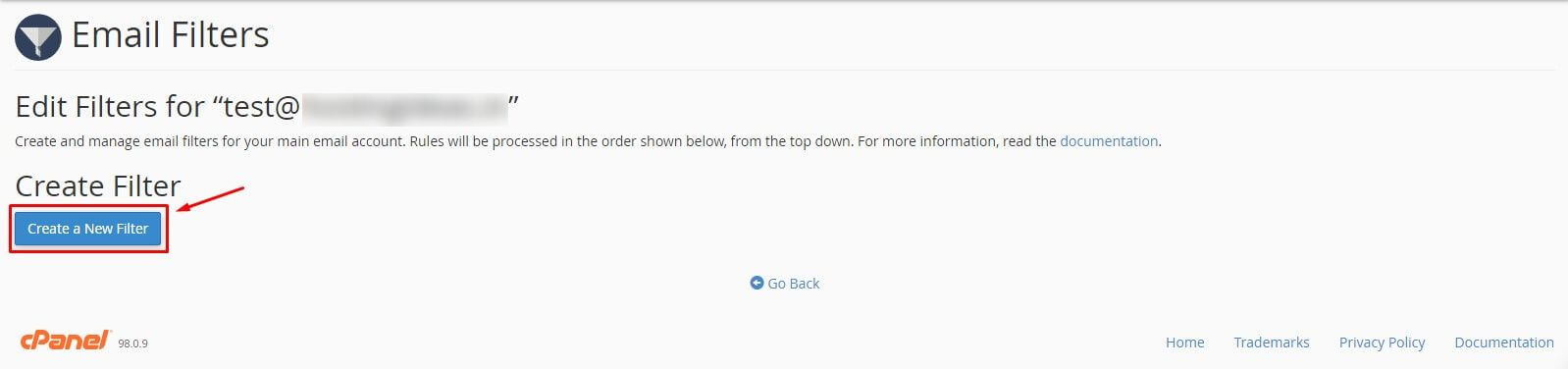
- Click Manage Filters next to your address.
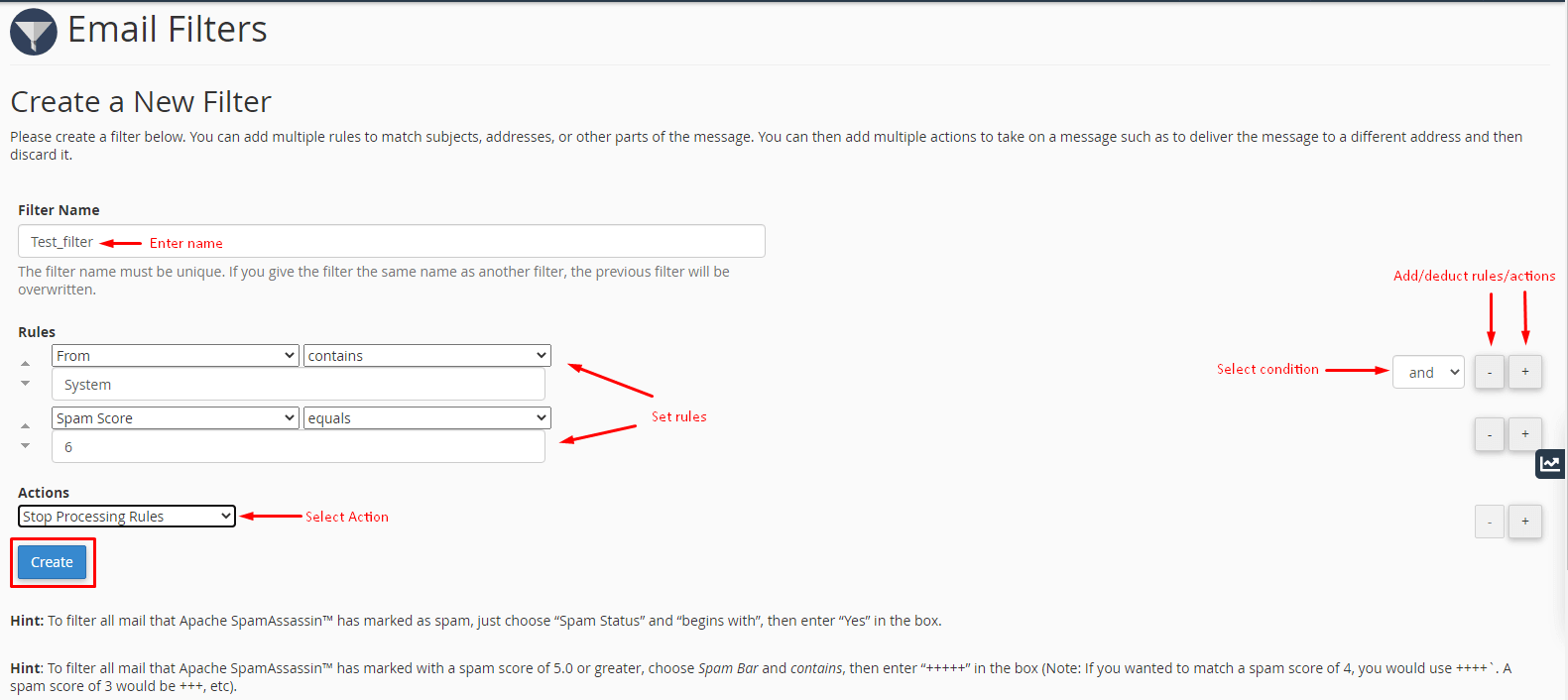
- Click Create a New Filter and fill in the rule and action.
- Click Create.
Test the filter
Send yourself a message that matches the rule. Check that it goes where you expect. Edit the rule if not.
Need a hand? Open a support ticket.
Quick recap
- A filter sorts incoming mail by a rule.
- In Roundcube, use Settings then Filters.
- Pick a condition and an action, then save.
- Test it, and avoid rules that delete mail at first.