

What is an email filter?
An email filter is a rule for incoming mail. It works like a sorting helper at a post office. You tell it what to look for, such as a certain sender or a word in the title. You also tell it what to do, such as moving the mail to a folder or deleting it.
Webuzo is a control panel. It is a web page where you manage your hosting and your email.
Steps
- Log in to Webuzo. Your welcome email has the address and login. You can also check the Services menu in your client area.
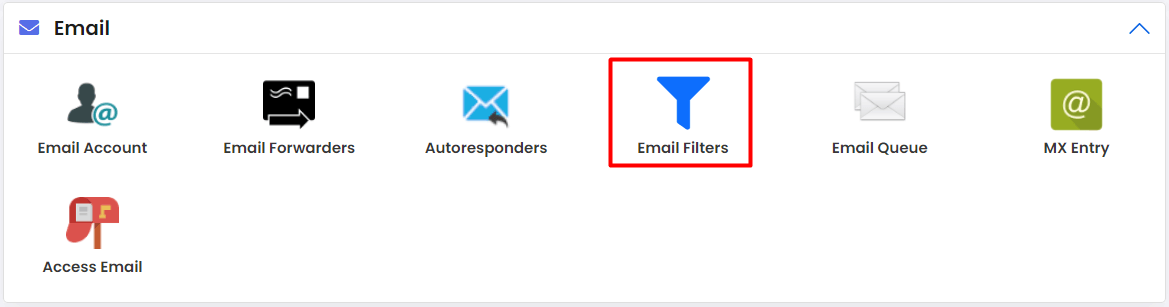
- Open the Email section, or type Filters in the search box.
- Click Email Filters.
- Choose the email account the rule will apply to.
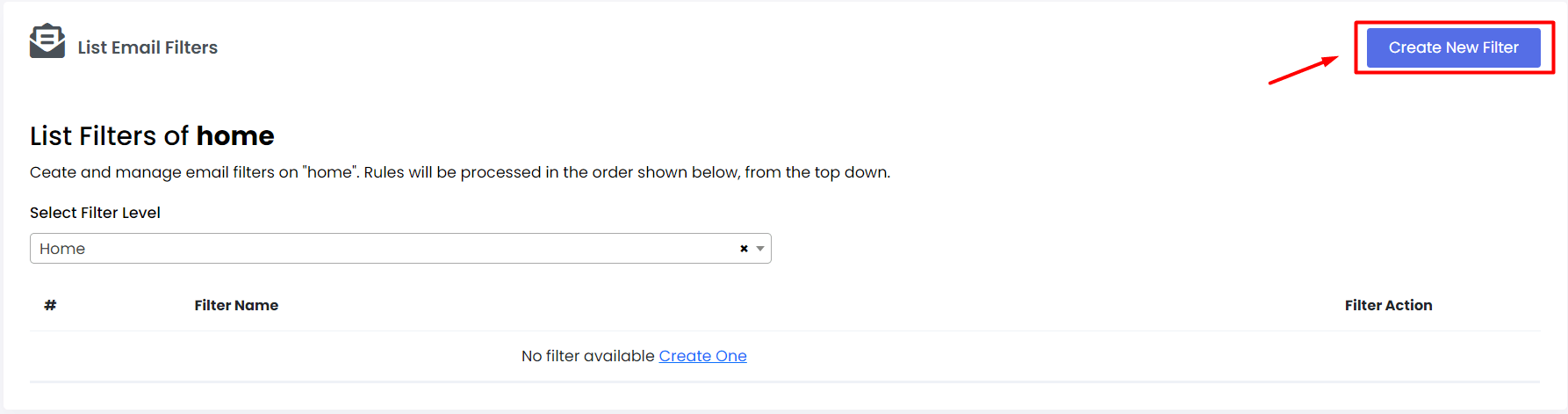
- Click Create a New Filter or Add Filter.
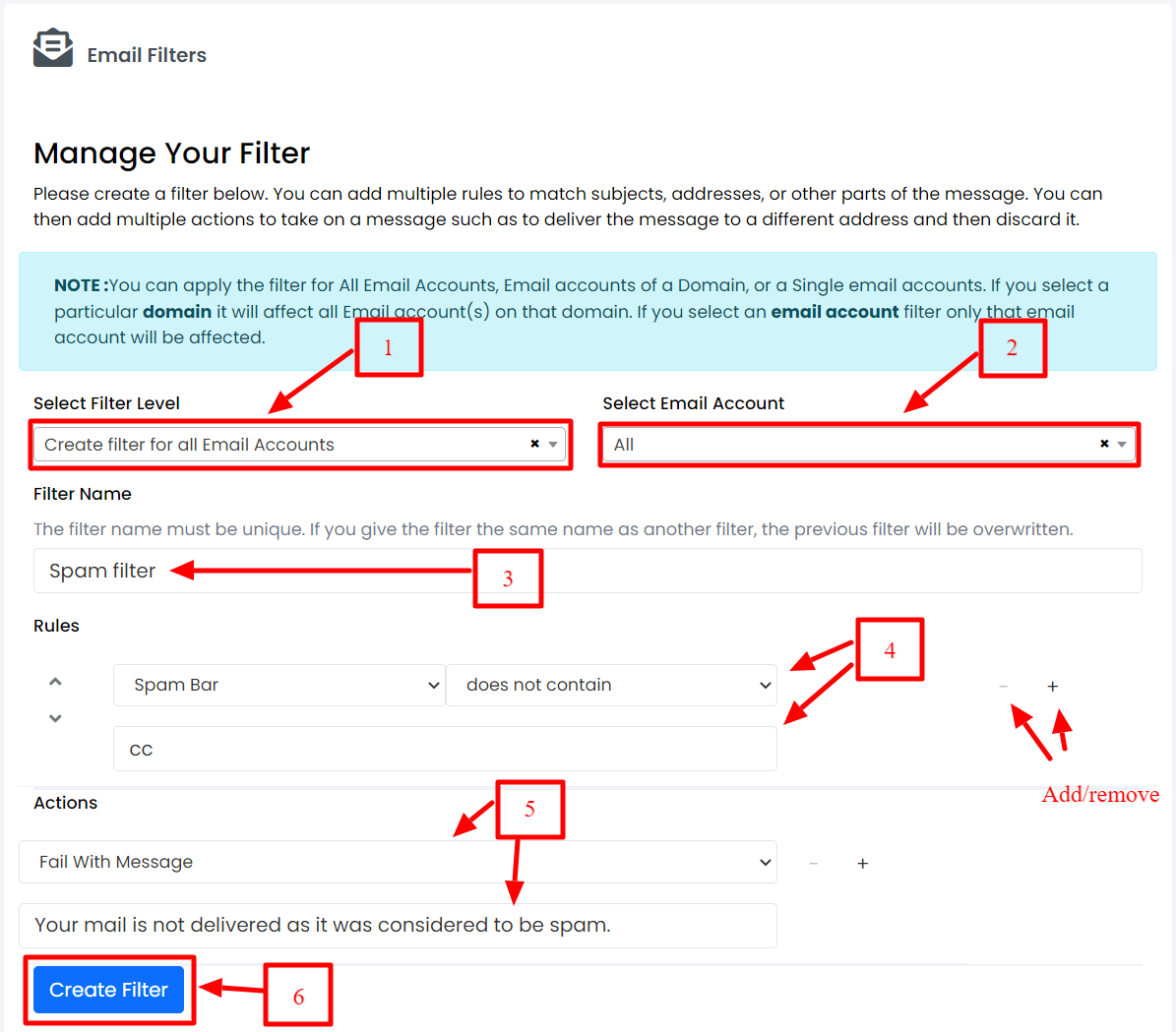
- Type a clear name, like "Block shop offers".
- Set the rule. First pick the part of the mail to check. Choices include From, Subject, To and Body.
- Pick how to match. Choices include contains, equals and begins with.
- Type the word or address to look for.
- Set the action. You can Deliver to folder, Discard (delete), Forward to an address, or Fail (bounce back).
- Click Create or Save.
Warning: The discard action deletes mail for good. Use a folder first. Check that the rule catches only what you want.
Example
You want to keep your inbox clean from a store's offers.
- Pick From.
- Pick contains.
- Type
@shopname.com. - Choose Deliver to folder and pick a folder like Offers.
Edit or remove a filter
- Go back to Email Filters and open your account.
- Find the filter in the list.
- Click Edit or Delete.
Test it
Send a test message that matches the rule from another address. Check where it lands.
Menu names may differ a bit between versions. If you cannot find the option, open a support ticket.
Quick recap
- A filter sorts incoming email by a rule.
- Open Email then Email Filters in Webuzo.
- Pick what to check, how to match and what to do.
- Prefer folders over discard, and test your rule.