

Why add a picture?
Your Gmail profile picture appears next to your name when you send an email. It also shows in Google Drive, Meet and Contacts. A clear photo makes your mail look more trusted and personal.

Steps
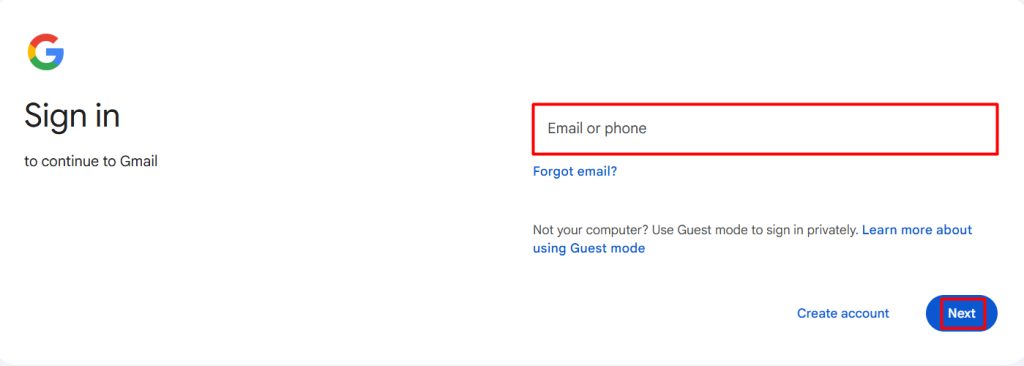
- Open Gmail and sign in with your address and password.
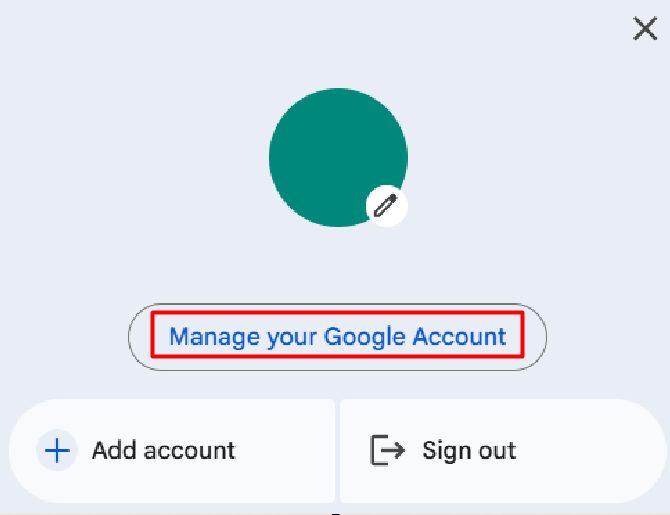
- Click your profile icon in the top right corner. Choose Manage your Google Account.
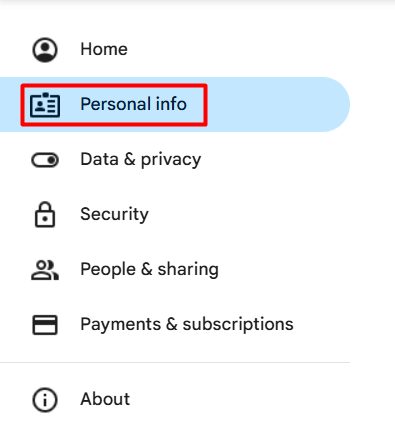
- Open Personal info.
- Under Profile, click the picture or the icon.
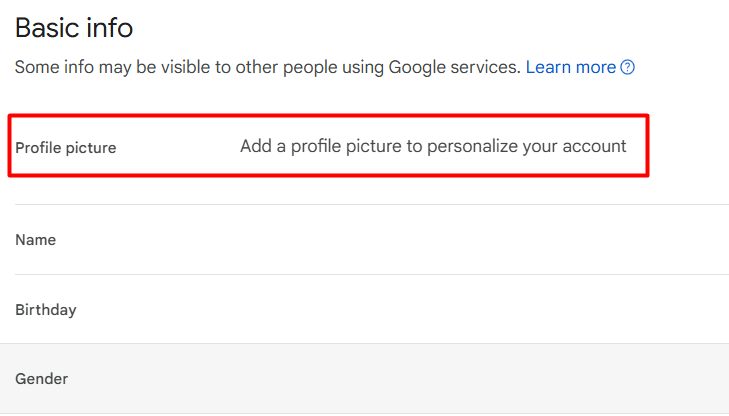
- Click Upload photo. You can also pick a photo from Google Photos or Google Drive.
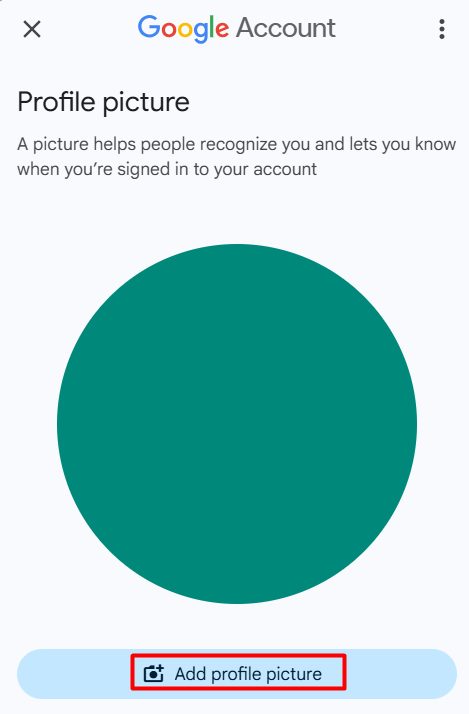
- Crop the photo if needed. Click Save as profile picture.
If something goes wrong
- The old picture still shows. Clear your browser cache, open Gmail in a private window, or sign out and in again.
- Other people cannot see it. In your Google account settings, set the picture to be visible to anyone. Save the change.
- The picture is blurry or cut off. Upload a sharp, square JPG or PNG.
Quick recap
- Go to Manage your Google Account, then Personal info.
- Click your picture and upload a square photo.
- Clear the cache if the old picture stays.