

Why back up emails?
A backup is a safe copy. If a mailbox is deleted or broken, you can bring the mail back from your copy. cPanel is your hosting control panel. Webmail is a way to read email in a browser. Your mail is stored on the server inside folders. You can copy those folders.
Warning: Restoring over an existing folder can replace files. Take a fresh backup first. Do not delete a mailbox until you have checked your copy.
Method 1: back up with an email program
This is the easiest way. You add the mailbox to a program like Thunderbird. It downloads all messages. Those messages are then stored on your computer.
- Install Thunderbird on your computer.
- Add your email account using IMAP. IMAP keeps messages on the server and shows them in your program. Use the mail server details from your welcome email.
- Wait for the folders to download.
- Drag the messages you want into a Local Folders folder. This is your backup copy.
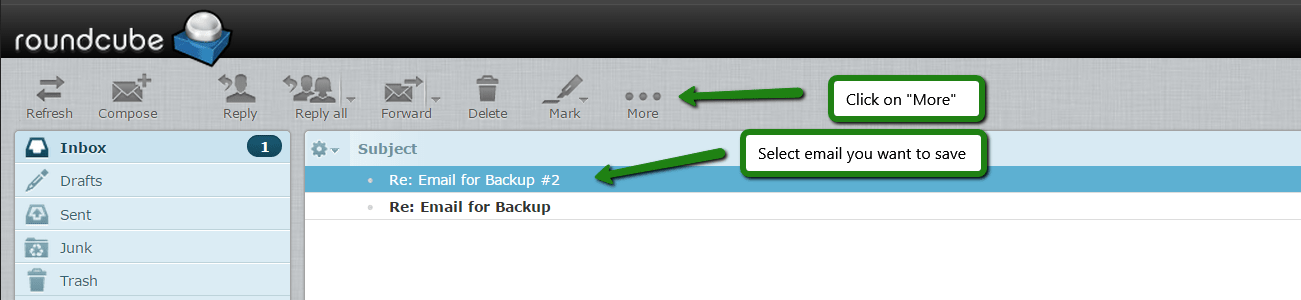
Method 2: back up from cPanel
- Log in to cPanel. You can reach it from the Services menu in your client area.
- Open Backup in the Files section.
- Under Partial Backups, find the email options. Click Email Forwarders and Email Filters to save those settings.
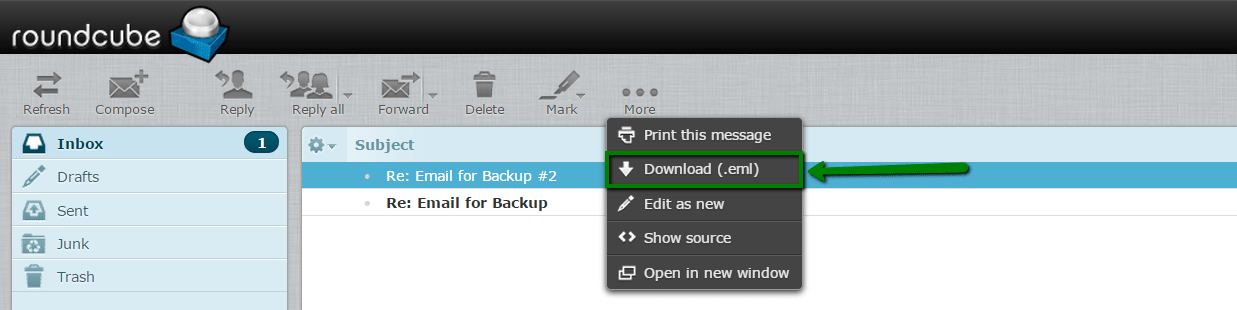
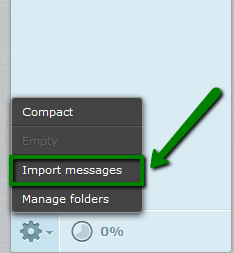
- For the mail itself, open File Manager.
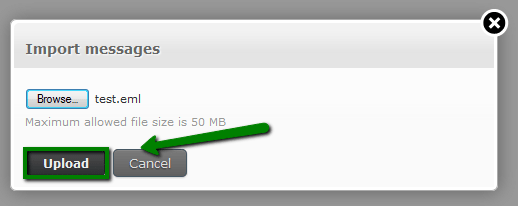
- Go to the
mailfolder in your home directory. - Right-click the folder for your domain and choose Compress.

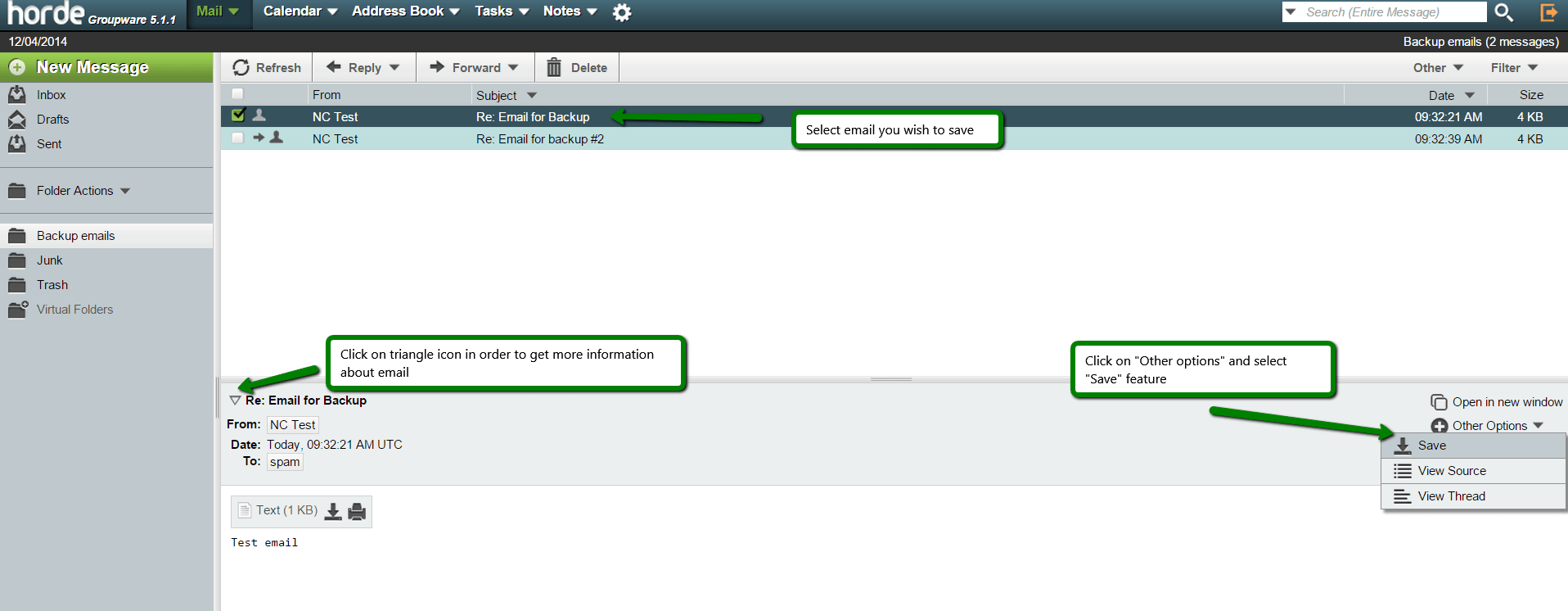
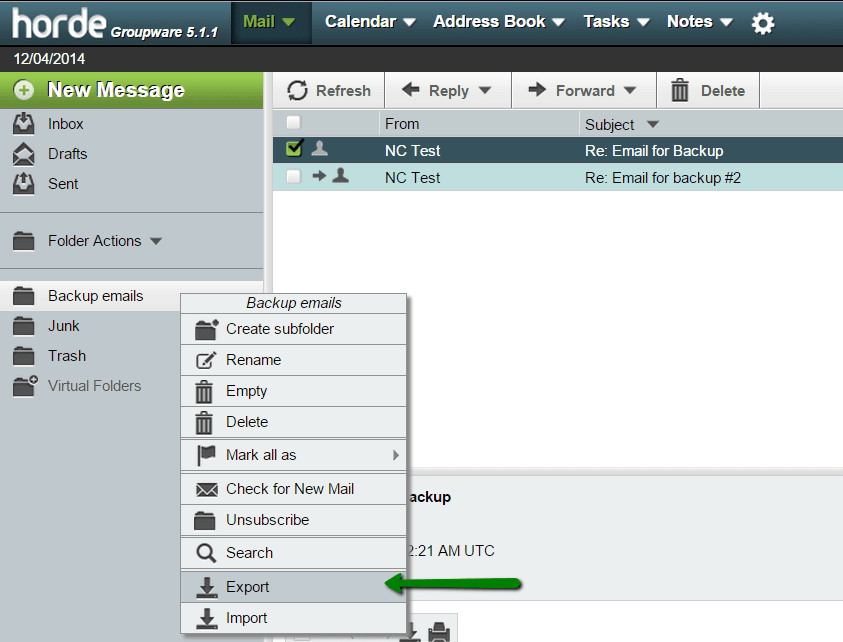
- Choose Zip Archive and click Compress File(s).
- Download the zip file to your computer.
You can also choose Full Backup to get everything, including mail. This makes a large file.

Restore your emails
- In Thunderbird, drag messages from Local Folders back into the mailbox folders. This uploads them again.
- Or in cPanel File Manager, upload your zip file to the
mailfolder.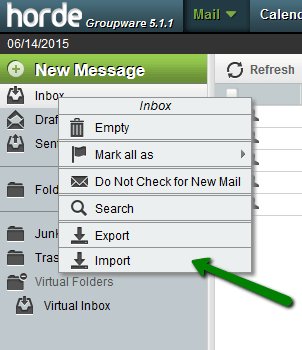
- Right-click the zip and choose Extract.
- Open webmail and check the messages are back.
For forwarders and filters, use the restore upload boxes on the Backup page.
Tip: For help with a full restore, open a support ticket. Ask what backups are kept on your plan.
Quick recap
- A backup is a safe copy of your mail.
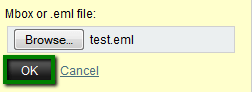
- Use an email program with IMAP, or zip the mail folder in File Manager.

- Restore by dragging mail back or extracting the zip.
- Always test your copy before deleting anything.