

What is a PST file?
Outlook can pack your emails into a single file. This file ends in .pst. Think of it like a box that holds all your letters. You can keep the box on a USB stick or in cloud storage. Later you can open the box again in Outlook.
A backup is a spare copy. If your computer breaks or you delete mail by mistake, the spare copy saves you.
Steps to export your emails
The menu names below match Outlook 2016 and 2019. Newer versions look a little different but work in a similar way.
- Open Outlook.
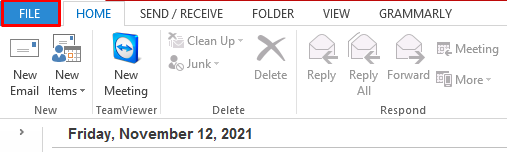
- Click File in the top left corner.
- Click Open & Export.
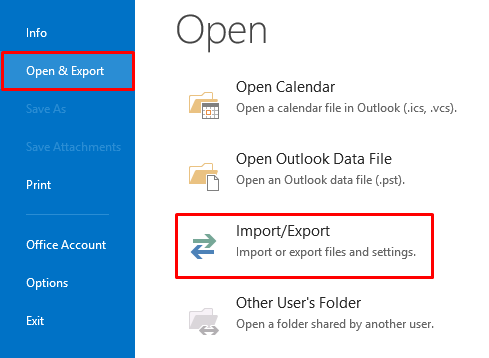
- Click Import/Export. A small window opens.
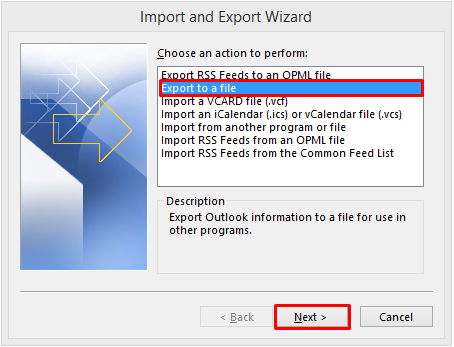
- Choose Export to a file and click Next.
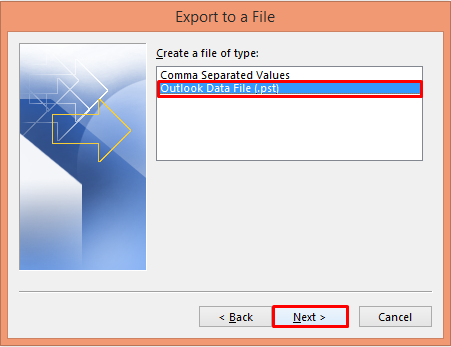
- Choose Outlook Data File (.pst) and click Next.
- Pick the email account or folder you want to save. To save everything in the account, click the account name at the top.
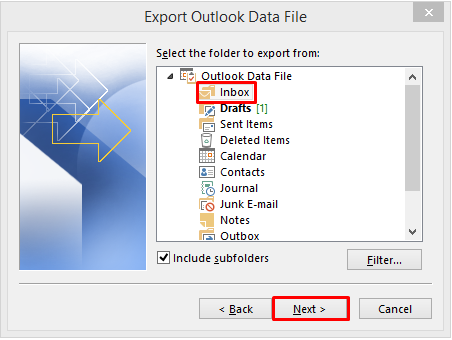
- Tick Include subfolders. This keeps all your folders inside the backup.
- Click Next.
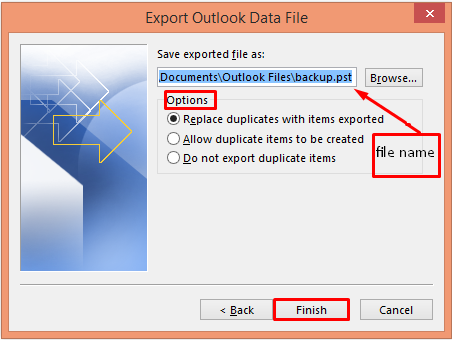
- Click Browse and choose where to save the file. Pick a folder you can find again, such as Documents.
- Under the options, choose Replace duplicates with items exported if you are saving over an old backup. Otherwise keep the default.
- Click Finish.
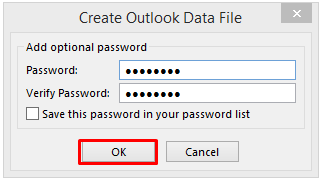
- Outlook may ask for a password. You can type one or leave it blank. If you set one, write it down. You cannot open the file without it.
- Click OK. Wait until Outlook finishes.
.pst file to a second place, like an external drive. Two copies are safer than one.How to restore the backup later
- Go to File, then Open & Export, then Import/Export.
- Choose Import from another program or file and click Next.
- Choose Outlook Data File (.pst) and click Next.
- Browse to your backup file and click Next, then Finish.
Good to know
If your account uses IMAP, your mail also stays on the mail server. IMAP means Outlook shows mail that lives on the server. A PST backup is still useful, because it is a copy you control. If you are not sure which type your account is, ask Hostvento support through a ticket at https://secure.hostvento.com/submitticket.php.
Quick recap
- A PST file is one file that holds your Outlook emails.
- Use File, Open & Export, Import/Export, then Export to a file.
- Tick Include subfolders so nothing is missed.
- Save the file in a place you remember and keep a second copy.
- If you set a password, write it down.