

What is webmail?
Webmail is email that you read in a web browser. You do not need an email program on your computer. You type your email address and password on a web page, and your inbox opens.
Why you may not have cPanel access
cPanel is the control panel where the website owner manages the hosting. Often only the owner has that login. If you are just an email user, you can still change your own password inside webmail.
Steps
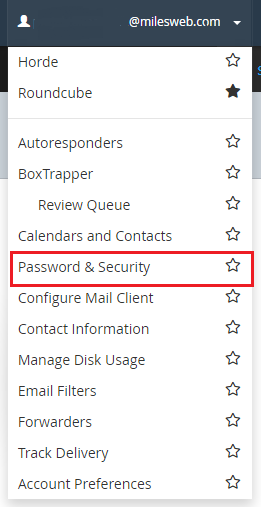
These steps use Roundcube, a common webmail tool. Horde looks a bit different. Look for a similar Password option there.
- Open your webmail page. Your welcome email or website owner can give you the link. You can also try
yourdomain.com/webmail. - Sign in with your full email address and current password.
- Click Settings in the left menu or at the top.
- Click Password.
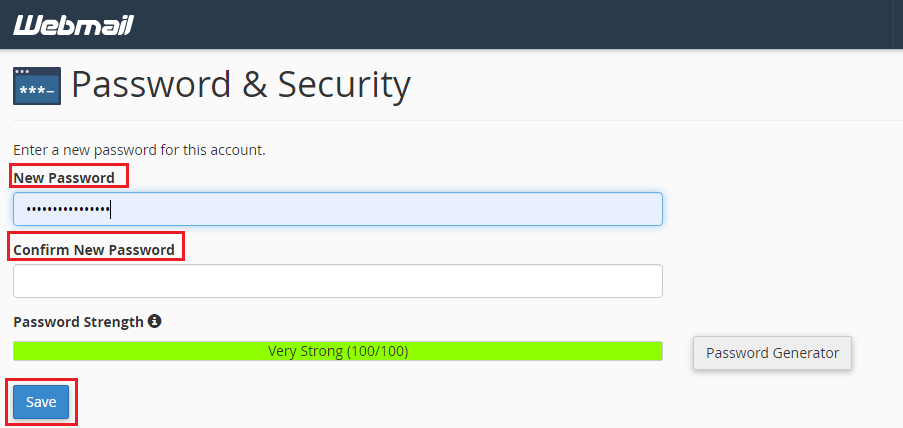
- Type your current password in the first box.
- Type your new password in the next box.
- Type the new password again to confirm it.
- Click Save.
You should see a message that says the password was changed.
Make a strong password
- Use at least 12 characters.
- Mix capital letters, small letters, numbers and symbols.
- Do not use your name, birthday or the word "password".
- Do not reuse a password from another site.
If you do not see a Password option
Some setups hide this option. In that case, ask the website owner to change it in cPanel. If you are the owner and cannot get in, open a support ticket at https://secure.hostvento.com/submitticket.php.
Quick recap
- Webmail lets you read email in a browser.
- Sign in, then go to Settings and Password.
- Type the old password, then the new one twice, and click Save.
- Update the password on your phone and email programs afterward.
- If the option is missing, ask the owner or Hostvento support.