

These versions are older now. Newer Outlook versions work in a similar way.
What you need first
- Your full email address.
- Your email password.
- Your incoming and outgoing mail server names. They are in your welcome email. In cPanel, open Email Accounts and click Connect Devices.
What are IMAP and POP3?
Both are ways for Outlook to fetch your mail. IMAP leaves mail on the server and shows it in Outlook. You can read the same mail on your phone too. POP3 downloads mail to your computer. IMAP is best for most people.
Steps
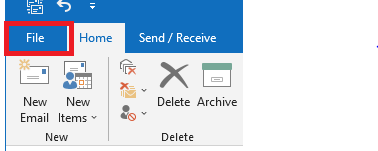
- Open Outlook.
- Click File.
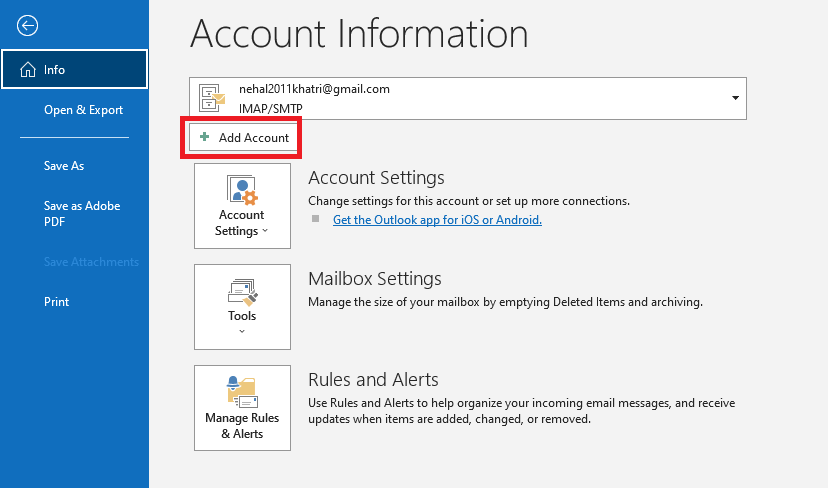
- Click Add Account.
- Type your email address.
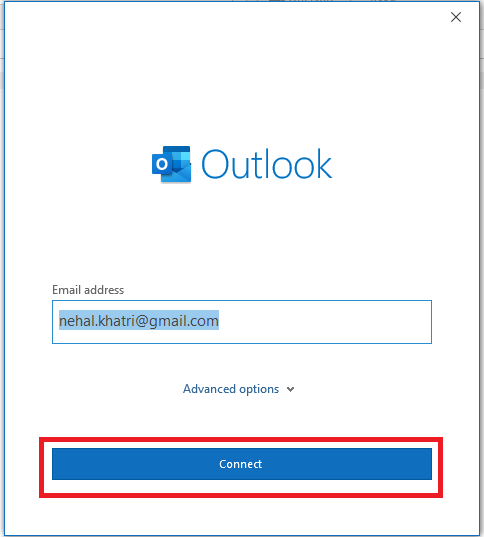
- Click Advanced options and tick Let me set up my account manually.
- Click Connect.
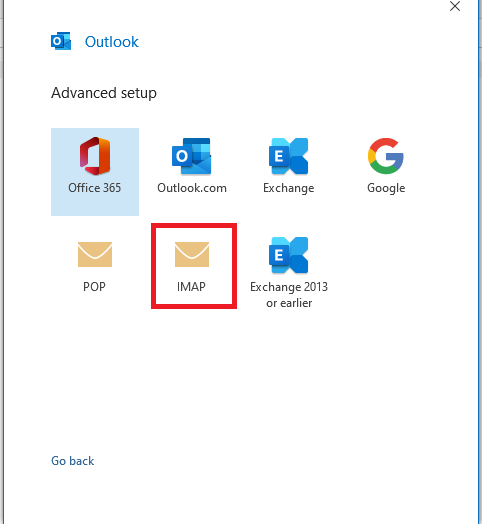
- Choose IMAP.
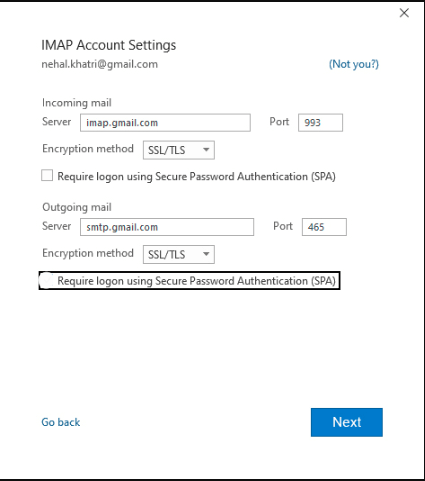
- On the settings screen, fill in the incoming mail section. Type your incoming server name. For SSL, the usual port is
993and the encryption method is SSL/TLS. - Fill in the outgoing mail section. Type your outgoing server name. For SSL, the usual port is
465and the method is SSL/TLS. - Click Next.
- Type your email password and click Connect.
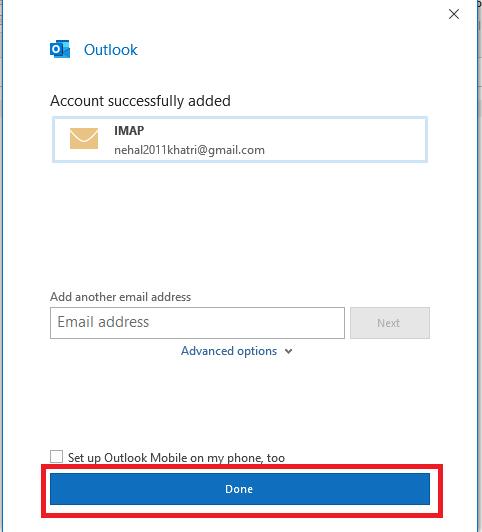
- If Outlook shows a message that the account was added, click Done.
Use the ports in your welcome email if they differ from the ones above.
Test your account
- Click New Email.
- Send a short message to yourself.
- Wait a minute and check that it arrives in your inbox.
Tip: If Outlook says the server needs login to send, go to File, Account Settings, double-click your account, click More Settings, open the Outgoing Server tab and tick My outgoing server (SMTP) requires authentication.
If it does not work
- Try the same login in webmail.
- Check the server names and ports for typing mistakes.
- Use the full email address as the user name.
- Check that your internet works.
Still stuck? Open a ticket at https://secure.hostvento.com/submitticket.php.
Quick recap
- Gather your address, password and server names first.
- Use File, Add Account and choose manual setup.
- Pick IMAP and fill in incoming and outgoing servers.
- Use SSL/TLS with the ports from your welcome email.
- Send a test mail to yourself.