

How it works
Gmail can fetch mail from another mailbox. It uses a method called POP3, which copies new mail into Gmail. Gmail can also send mail as your domain address. It does this through SMTP, which is the system that carries outgoing mail, like a post office.
What you need first
- Your full email address on your domain.
- Your email password.
- Your incoming and outgoing mail server names. Find them in your welcome email. In cPanel, open Email Accounts and click Connect Devices.
Part 1: Receive your mail in Gmail
- Open Gmail on a computer.
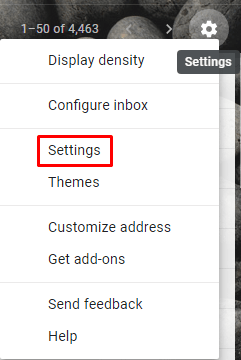
- Click the gear icon, then See all settings.
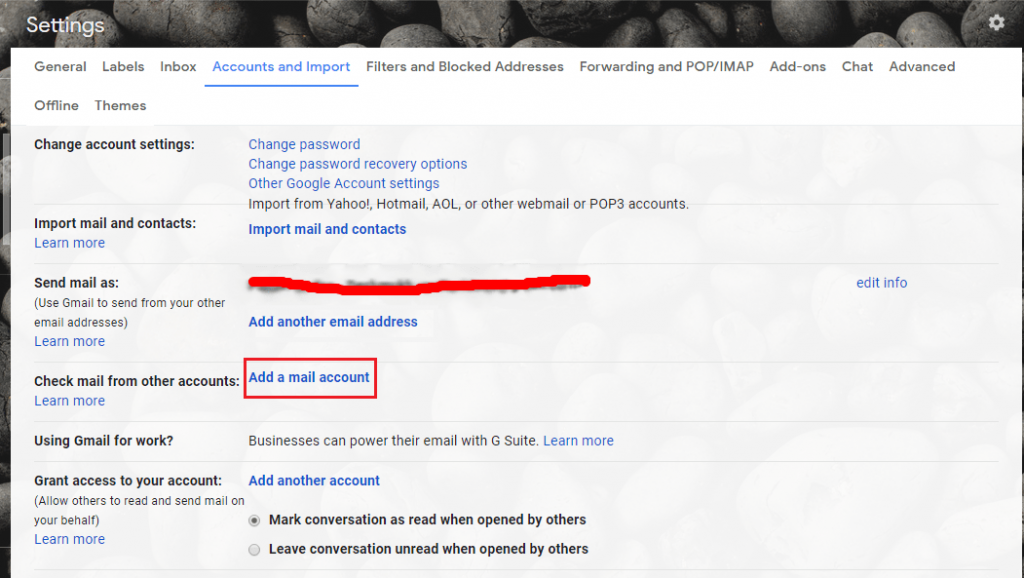
- Click the Accounts and Import tab.
- Find Check mail from other accounts and click Add a mail account.
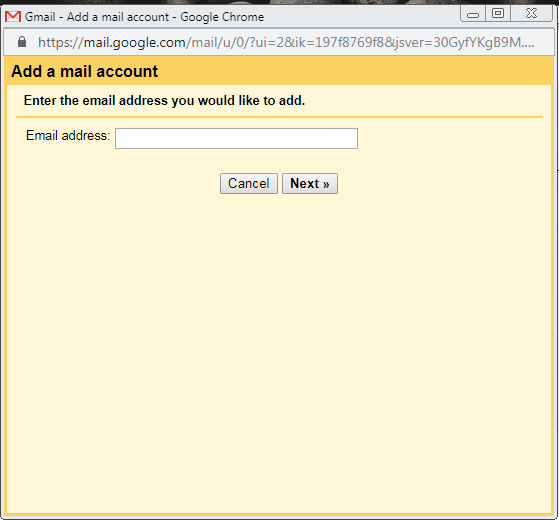
- Type your full domain email address and click Next.
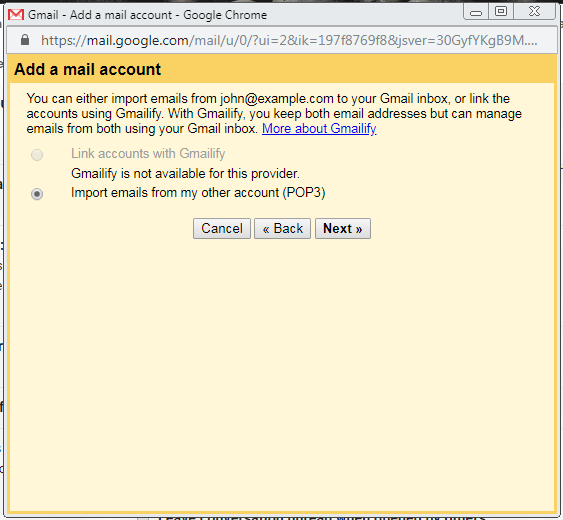
- Choose Import emails from my other account (POP3) and click Next.
- Type your full email address as the Username.
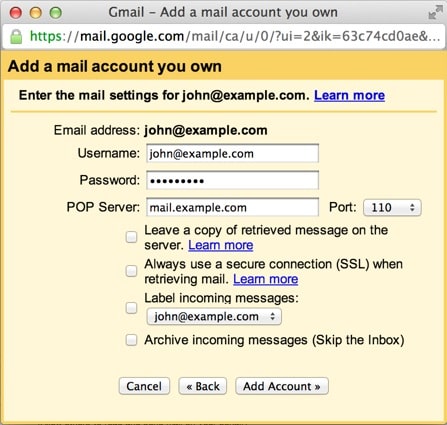
- Type your email password.
- Type your incoming mail server as the POP Server. For SSL, the usual port is
995. - Tick Always use a secure connection (SSL) when retrieving mail.
- Choose if you want a copy of retrieved mail to stay on the server. Keeping a copy is safer.
- Click Add Account.
Part 2: Send mail from your domain address
- Gmail asks if you want to send mail as this address. Choose Yes, I want to be able to send mail as and click Next.
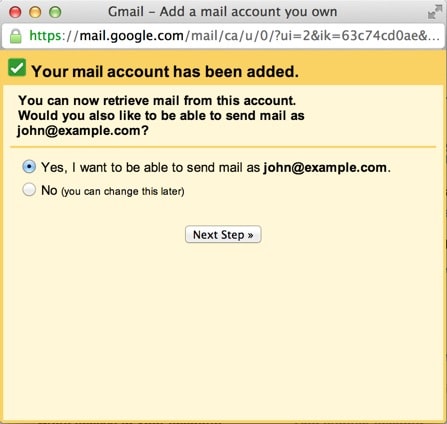
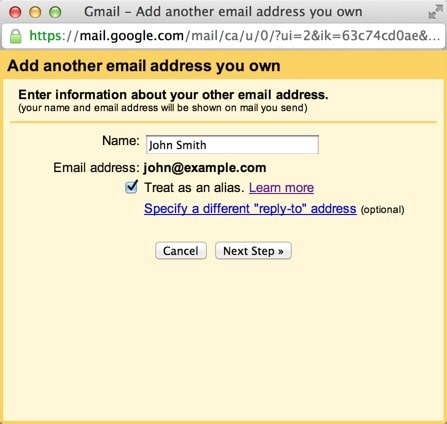
- Type your name and keep Treat as an alias ticked. Click Next Step.
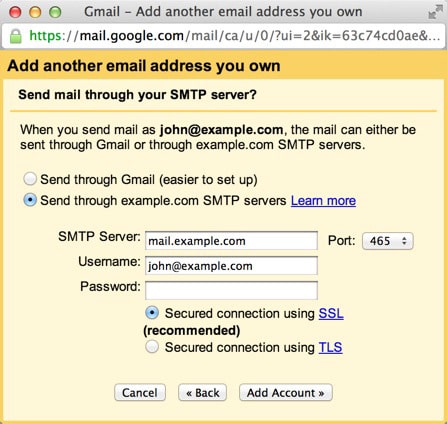
- Type your outgoing mail server as the SMTP Server. For SSL, the usual port is
465. - Type your full email address and password.
- Choose Secured connection using SSL.
- Click Add Account.
- Gmail sends a code to your domain mailbox. Open it or click the link in it, then enter the code in Gmail.
Tip: Gmail checks outside mailboxes only every so often. New mail may take a while to appear. Use the ports in your welcome email if they differ from the ones shown here.
If it does not work
- Test the login in webmail first.
- Check the server names and ports.
- Use the full email address as the username.
Need help? Open a ticket at https://secure.hostvento.com/submitticket.php.
Quick recap
- Gmail can fetch your domain mail with POP3.
- Use Settings, then Accounts and Import.
- Add the account for receiving, then set up sending with SMTP.
- Confirm with the code sent to your mailbox.