

What is an identity?
An identity is the "from" card for your emails. It holds the name people see, the address mail is sent from, and a signature. A signature is a short text added to the end of a message, like your name and phone line. Roundcube is a webmail program, so you use it in your web browser.
Steps to add an identity
- Sign in to Roundcube.
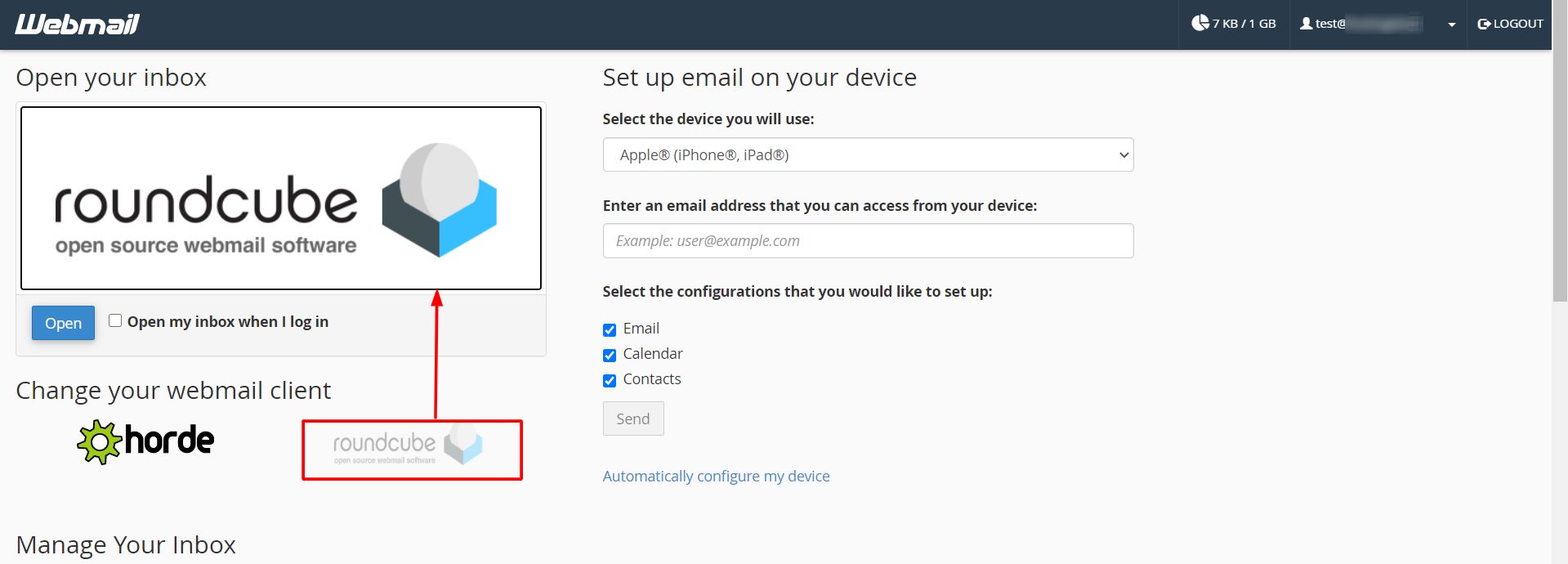
- Click Settings.
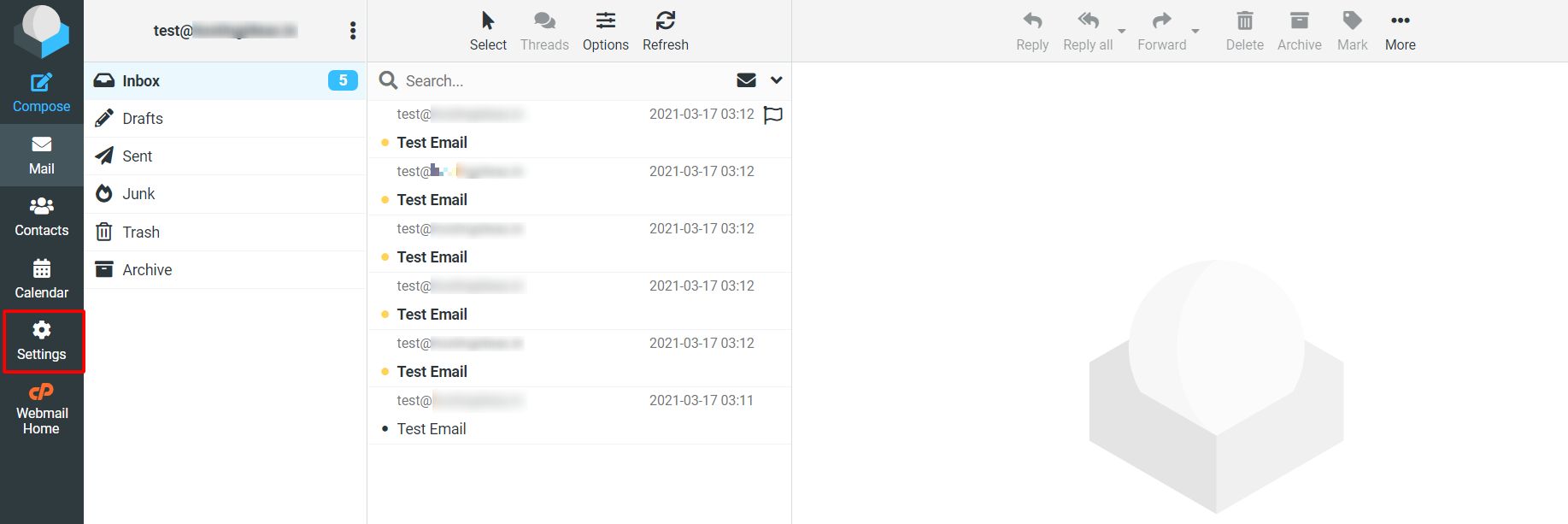
- Click Identities.
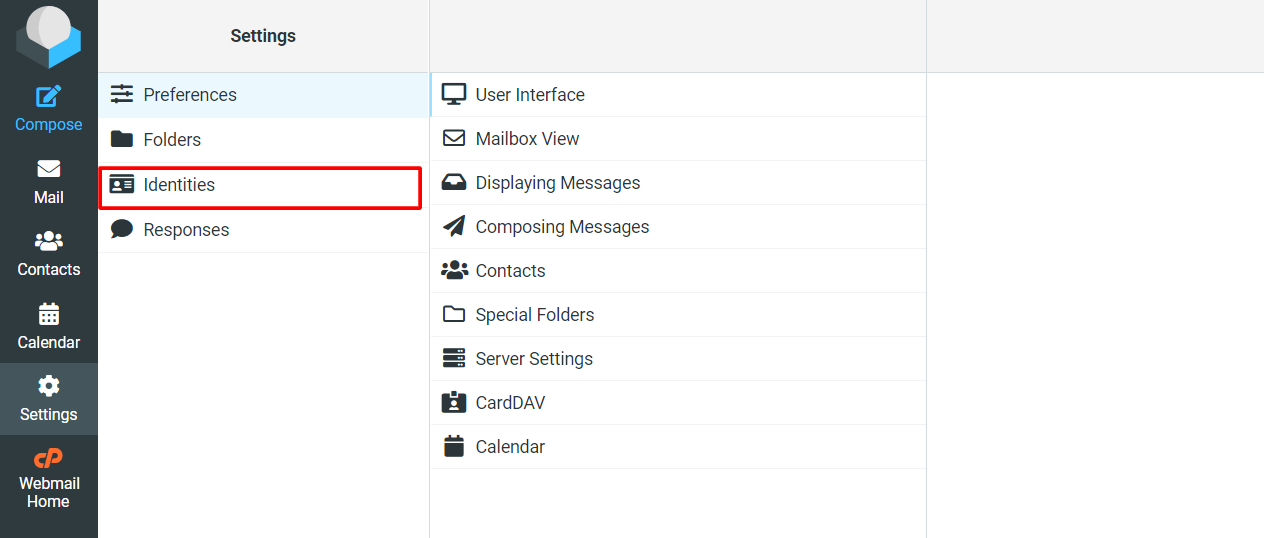
- Click the Create button, which may look like a plus sign.
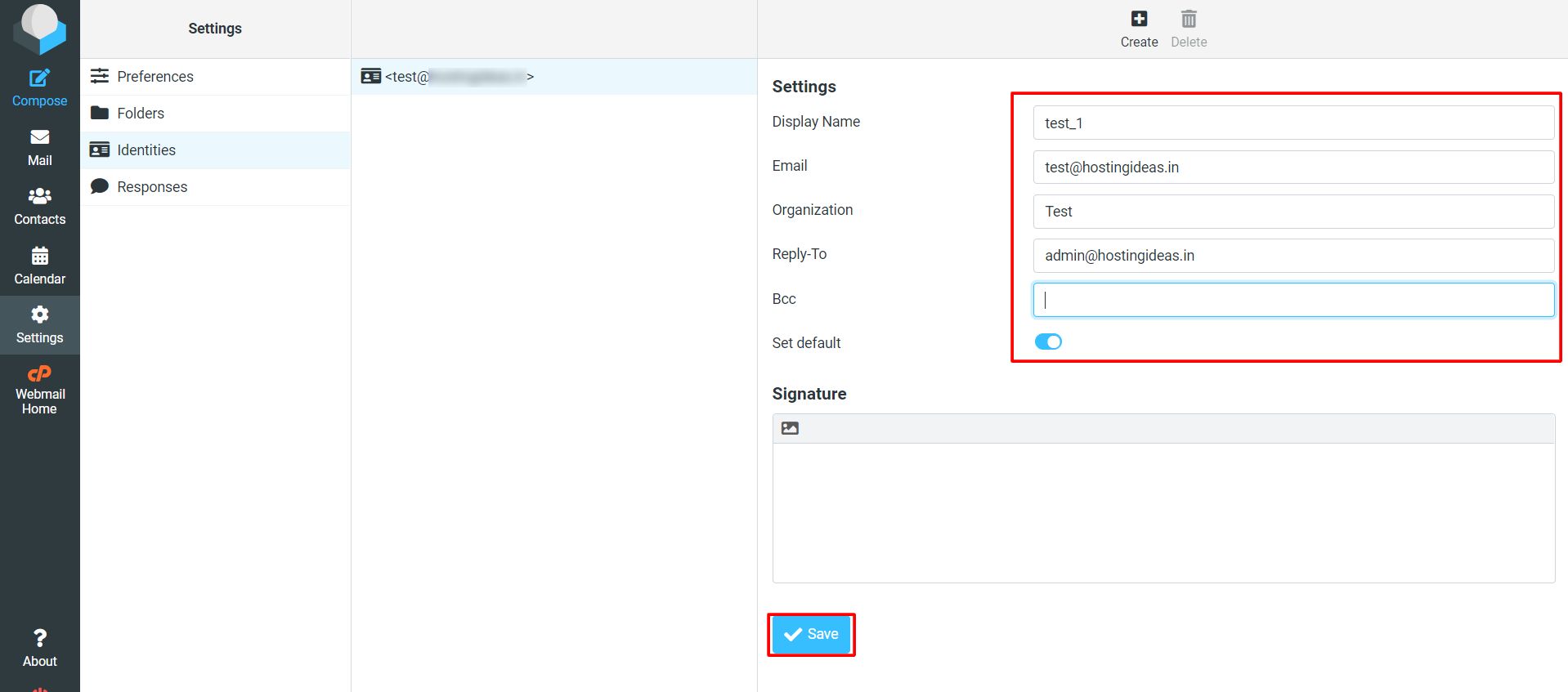
- Type the name people should see in the Display Name box.
- Type the sending address in the Email box.
- Fill in Organization if you want. It is optional.
- Type a Reply-To address if replies should go to a different place. It is optional.
- Type a Bcc address if you want a hidden copy of every message you send. It is optional.
- Click inside the Signature box and type your signature.
- Tick Set default if this should be the main identity.
- Click Save.
Use only addresses you own. Some mail servers refuse to send mail from an address that does not belong to you.
Steps to use an identity
- Click Compose to start a new message.
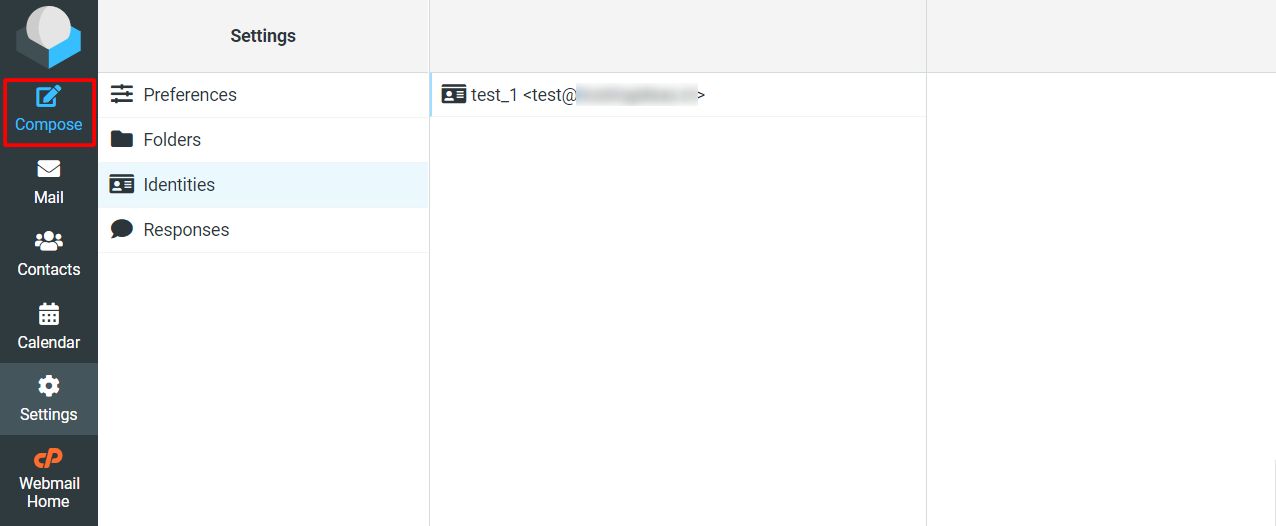
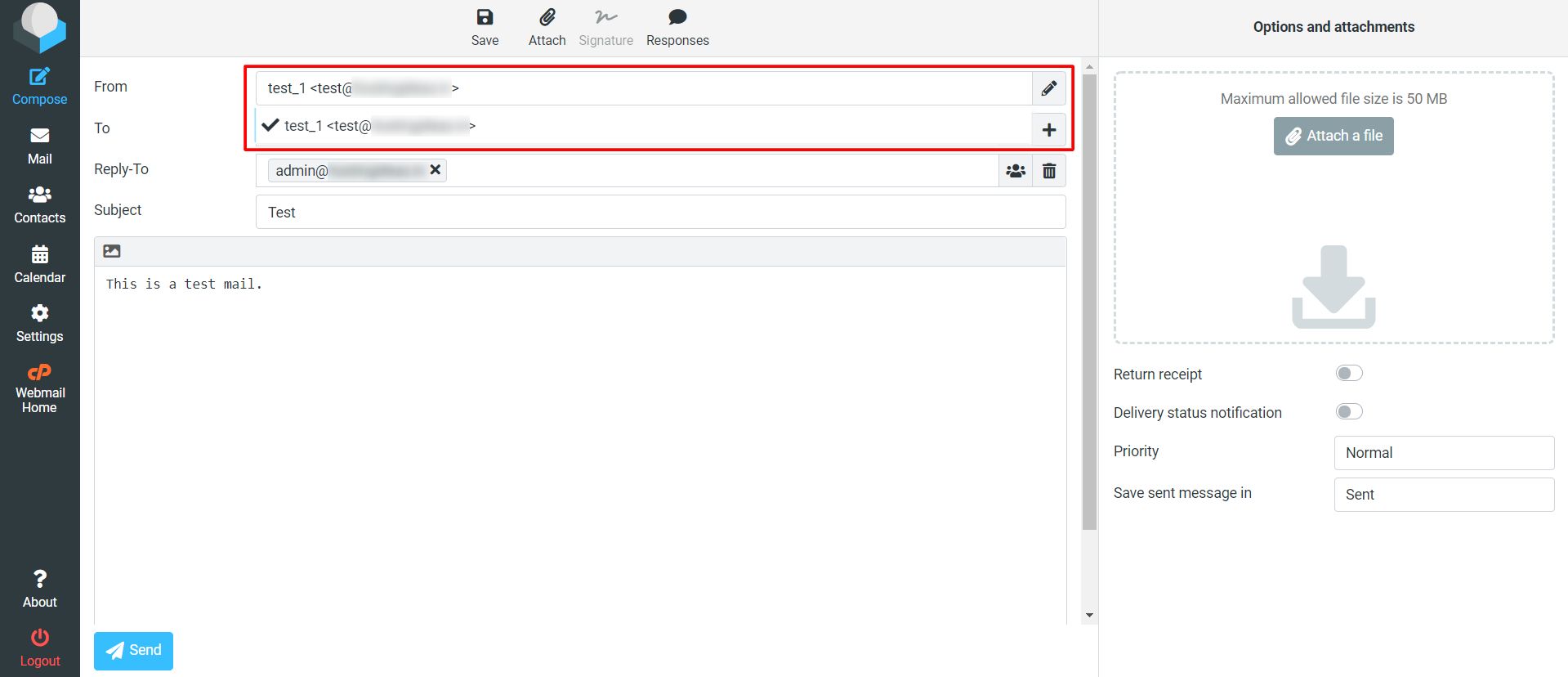
- Find the From drop-down list at the top.
- Click it and choose the identity you want.
- Roundcube may change the signature on its own.
- Write your message and click Send.
Steps to change or delete an identity
- Go to Settings and then Identities.
- Click the identity you want.
- Change the details and click Save. To remove it, click Delete and confirm.
Deleting an identity cannot be undone. You would have to enter all the details again.
Tip: When you reply to a message, Roundcube often picks the identity that matches the address the mail was sent to. Check the From box before you send.
Quick recap
- An identity holds a display name, an address and a signature.
- Add one at Settings, Identities, then Create.
- Pick it from the From list when you compose.
- Only use addresses that you own.