

What is an email account?
An email account is your own mailbox. It has an address, a password and some storage space. With your own domain, your address looks professional. cPanel is the control panel where you manage your hosting.
Steps
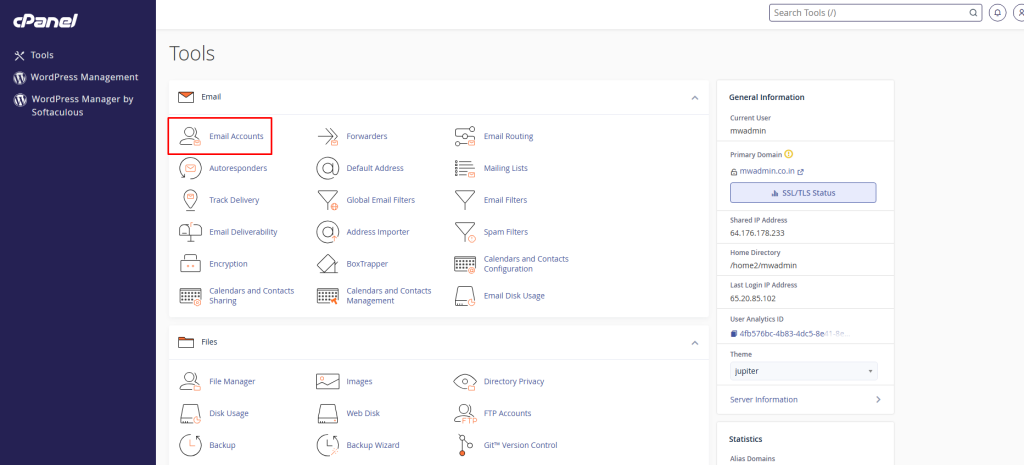
- Log in to cPanel. Your welcome email has the login details. You can also reach it from the client area.
- Find the Email section.
- Click Email Accounts.
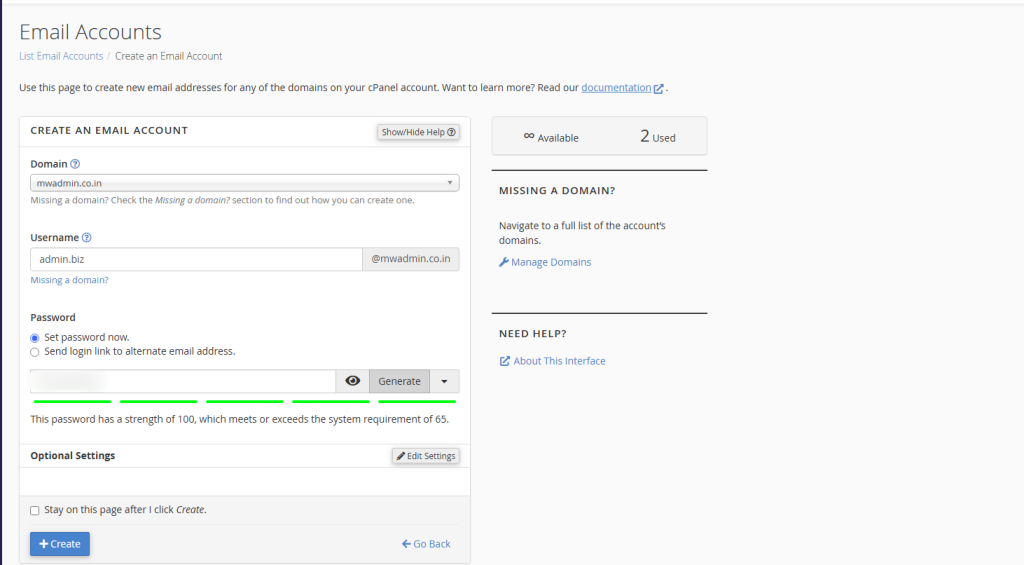
- Click the Create button.

- If you have more than one domain, pick the right one in the Domain list.
- Type a name in the Username box. For example,
infoorsales. Use letters and numbers only. - Choose a password. Click Generate for a strong one, or type your own.
- Look at the password strength bar. Aim for a strong password.
- Under storage space, choose how much room the mailbox gets. You can pick a set size or Unlimited, if your plan allows it. Your plan limits the total space.
- Leave the other options as they are, unless you need a change.
- Click Create.
You will see a green message when it works. Your new address now appears in the list.
Use the new account
- In the list, click Check Email next to the address.
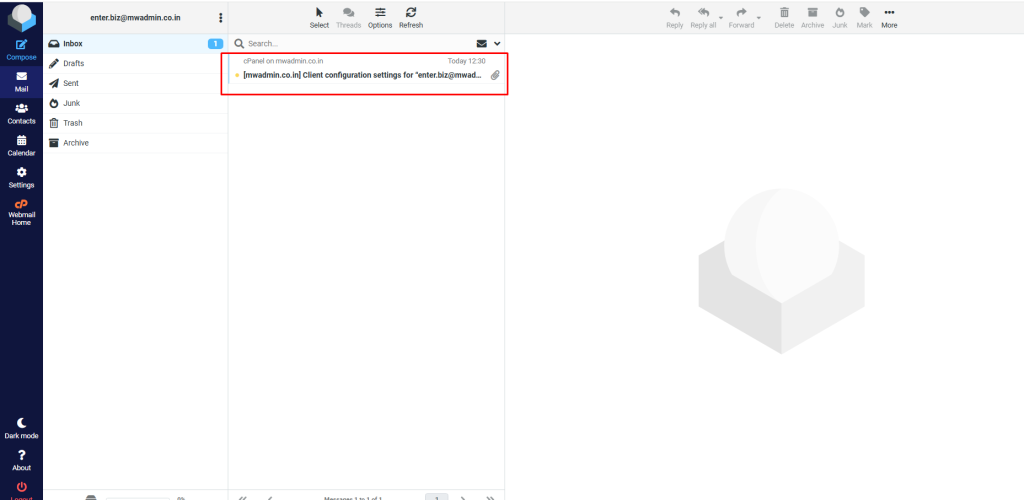
- Pick a webmail program such as Roundcube.
- Your inbox opens right away.
You can also add the account to Outlook or a phone. Click Connect Devices to see the settings.
Good password habits
- Use at least 12 characters.
- Mix capital letters, small letters, numbers and symbols.
- Do not reuse a password from another site.
Tip: Write the password in a safe place. A password manager is a good tool for this.
If you get an error
The name may already exist, or it may have a bad character. Try another name. If your plan has a limit on email accounts, delete one you do not need, or ask Hostvento support.
Quick recap
- Open cPanel, then Email Accounts, then Create.
- Choose the domain, username, password and storage.
- Click Create.
- Use Check Email to open the inbox.