

What settings do I need?
Every mail program asks for the same things. These are the server names, the port numbers, your username and your password. A server is a computer that handles your mail. A port is like a door number on that computer.
- Incoming server: where your mail is fetched from (IMAP or POP3).
- Outgoing server: where your mail is sent from (SMTP).
- Username: your full email address.
- Password: the password of that email account.
Find them in cPanel
- Log in to cPanel.
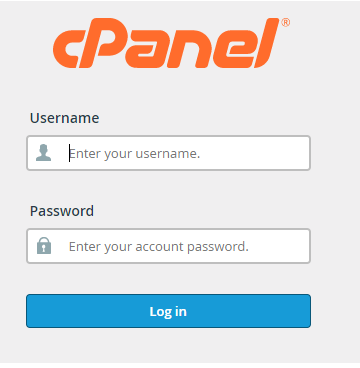
- Open Email Accounts in the Email section.
- Find your email address in the list.
- Click Connect Devices.
- Scroll to Mail Client Manual Settings.
You will see two boxes. One is for secure SSL/TLS settings, which we recommend. The other is for non-SSL settings. They list the username, the server names, and the ports for IMAP, POP3 and SMTP.
Find them in Webmail
- Go to
yourdomain.com/webmail. - Log in with your email address and password.
- Some webmail programs show the settings in Settings, but cPanel is the best place for them.
In cPanel's webmail home page you may also see a Configure Mail Client link. It leads to the same settings page.
IMAP or POP3?
| Type | What it does |
|---|---|
| IMAP | Keeps mail on the server. You can read it on many devices. |
| POP3 | Downloads mail to one device and may remove it from the server. |
IMAP is the better choice for most people.
Use the settings
- Open your mail app and choose to add an account by hand.
- Type the incoming and outgoing server names.
- Type the ports.
- Use your full email address as the username.
- Save and send a test mail.
Tip: Your welcome email from Hostvento may also list the server names. If something does not work, open a ticket at Hostvento support.
Quick recap
- You need incoming server, outgoing server, ports, username and password.
- In cPanel, go to Email Accounts then Connect Devices.
- Choose IMAP in most cases.
- The username is the full email address.