

What is disk usage?
Disk space is the storage on your hosting account. Your files, website and email all share it. When it is full, you can have trouble receiving mail. Think of a cupboard: once it is full, nothing new fits.
See how much space email uses
- Log in to cPanel.
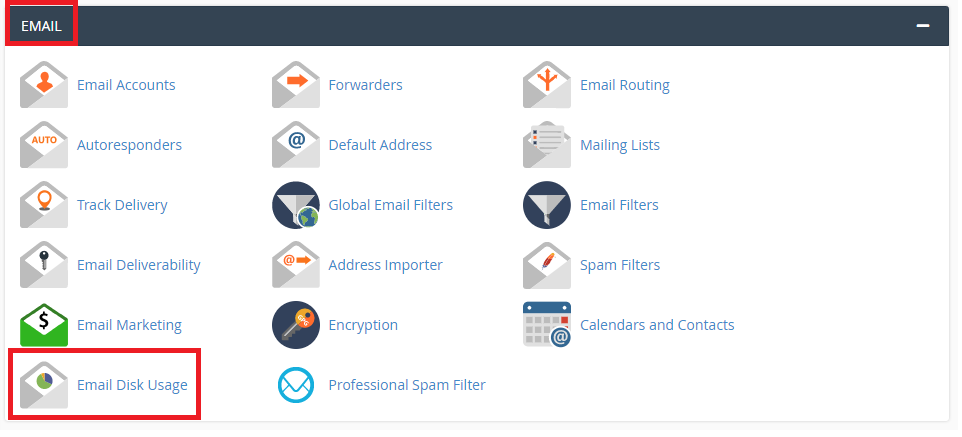
- Open Email Accounts in the Email section.
- Look at the Storage: Used / Allotted / % column for each address.
For a bigger picture, open Disk Usage in the Files section. It shows which folders use the most space. Mail lives in the folder named mail.
Free up space
Warning: Deleted mail usually cannot be restored. Take a backup first if the mail matters.
- Click Check Email next to an address and open Roundcube.
- Open the Trash folder and empty it.
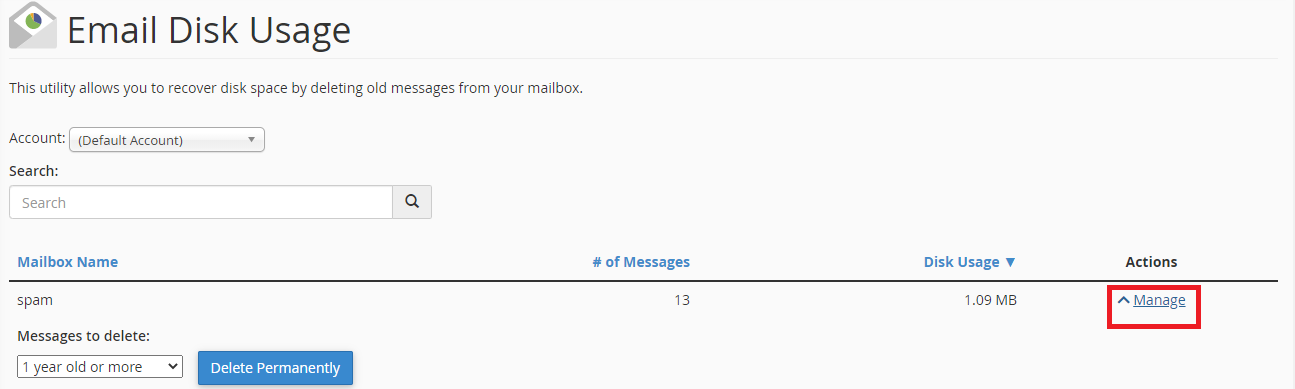
- Open the Junk or Spam folder and empty it.
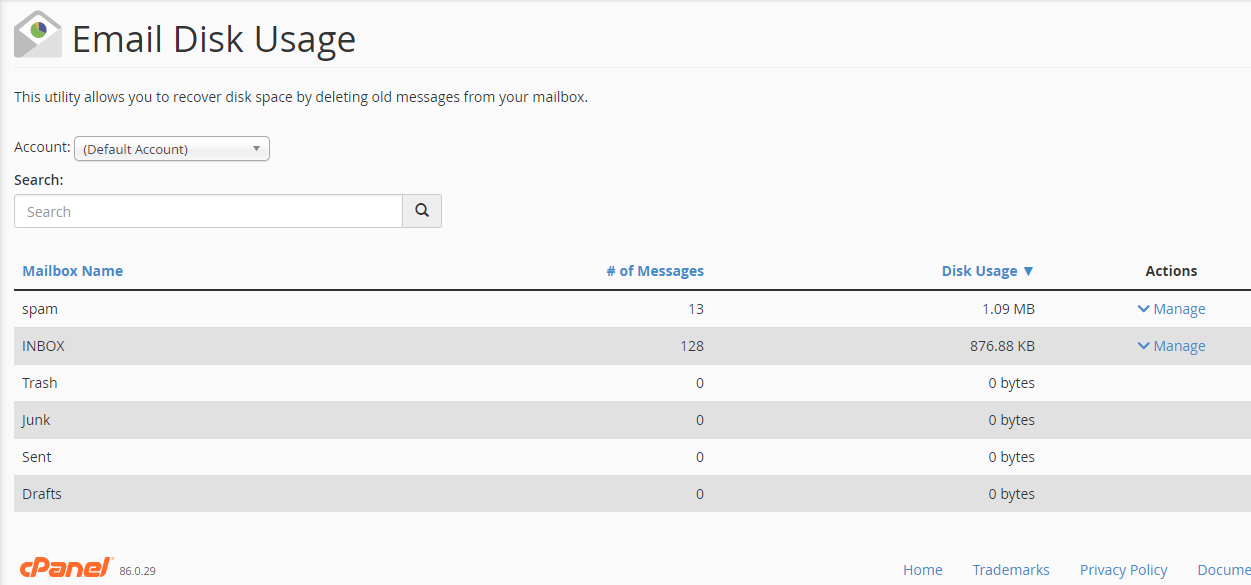
- Look in the Sent folder. Delete big old messages.
- Sort the inbox by size, if your webmail allows it. Delete messages with large attachments.
- Save any attachments you need to your own computer first.
Use your mail program to clean up
If you use IMAP, mail stays on the server. Deleting in Outlook or on your phone deletes it from the server too. If you use POP3, mail is normally downloaded to your computer, and the server copy may stay. Check your program's setting for leaving copies on the server.
Change a mailbox quota
A quota is the storage limit of one mailbox.
- Go to Email Accounts.
- Click Manage next to the address.
- Find the storage space option.
- Set a new size, but stay within your plan's total space.
- Click Update Email Settings.
Stop it from growing
- Empty Trash and Spam often.
- Turn on spam filters, so junk does not pile up.
- Remove accounts you do not use.
Tip: If your account is full and you cannot free space, ask Hostvento support about your options.
Quick recap
- Check email storage in Email Accounts.
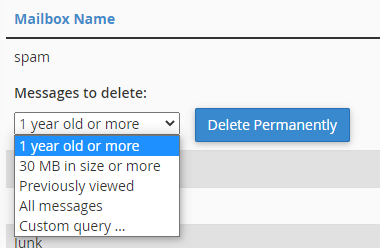
- Empty Trash, Spam and big old messages.
- Back up before deleting.
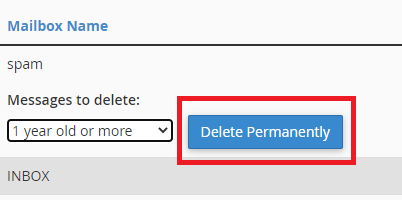
- Quotas can be changed per mailbox.