

What are we doing?
G Suite is the old name of Google Workspace, Google's paid email for businesses. cPanel is the control panel of your hosting, where you can also run email. We will copy the messages from one to the other. IMAP is a way for a mail program to talk to a mail server and see all its folders. We will use it for the copy.
Before you start
- Create the new email account in cPanel first (Email Accounts, then Create).
- Know the G Suite address and password.
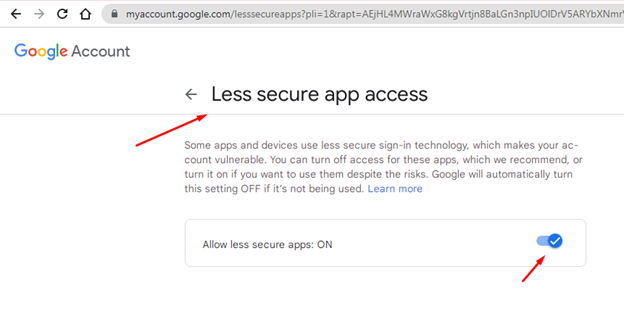
- If your G Suite account uses 2-step verification, create an app password in your Google account. An app password is a special password for one program.
- Do not change your domain's mail settings yet. Copy the mail first.
Method 1: Copy with an email program
- Install Thunderbird or Outlook on your computer.
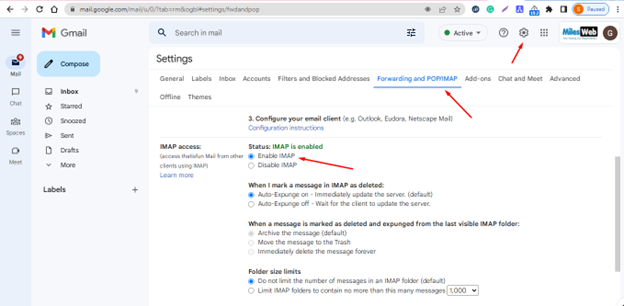
- Add the G Suite account using IMAP. Wait for all folders to download.
- Add the new cPanel account too. Use the settings under Connect Devices in cPanel.
- In the G Suite account, open a folder, such as Inbox.
- Press Ctrl+A to select all messages.
- Drag them to the same folder in the cPanel account. Or right-click and choose Copy to.
- Repeat for each folder you want.
- Open the new account in webmail and check that the mail is there.
Tip: Choose copy, not move, so that the originals stay safe in Google.
Method 2: Migration tool
Some tools copy a whole mailbox for you. Ask Hostvento support whether a migration tool is available on your plan. Open a ticket and give the old address and the new address. Do not send passwords in a way you are not sure is safe.
Switch your mail delivery
Mail goes where your MX records point. An MX record tells the world which server receives your mail.
- Copy all old mail first.
- Open your DNS settings. In cPanel this is Zone Editor.
- Remove the Google MX records.
- Make sure the MX record points to your hosting mail server. Your welcome email or support can give the right name.
- Wait up to a day for the change to spread.
Warning: Do not cancel G Suite until you have checked that all mail is copied and new mail arrives in cPanel.
Quick recap
- Create the cPanel mailbox first.
- Add both accounts to a mail program and copy folders.
- Change the MX records after copying.
- Keep G Suite until you have checked everything.