

What is a passkey?
A passkey is a safer way to log in. It uses the same lock you use to open your phone or laptop. That can be a fingerprint, a face scan or a PIN. There is no password to type, and no password to steal. A phishing site (a fake page that tricks you) cannot use it.
Before you start
- Use a device with a screen lock set, such as a phone, tablet or laptop.
- Use an up-to-date browser such as Chrome, Safari, Edge or Firefox.
- Do this on your own device, not on a shared one.
- If your Gmail is a work or school account, the admin may control this option.
Steps on a computer
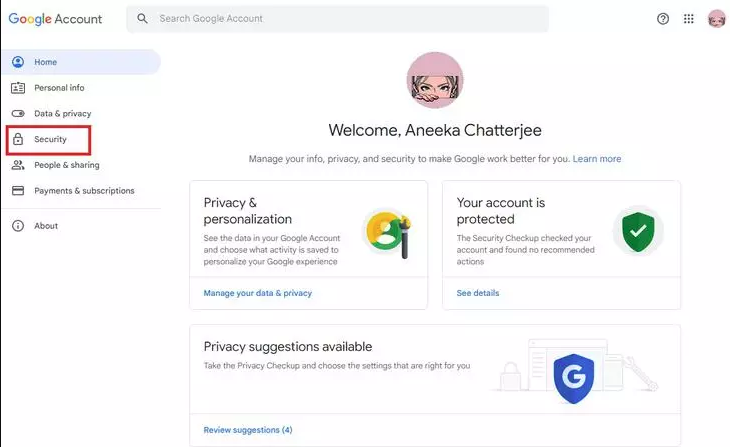
- Open a browser and go to your Google Account page (search for "Google Account").
- Sign in if asked.
- Click Security in the left menu.
- Find the section How you sign in to Google.
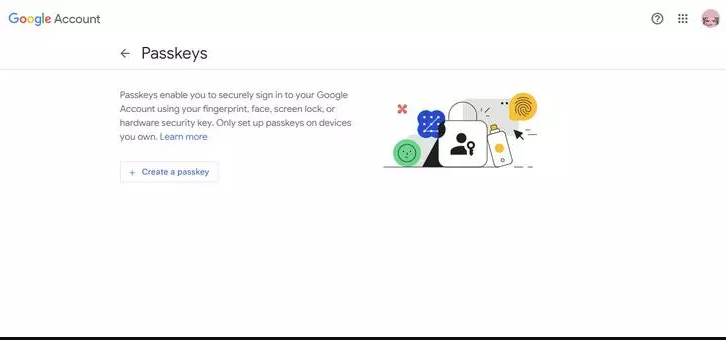
- Click Passkeys and security keys.
- Click Create a passkey.
- Click Continue.
- Your device asks you to prove it is you. Use your fingerprint, face or PIN.
- Click Done when you see the message that it worked.
Steps on an Android phone
- Open Settings, then Google, then Manage your Google Account.
- Tap Security.
- Tap Passkeys and security keys.
- Tap Create a passkey and follow the screens.
Menu names may change a little over time.
Sign in with a passkey
- Go to the Gmail sign-in page.
- Type your email address.
- Choose to use your passkey, if asked.
- Confirm with your fingerprint, face or PIN.
Remove a passkey
Go back to Passkeys and security keys. Click the small cross or the delete icon next to the passkey. Confirm it.
Tip: Keep your password and a recovery option too. If you lose your device, you will still get in.
Quick recap
- A passkey replaces your password with your device lock.
- Open your Google Account, then Security, then Passkeys and security keys.
- Click Create a passkey and confirm with your fingerprint, face or PIN.
- Keep recovery options set up.