

Tip: These versions are old. Newer versions of Outlook work in a similar way, but some menu names differ.
What is Outlook?
Outlook is a program on your computer that reads and sends email. It keeps your messages in one place. To connect it to your email, you give it a few settings.
What you need
- Your full email address, like
info@yourdomain.com. - The password for that address.
- The incoming and outgoing server names. Find them in cPanel under Email Accounts, then Connect Devices. Your welcome email also helps.
Steps
- Open Outlook.
- Click File.
- Click Add Account.
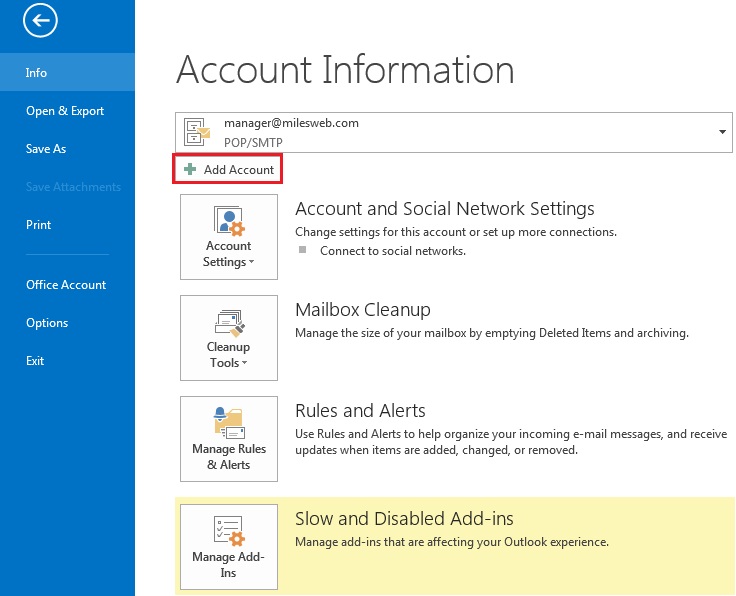
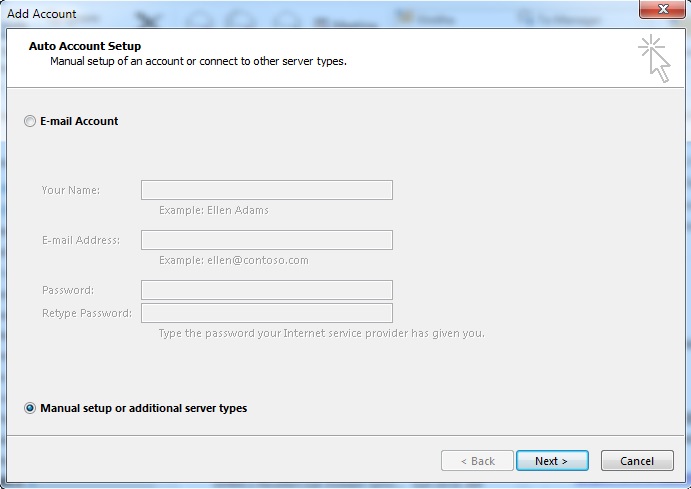
- Choose Manual setup or additional server types. Click Next.
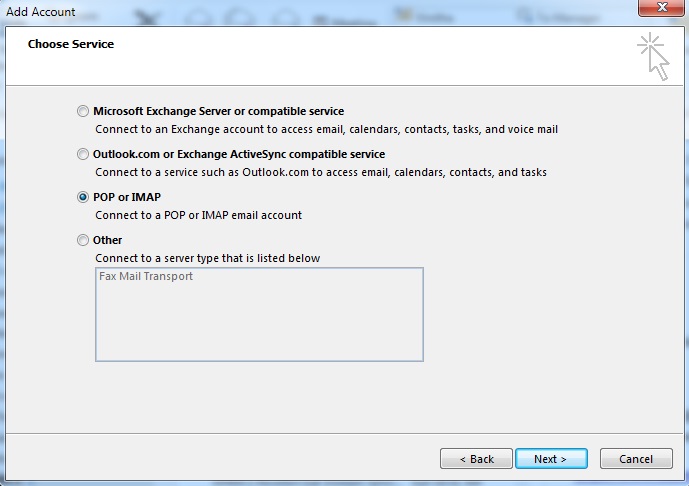
- Choose POP or IMAP. Click Next.
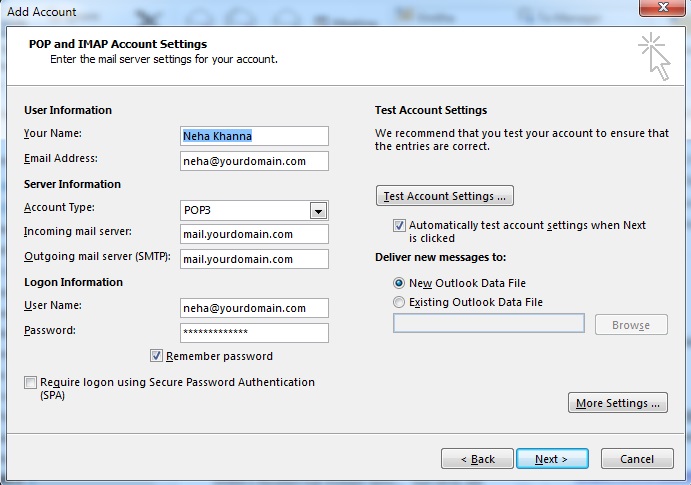
- Fill in your name and email address.
- Set Account Type to IMAP. IMAP keeps mail on the server so you can see it on many devices. POP3 downloads it to one computer.
- Type the incoming mail server and the outgoing mail server.
- Type your full email address as User Name and your password.
- Click More Settings.
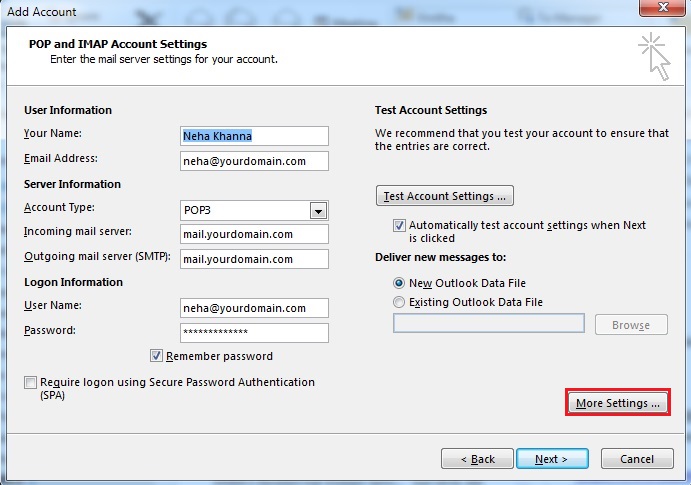
- Open the Outgoing Server tab. Tick My outgoing server (SMTP) requires authentication. Choose Use same settings as my incoming mail server.
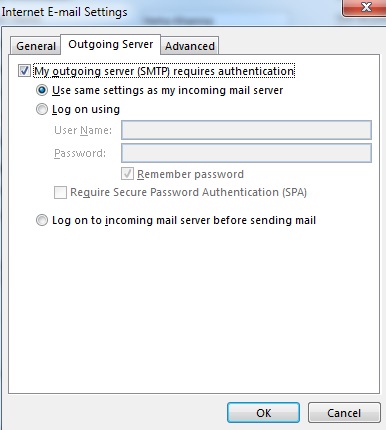
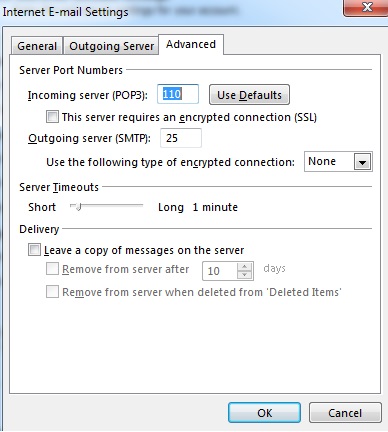
- Open the Advanced tab.
- Set the ports. A common secure choice is IMAP 993 with SSL and SMTP 465 with SSL. Use the values from cPanel.
- Click OK.
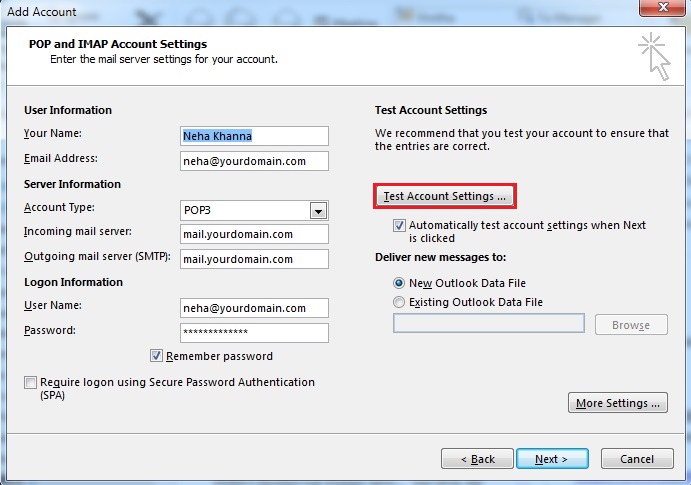
- Click Next. Outlook tests the settings.
- Click Close, then Finish.
Check that it works
- Click New Email.
- Send a message to yourself.
- Wait a moment and see if it arrives.
If the test fails
- Check the password and the full address.
- Check the server names for typing errors.
- Try the other secure port.
- Make sure your antivirus is not blocking Outlook.
- Open a ticket at Hostvento support if you stay stuck.
Quick recap
- Use File, Add Account, then manual setup.
- Pick IMAP and enter server names from cPanel.
- Turn on SMTP authentication.
- Test by sending yourself an email.