

What does import and export mean?
Export means to save a copy of your mail as a file on your computer. Import means to bring mail from a file into your mailbox. Roundcube is the webmail program in cPanel. Webmail lets you use email in a browser.
Export a single email
- Log in to webmail at
yourdomain.com/webmail. - Open Roundcube.
- Click the message you want to save.
- Click More in the toolbar.
- Click Download, then pick Source (.eml).
An .eml file is one saved email. You can open it with most mail programs.
Export many emails at once
- Open the folder with the mail.
- Click Settings.
- Click Folders.
- Look for an export or download option for the folder. In recent Roundcube versions, you can choose Export in Settings, then Import/Export, if that plugin is on.
- If you do not see it, select messages, click More and choose Download with several messages selected. They come as a zip file.
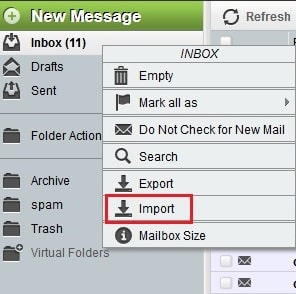
Roundcube options differ by version and plugin. If a button is missing, ask Hostvento support whether it is on your plan.
Import emails
- Click Settings.
- Click Import. It may be inside Import/Export.
- Click Select file.
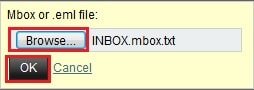
- Choose your
.eml,.mboxor zip file. An.mboxfile holds many emails in one file. - Click Upload.
- Pick the folder to receive the mail, if asked.
- Wait for the message that says the import is complete.

Large files may not upload in a browser. In that case, use an email program like Thunderbird, and copy the folders by IMAP.
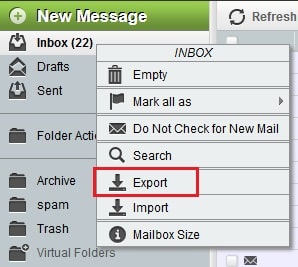
The email program method
- Add your account to Thunderbird or Outlook with IMAP.
- Open the folder you want.
- Drag messages from your computer folder into the mailbox folder, or the other way around.
Tip: Make a backup before importing a lot of mail, so you can undo mistakes.
Quick recap
- Export saves mail to your computer. Import loads it into the mailbox.
- Single messages download as
.eml.

- Use Settings, then Import to load files.
- For big files, use an email program with IMAP.