

What is an email migration?
A migration means moving your emails from one home to another. Think of moving boxes of letters from one house to a new house. We will use IMAP. IMAP is a way for a mail program to read mail that stays stored on a mail server. It can also copy the mail to another server.
cPanel is the control panel of your hosting account. It is a web page where you manage email, files and more.
Before you start
- Create the new mailbox in cPanel first. Use Email Accounts and click Create.
- Keep your Zoho mailbox active until the move ends.
- Zoho must allow IMAP. In Zoho Mail, open Settings, then Mail Accounts, and turn on IMAP access. The exact menu name may change, so look for IMAP.
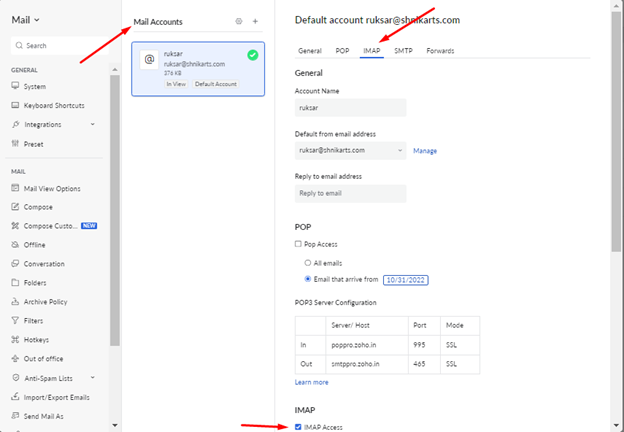
- If your Zoho account uses two-step login, make an app password in your Zoho security settings. Use it in place of your normal password.
Steps with a mail program
A free mail program like Thunderbird can copy the mail for you. It is the simplest way for a beginner.
- Open Thunderbird and add your Zoho account using IMAP. Use your Zoho email and password.
- Wait until all Zoho folders download and show up.
- Add your new cPanel mailbox as a second account. Use IMAP too. Your welcome email from Hostvento lists the mail server name. You can also find it in cPanel under Email Accounts, then Connect Devices.
- Open the Zoho account. Select the messages in a folder. Press Ctrl + A to select all.
- Drag them to the matching folder in the cPanel account. Or right-click and choose Copy To.
- Repeat for each folder, such as Inbox and Sent.
- Open the new mailbox in webmail. Check that the messages are there.
Point your mail to the new place
New mail still goes to Zoho until you change the domain's MX records. MX records are DNS settings that tell the internet where to deliver mail for your domain. DNS works like a phone book for websites.
- Log in to the client area.
- Open the DNS settings for your domain.
- Change the MX records so they point to your Hostvento mail server. Ask Hostvento support if you are unsure of the right value.
- Wait some hours for the change to spread across the internet.
Warning: do this only after the copy is complete. Do not delete your Zoho account until you have checked every folder. If you get stuck, open a support ticket.
Quick recap
- Create the cPanel mailbox first.
- Turn on IMAP in Zoho.
- Add both accounts to a mail program and copy the folders.
- Change the MX records last.
- Keep Zoho until you have checked everything.