

What is an email header?
Every email has two parts. The body is the message you read. The header is the hidden part. It is like the postmarks and stamps on an envelope.
The header shows who sent the message, which servers it passed through and when. Support teams use it to find why an email is late, goes to spam or looks fake.
Steps on a computer
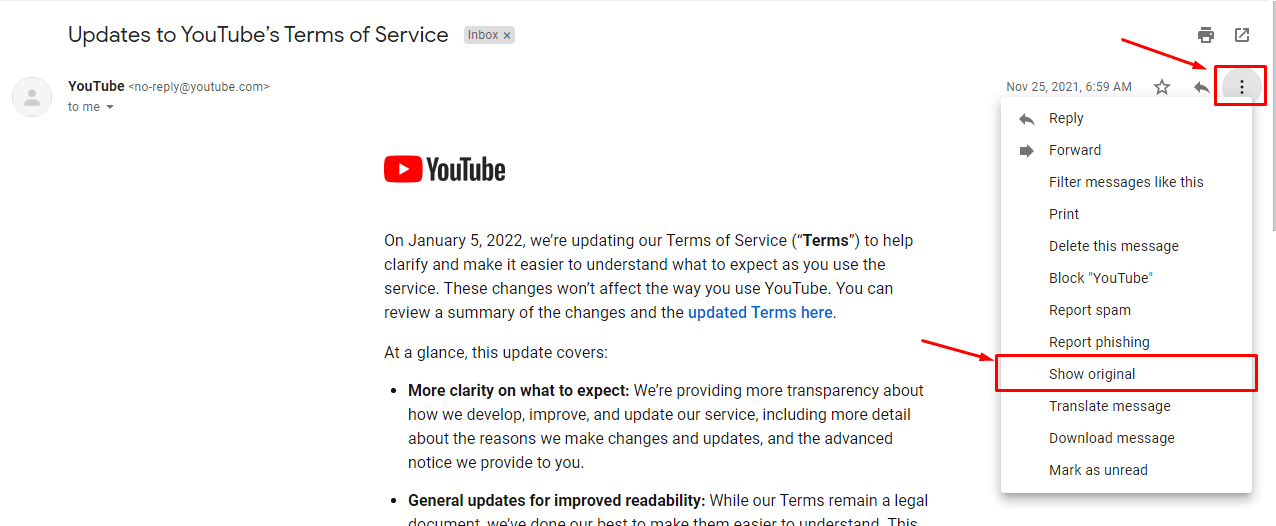
- Open Gmail in your browser.
- Open the email you want to check.
- Find the three dots at the top right of the message. This is the More button.
- Click it.
- Choose Show original.
- A new tab opens with the full header and message.
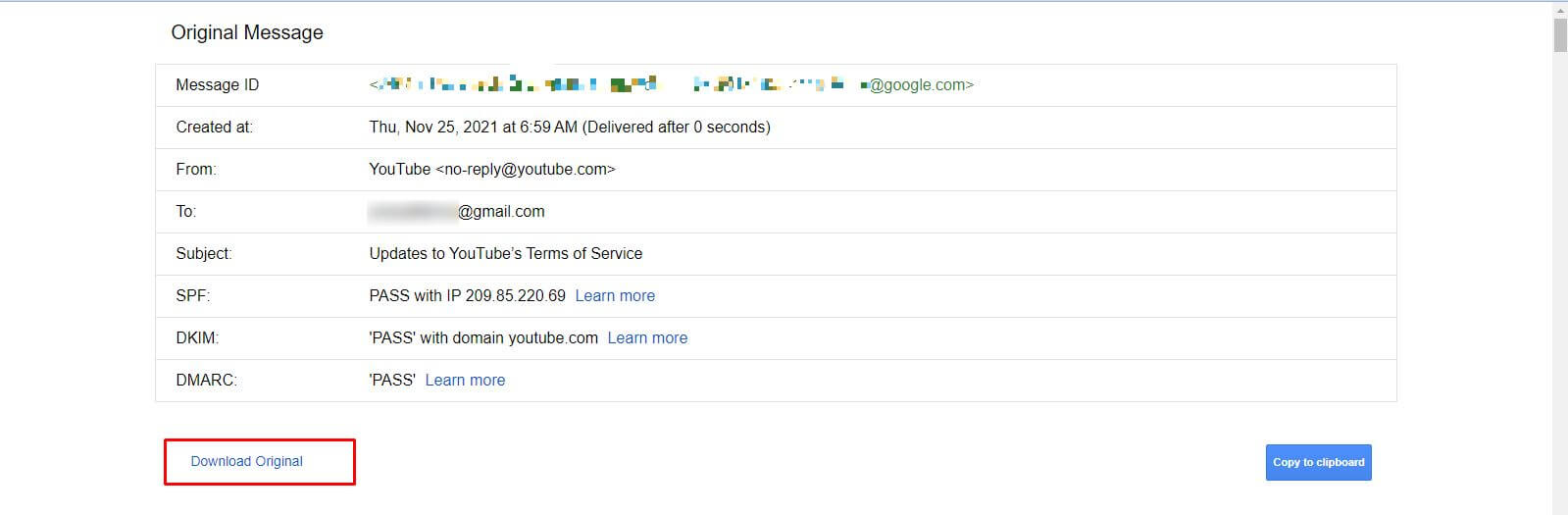
The top of the page has a small table. It tells you if the email passed three checks.
- SPF checks that the sending server is allowed to send for that domain.
- DKIM checks that the message has a valid digital signature.
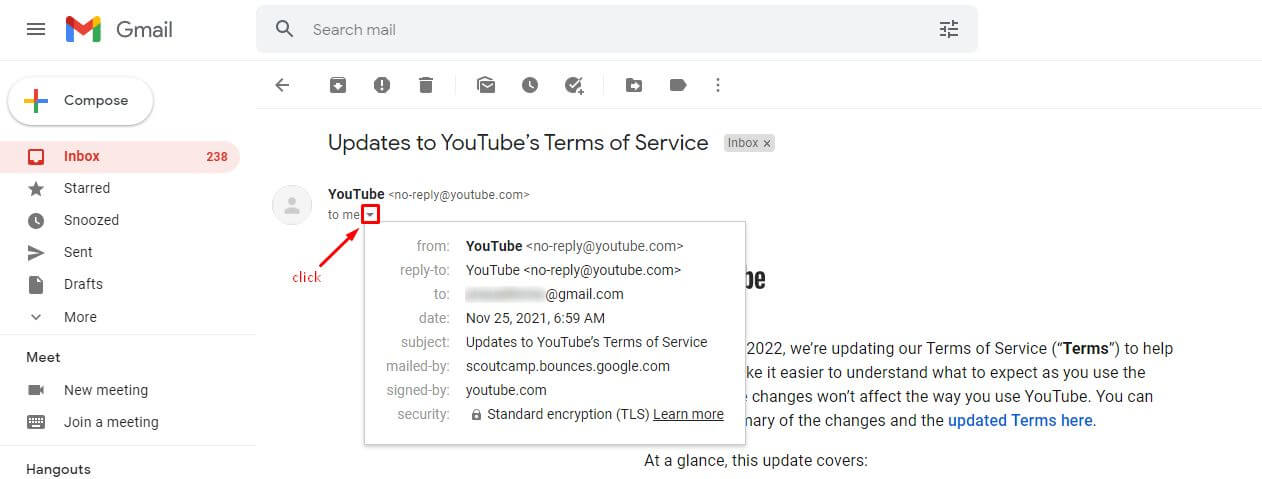
- DMARC checks the rules the domain owner set for those two checks.
"PASS" is good. "FAIL" may mean a problem.
Copy the header
- On the Show original page, click Copy to clipboard.
- Paste it into a text file or into your support ticket.
You can also click Download Original to save the message as a file.
Steps in the Gmail app
The Gmail app on phones does not show the full header. Use a computer browser. You can also open Gmail in your phone's browser and ask for the desktop version.
How to read it
- From shows the sender.
- Return-Path shows where bounce messages go.
- Received lines show each server the message passed. Read them from bottom to top for the true path.
- Date shows when it was sent.
- Message-ID is a unique tag for the email.
Tip: Headers can include your own email address and server details. Share them only with people you trust, like Hostvento support.
Quick recap
- The header is the hidden information about an email's path.
- In Gmail, open the email, click the three dots and pick Show original.
- Check SPF, DKIM and DMARC for PASS.
- Copy the header and send it to support if you need help.