

What you need
Your email address and password come first. You also need the incoming and outgoing mail server names. Your welcome email lists them. If you cannot find them, ask Hostvento support.
An incoming server is where your mail is kept for you to read. An outgoing server is the one that sends your mail. IMAP is a way to read mail that keeps all your devices in step. It is the usual choice. POP downloads mail to one device only.
Menus look much the same in iOS 15, 16 and 17. Newer versions work in a similar way.
Steps
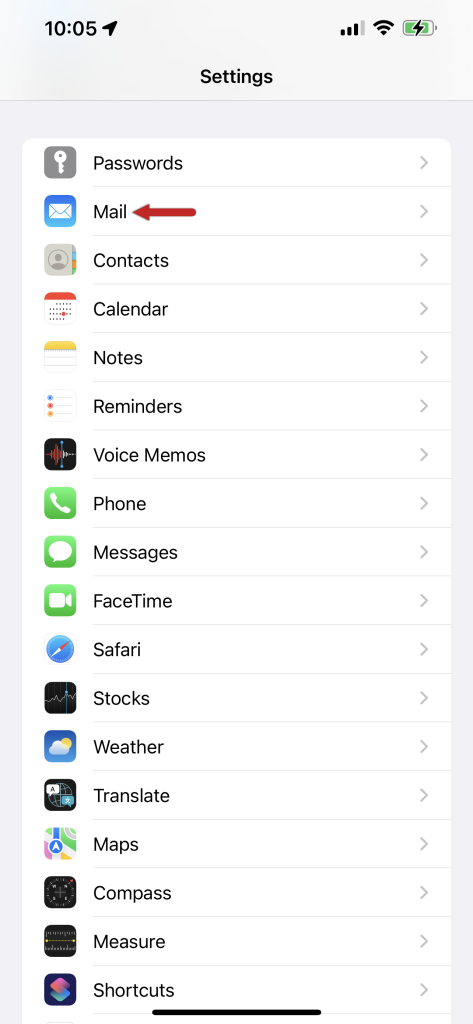
- Open Settings on your iPhone.
- Scroll down and tap Mail. On iOS 15 and 16, tap Accounts. On iOS 17, tap Mail Accounts inside Mail.
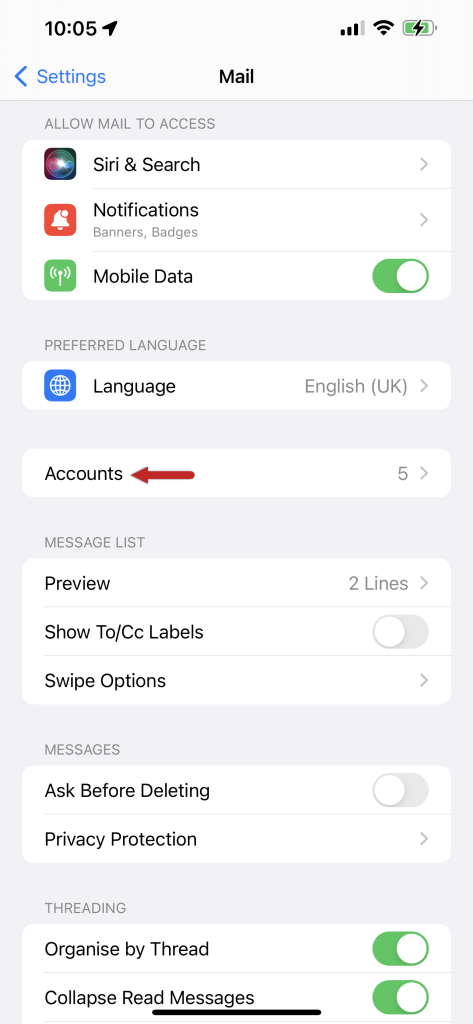
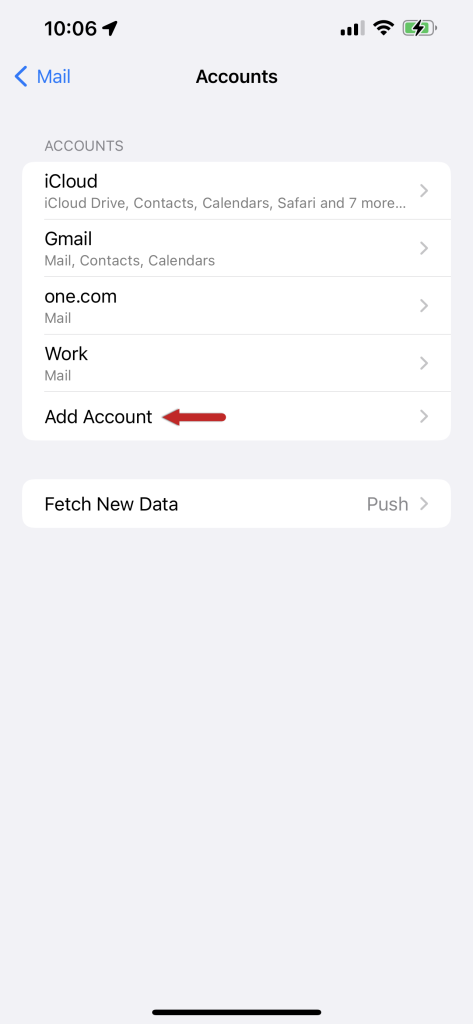
- Tap Add Account.
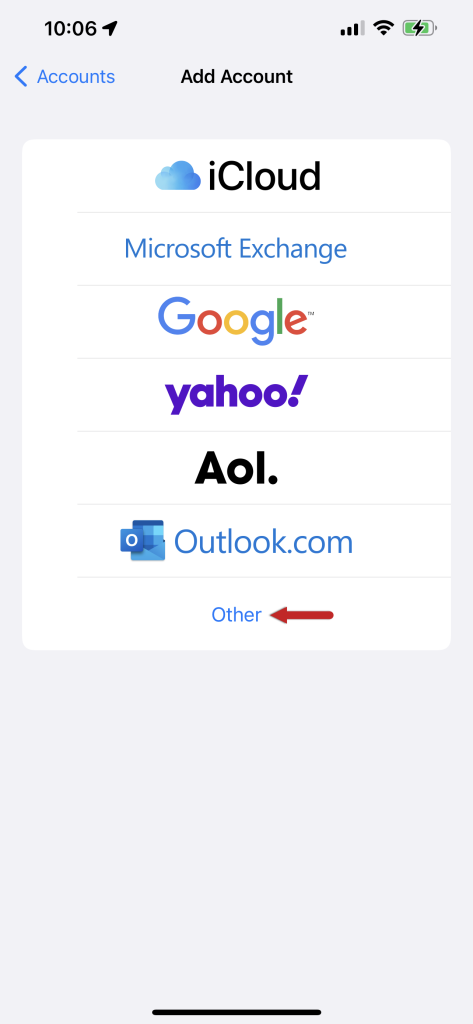
- Tap Other.
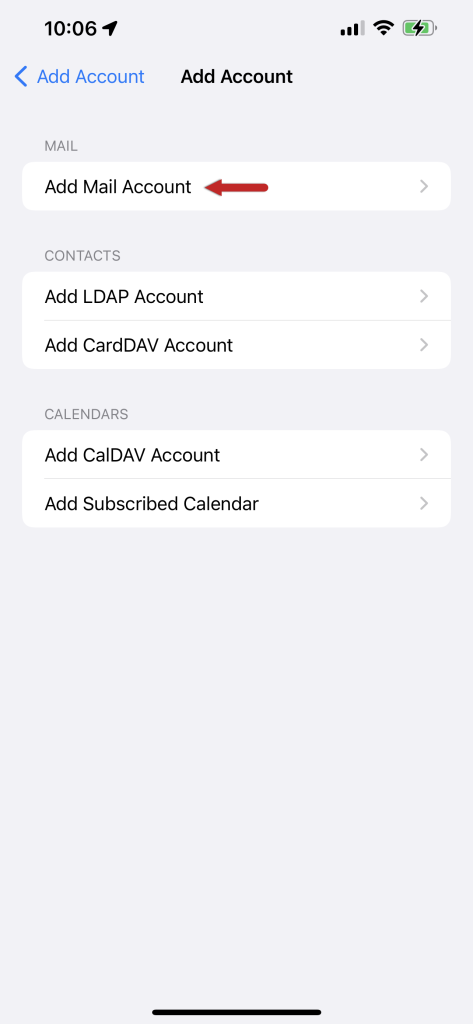
- Tap Add Mail Account.
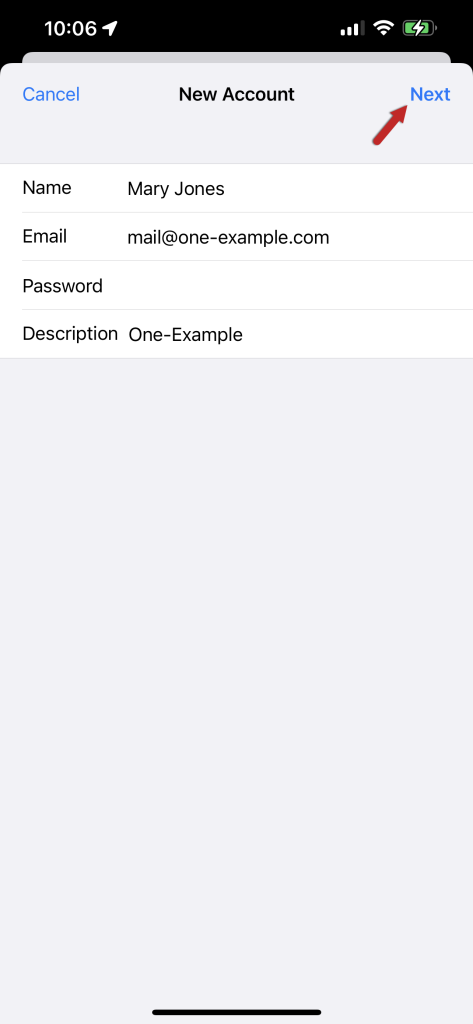
- Fill in Name, Email, Password and Description. The description is just a label for you.
- Tap Next.
- Choose IMAP at the top.
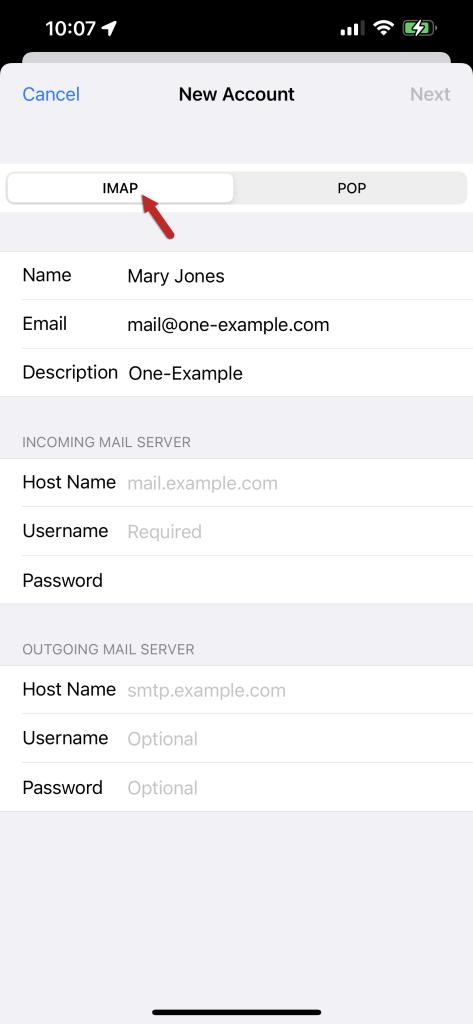
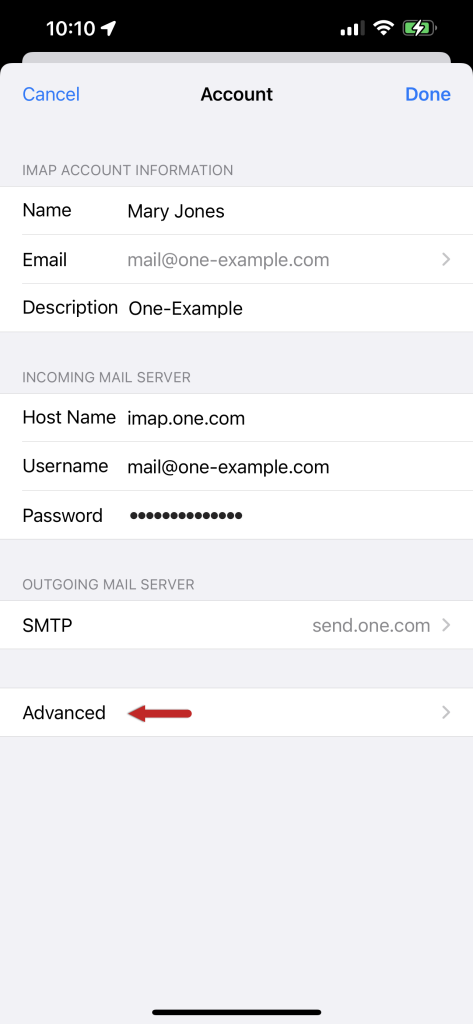
- Under Incoming Mail Server, type the Host Name, your full email address as User Name, and your password.
- Under Outgoing Mail Server, fill in the same kind of details for the outgoing server.
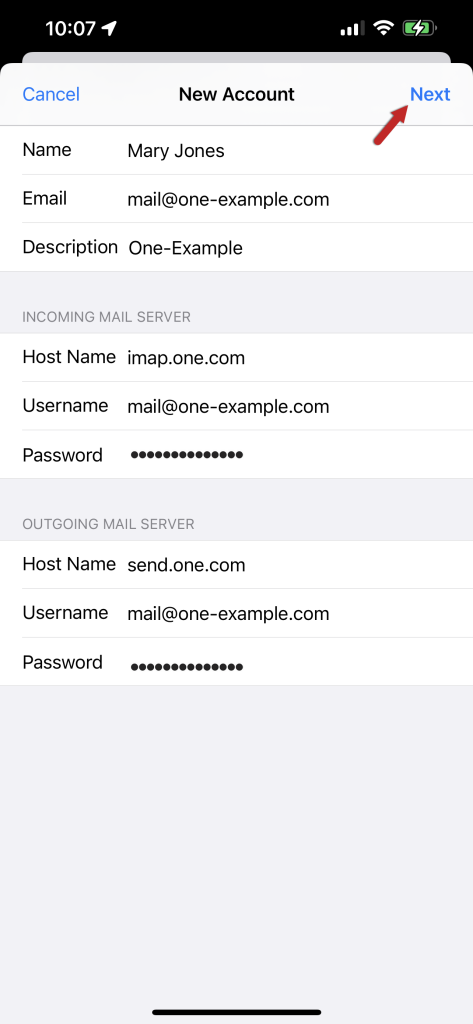
- Tap Next. The phone checks the details.
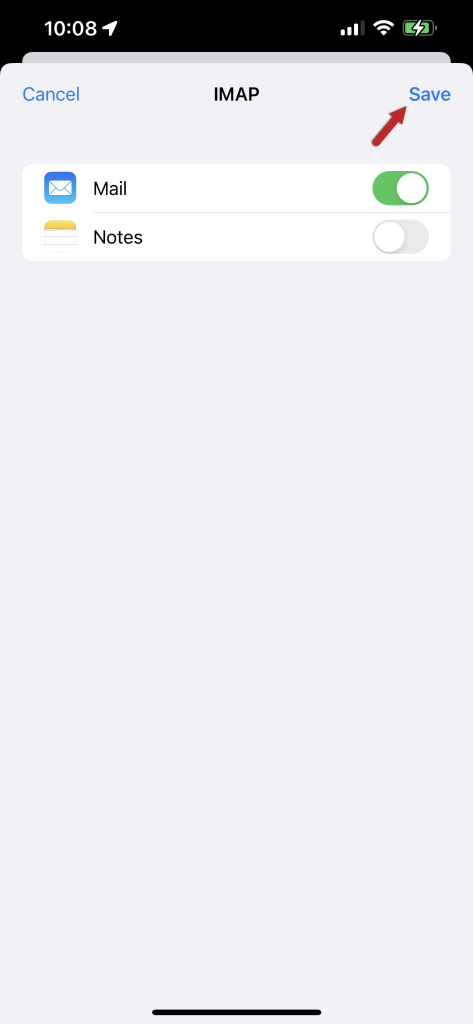
- Keep Mail switched on. Switch off items you do not want to sync.
- Tap Save.
If it does not connect
- Check the password by logging in to webmail.
- Check the server names for spelling mistakes.
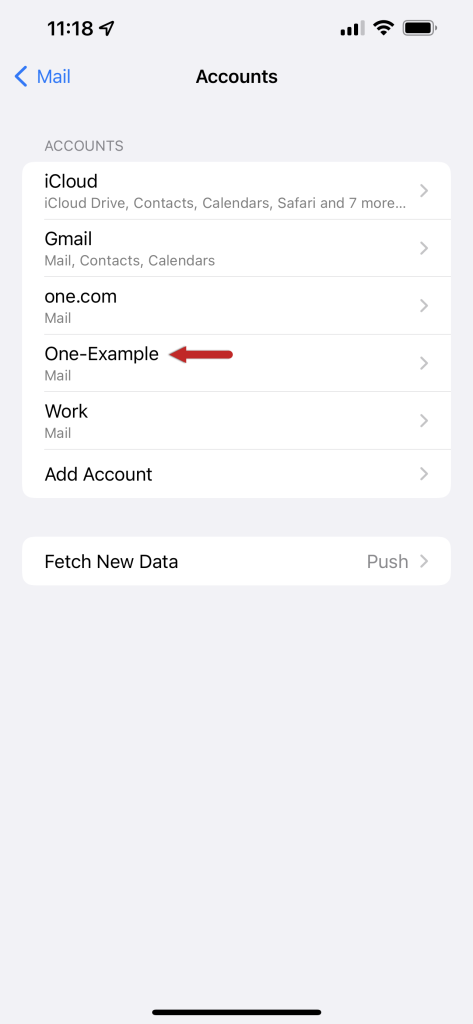
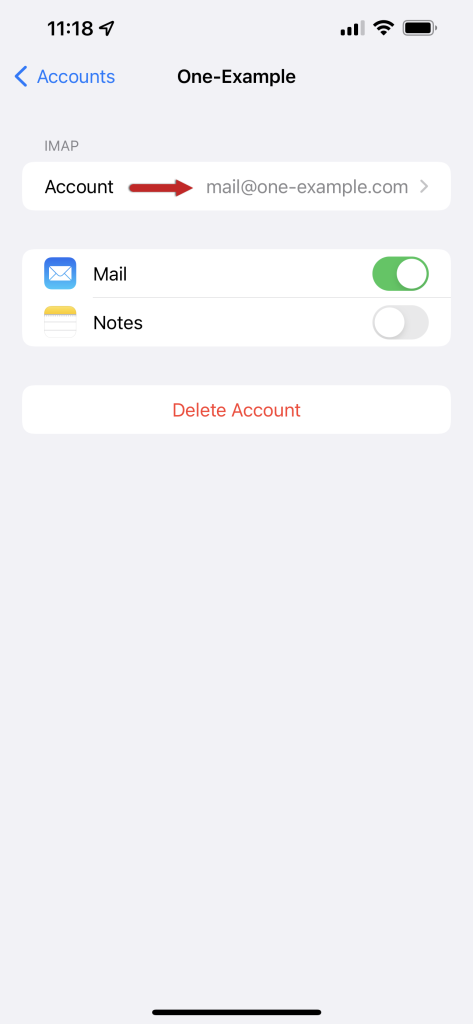
- Go to your account, tap the outgoing server, and check its port and SSL setting. SSL scrambles your mail so others cannot read it. Ask Hostvento support for the right port numbers.
Tip: You can open a ticket at the support page if you are still stuck.
Quick recap
- Get your email details from the welcome email.
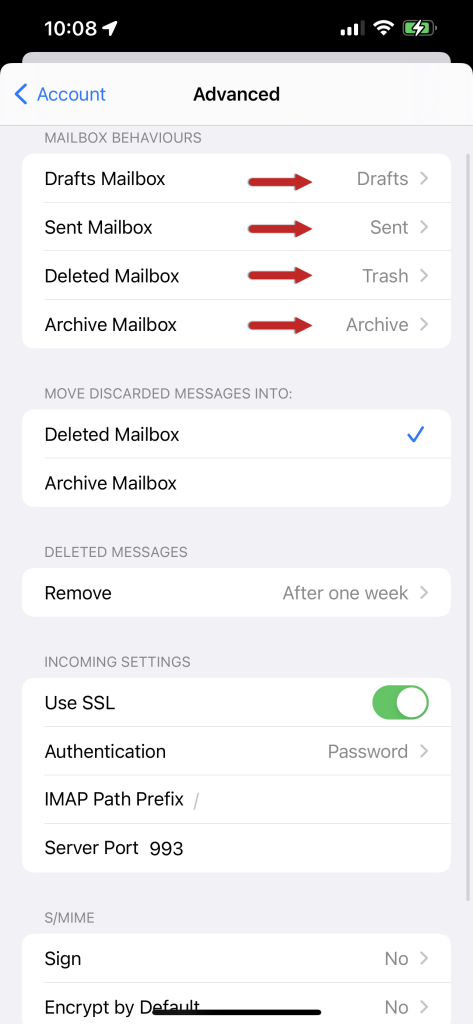
- Go to Settings, Mail, Accounts, Add Account, Other.
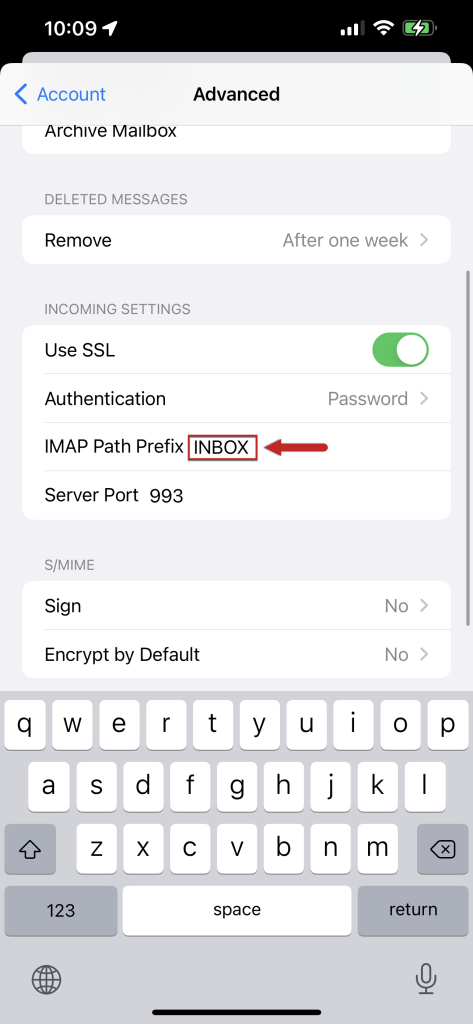
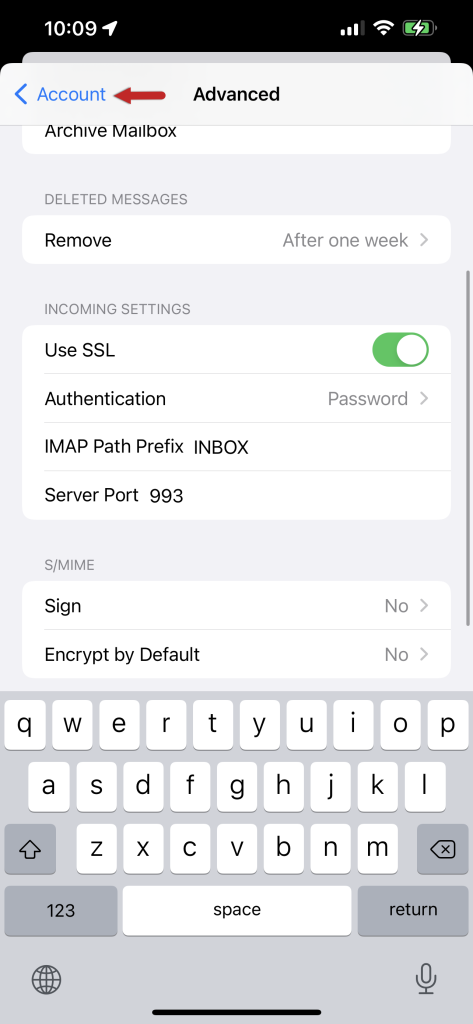
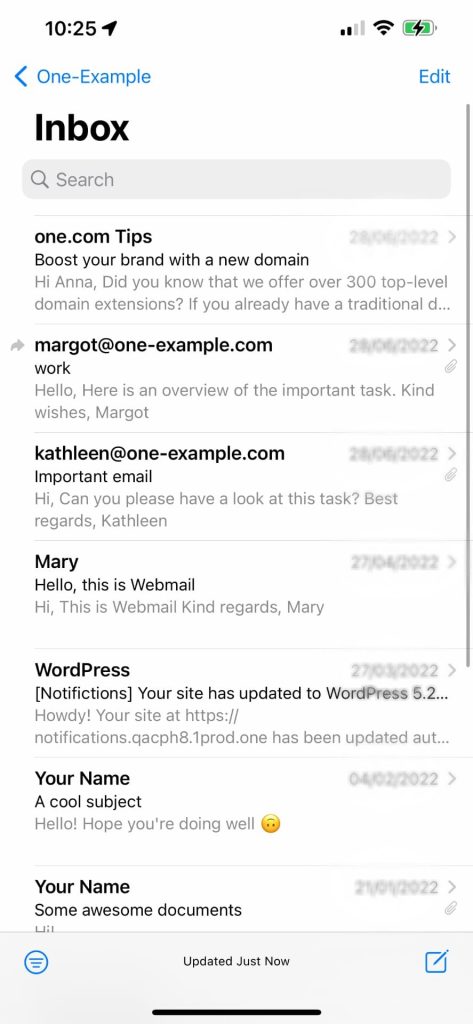
- Choose IMAP and fill in both servers.
- Tap Save and send a test email.