

What is Thunderbird?
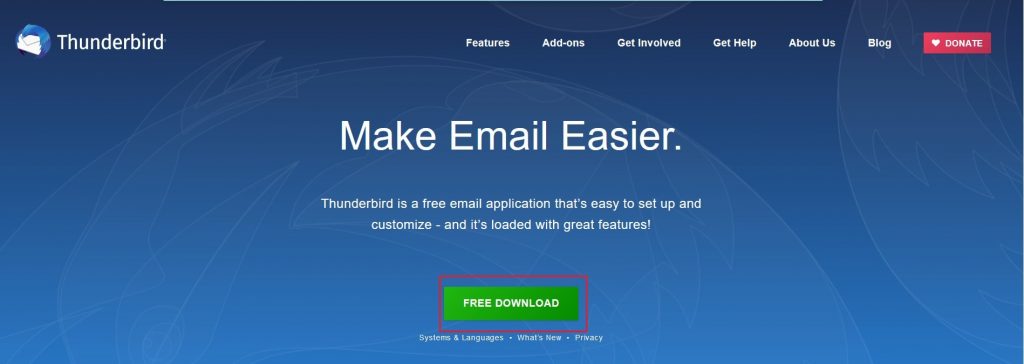
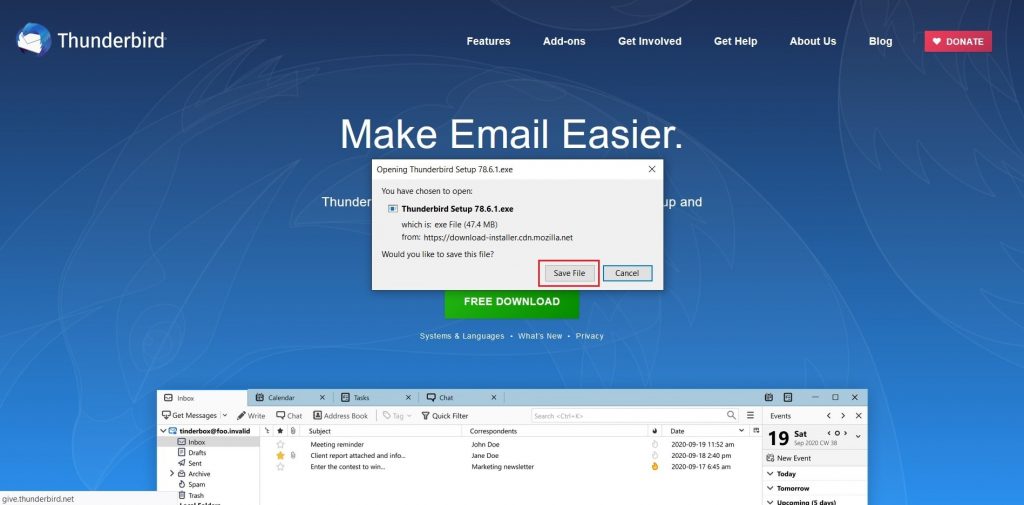
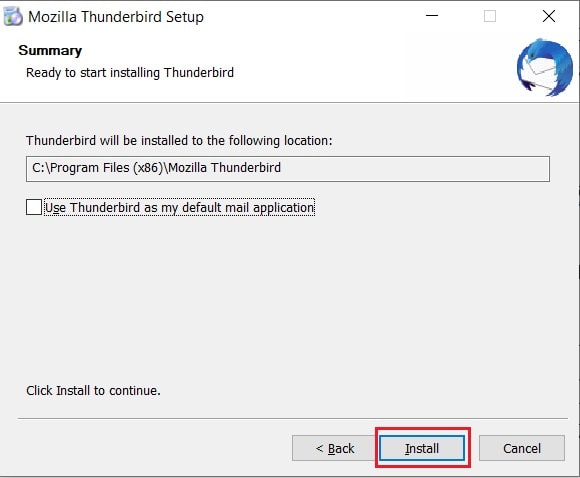
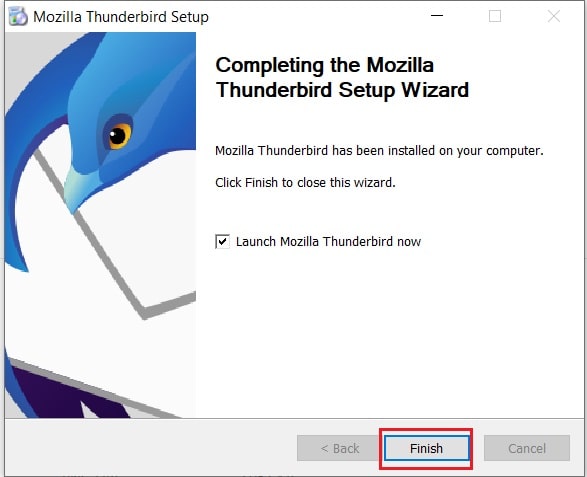
Thunderbird is a free program that reads and sends email. It keeps all your mail in one window on your computer. You can download it from the Thunderbird website. Install it like any other program.
What you need
- Your full email address and its password.
- The incoming and outgoing server names. They are in your welcome email. You can also ask Hostvento support.
The incoming server holds your mail for you to read. The outgoing server sends your mail. IMAP is a way to read mail that stays on the server, so your phone and computer show the same mail. POP downloads mail to one computer. IMAP is usually the better choice.
Steps
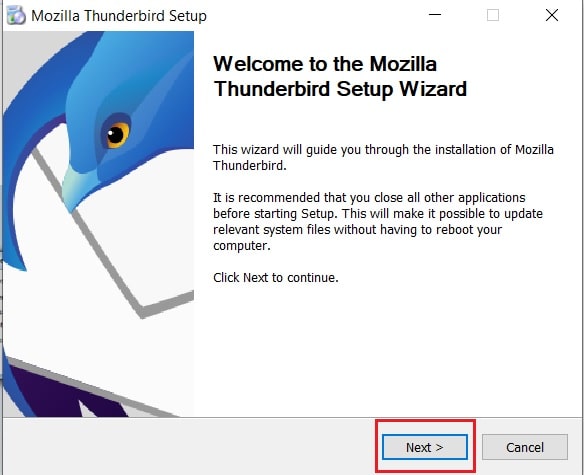
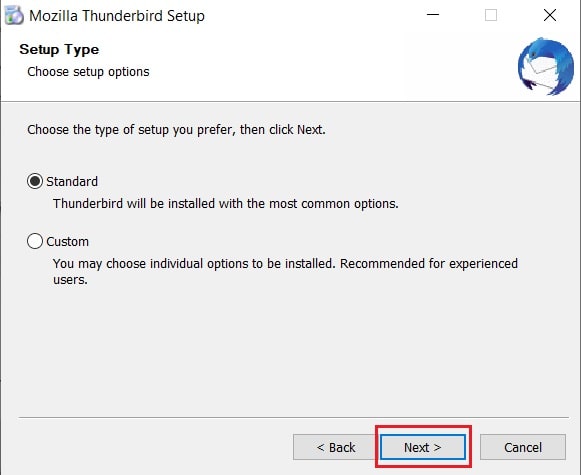
- Open Thunderbird.
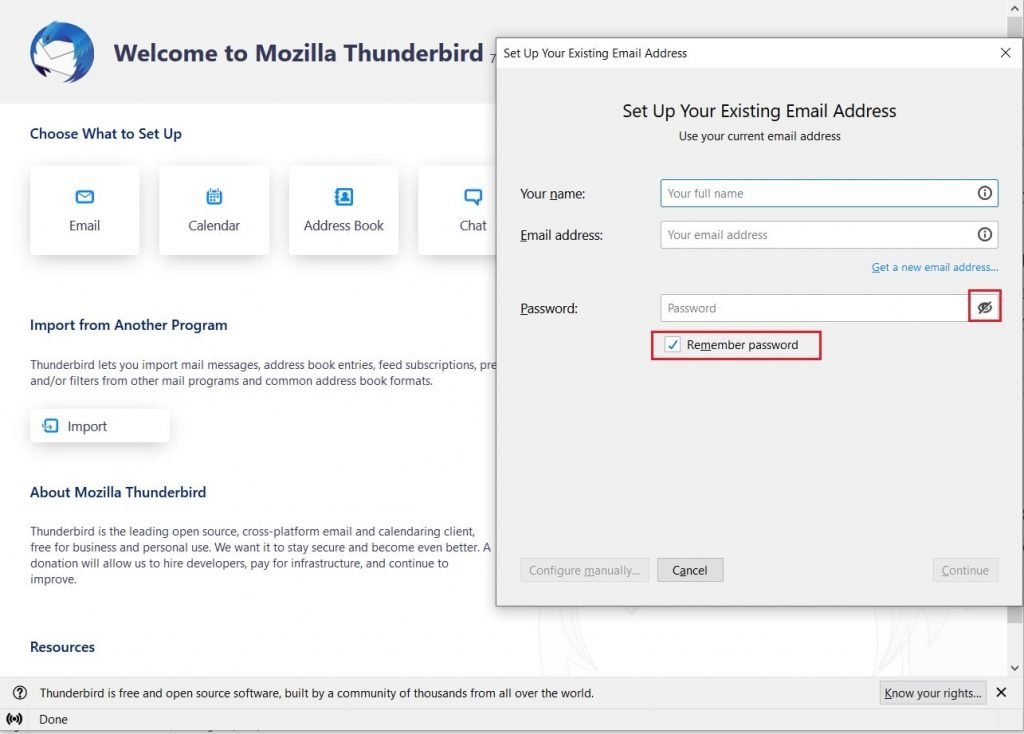
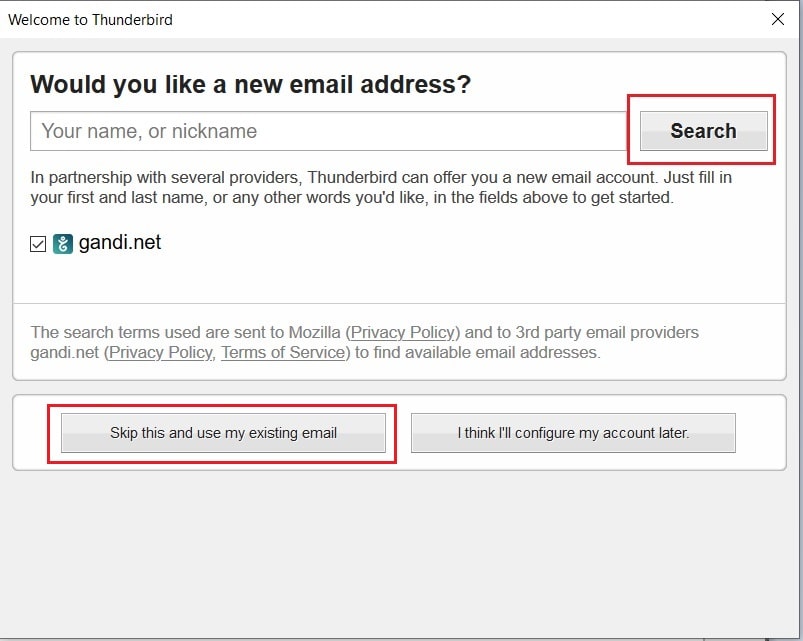
- On first start, the account window opens. If not, click the menu button, then New Account, then Email.
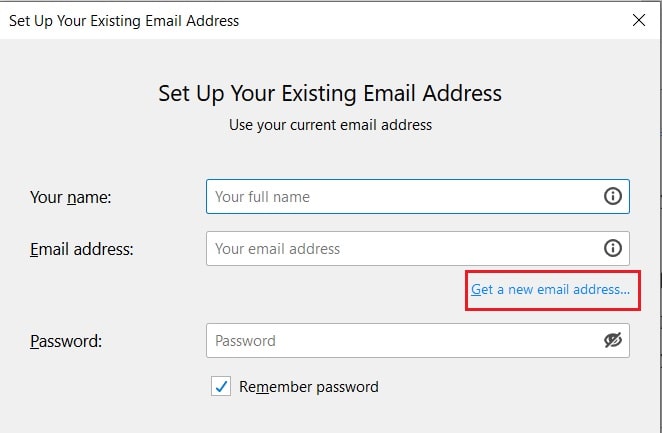
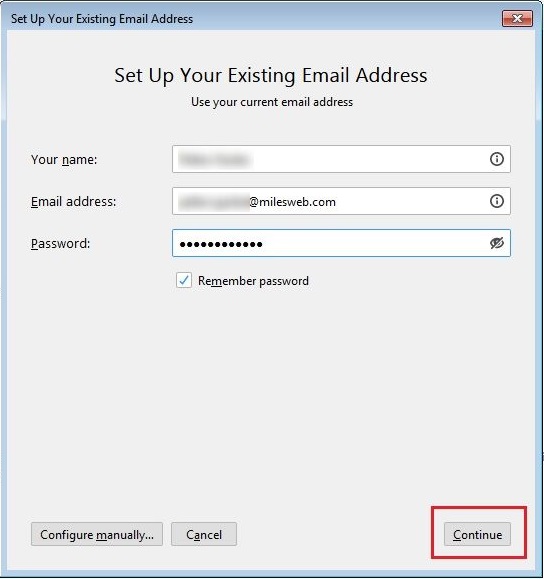
- Type your name in Your full name.
- Type your email address.
- Type your password.
- Click Continue. Thunderbird tries to find the settings by itself.
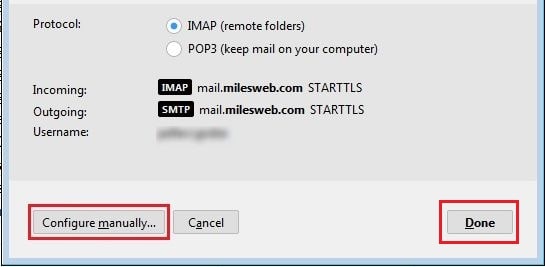
- If it finds them, check that they look right and click Done.
- If it fails, click Configure manually.
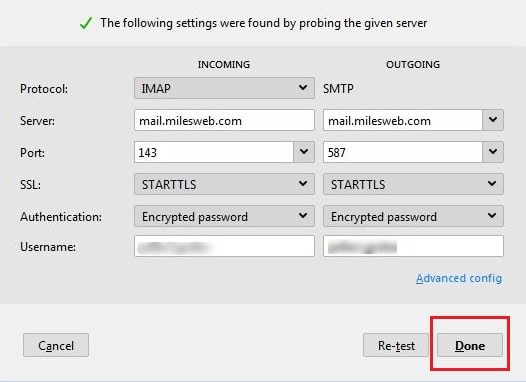
- Under Incoming Server, choose IMAP. Type the server name, a port, and the SSL setting from your welcome email.
- Under Outgoing Server, type the SMTP server name, port and SSL setting. SMTP is the system for sending mail.
- Set the user name to your full email address for both.
- Click Re-test, then Done.
- If a security window shows, read it and click Confirm Security Exception only if the server name is your own.
Test it
- Click Write and send a message to yourself.
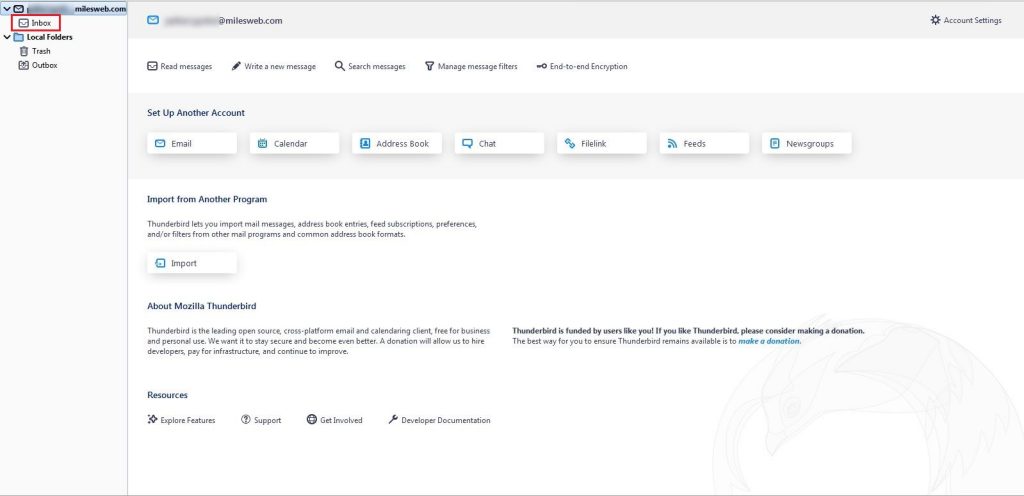
- Check that it arrives in your Inbox.
Tip: If login fails, check your password in webmail first. If it still fails, open a ticket on the support page.
Quick recap
- Install Thunderbird and add a new email account.
- Let it find settings, or enter them by hand.
- Prefer IMAP for incoming mail.
- Send a test email.