

What is an FTP password?
FTP is a way to send files between your computer and your website. An FTP account has a username and a password. The password is the secret key that proves who you are.
cPanel is the control panel of your hosting account. It is a web page where you manage files, email and more.
The password for an extra FTP account is separate from your main cPanel password. Changing one does not change the other.
Steps
- Log in to cPanel. The link and details are in your welcome email. You can also start from the client area and open your hosting service.
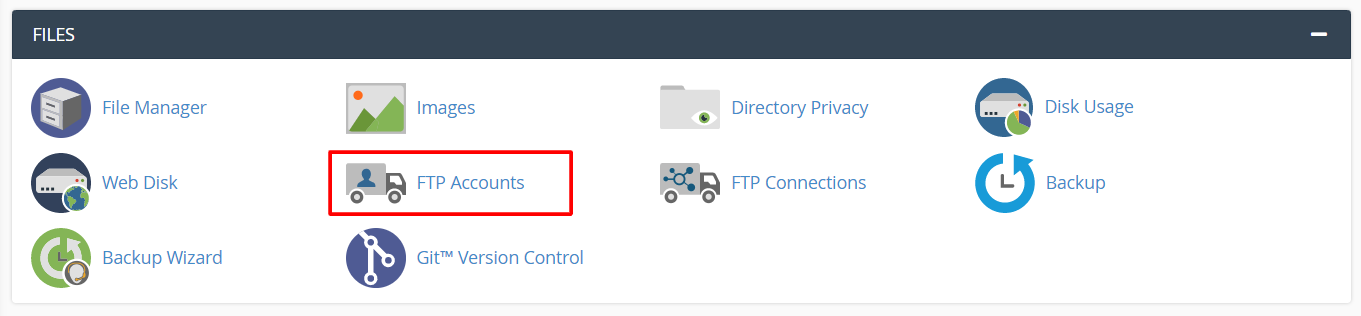
- Scroll to the Files section.
- Click FTP Accounts.
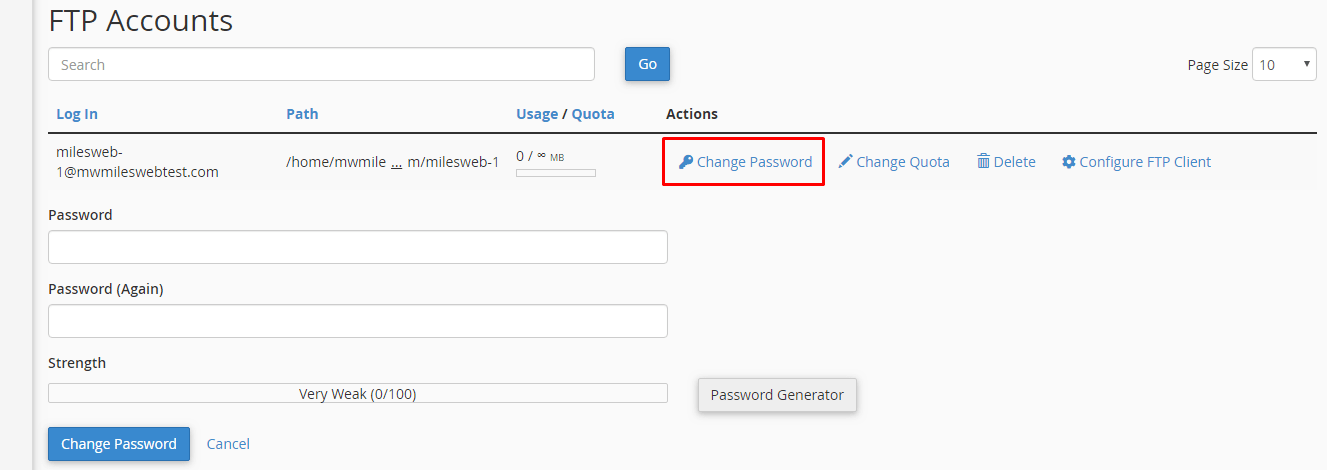
- Scroll down to the FTP Accounts table. It lists all FTP users.
- Find the user you want.
- Click Change Password in that row.
- Type the new password in the first box.
- Type it again in the second box.
- Watch the strength meter. Aim for green. You can click Password Generator to get a strong one.
- Click Change Password to save.
- Wait for the success message.
Write the new password down in a safe place now. Then update it in your FTP program, such as FileZilla, so it does not keep using the old one.
Tip: Your main cPanel account login is also shown in the FTP table. To change that one, use the main Password & Security page in cPanel instead.
Tips for a good password
- Use at least 12 characters.
- Mix letters, numbers and symbols.
- Never reuse a password from another site.
If login still fails
- Use the full username, such as
name@yourdomain.com. - Check that the password was typed by hand, with no extra space.
- Open a support ticket if you need help.
Quick recap
- Open cPanel, then FTP Accounts.
- Click Change Password beside the user.
- Enter and confirm a strong password, then save.
- Update the password in your FTP program.