

What does compress mean?
To compress files means to pack them into one smaller file called an archive. It is like putting many clothes in a vacuum bag. A common archive type is Zip. To decompress (or extract) means to unpack the bag again.
File Manager is a tool inside cPanel. It lets you see and manage your website files in a web browser. cPanel is the control panel of your hosting account.
Compressing is handy for moving a whole site or for downloading many files at once.
Steps to compress files
- Log in to cPanel and open File Manager.
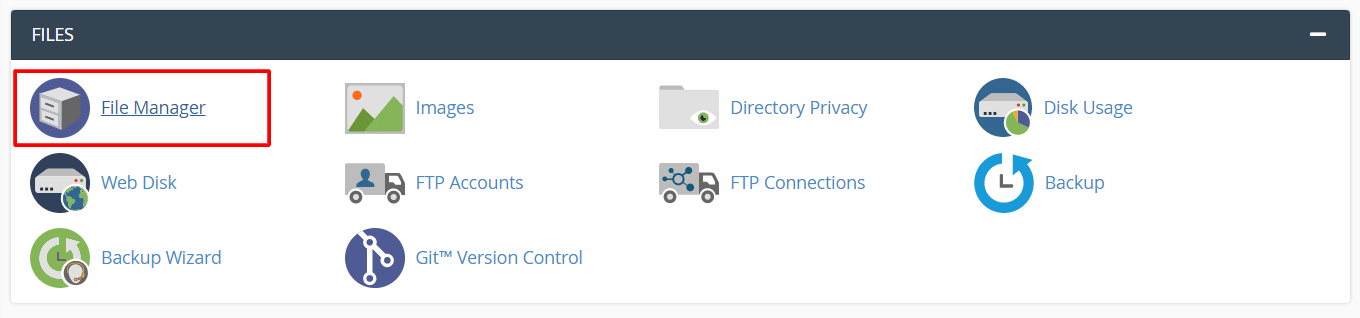
- Go to the folder that holds your files. Most websites live in
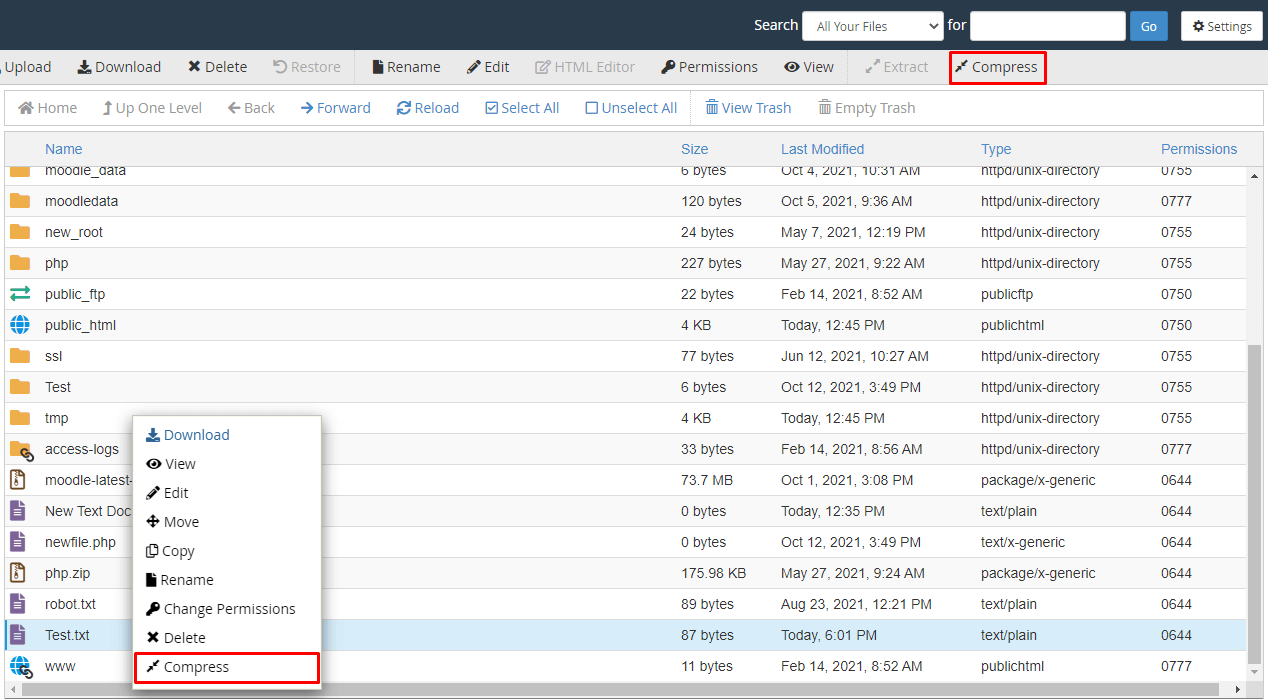
public_html. - Click the first file or folder you want. Hold Ctrl and click others to pick many. Or pick one folder.
- Click Compress in the top toolbar.
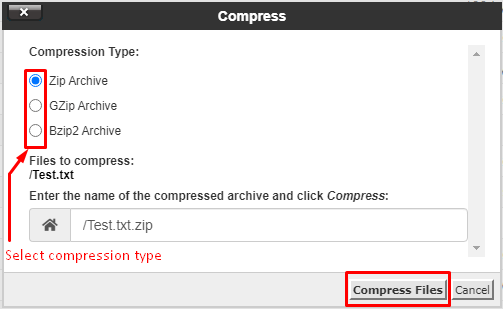
- Choose the type. Zip Archive is the best choice for beginners.
- Check the name and place of the new file in the box.
- Click Compress File(s).
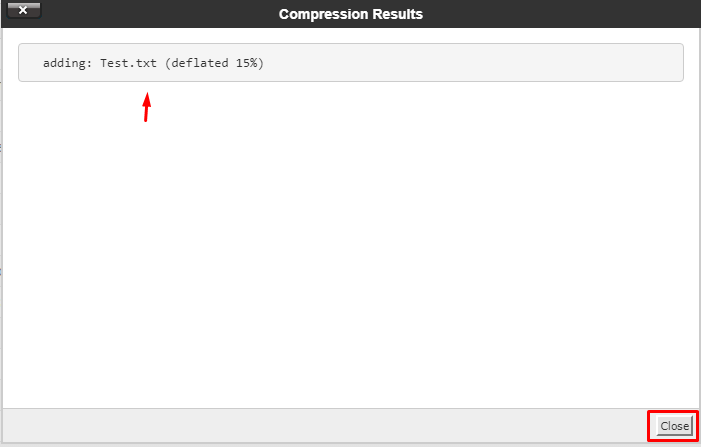
- Click Close. The archive now shows in the list.
Steps to extract files
- Open File Manager.
- Go to the folder that holds the archive.
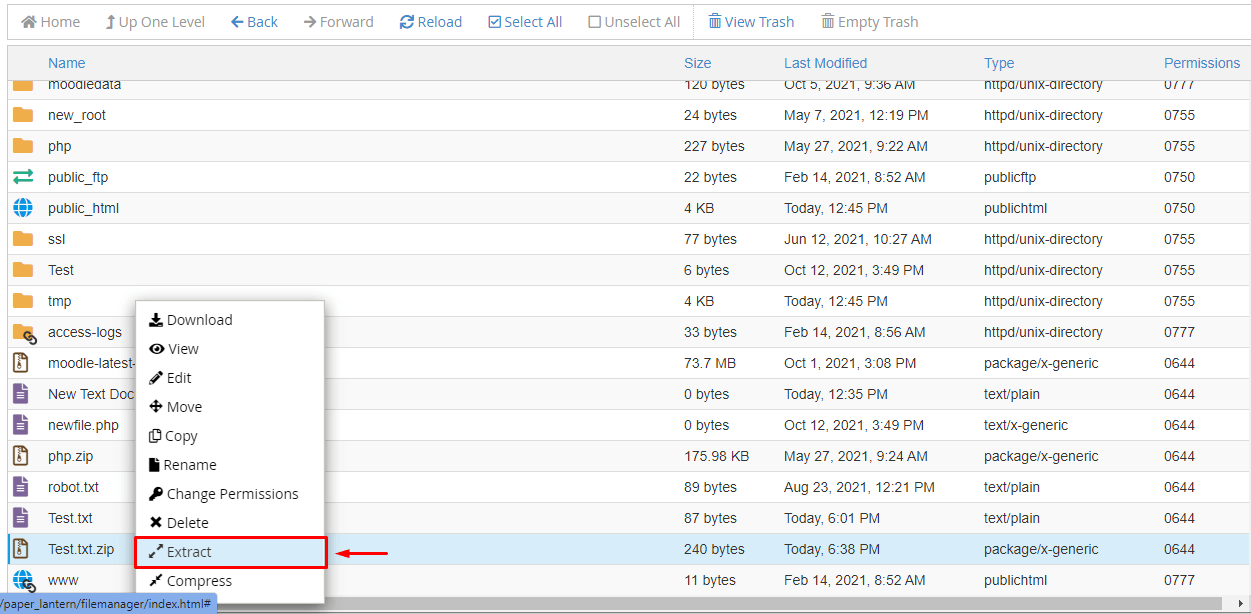
- Click the archive file once.
- Click Extract in the toolbar.
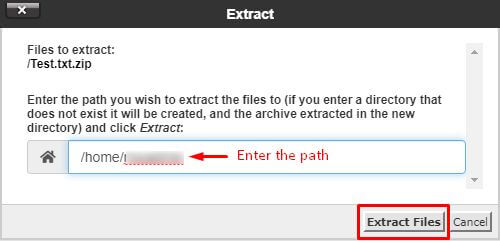
- Type the folder where the files should go. The current folder is the default.
- Click Extract File(s).
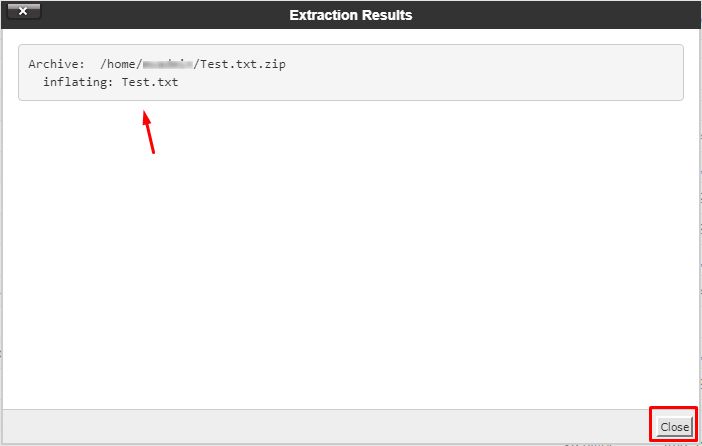
- Check the list of extracted files and click Close.
Warning: extracting can overwrite files that have the same name. Take a backup first if the folder holds a live website. Delete the archive when you finish, because it takes space.
Tip: Other formats like tar.gz also work. Zip is the most common and opens on every computer.
If it fails
- A very large archive may time out. Try smaller groups of files.
- If you run out of space, remove files you no longer need.
- Still stuck? Open a support ticket.
Quick recap
- Select files, click Compress, pick Zip.
- Click the archive, then Extract to open it.
- Back up before extracting on a live site.
- Delete the archive afterwards.