

What is this about?
WHM is the admin panel for a whole server. Root access means you are the top administrator of the server. VPS and dedicated server customers usually have it, so you can change all server settings.
An FTP server is the program that accepts file uploads from FTP programs. Its settings decide who can log in and how much they may do. Good settings keep your server safer.
Before you start
Warning: wrong settings can lock users out of FTP. Write down the old values before you change them.
Steps
- Log in to WHM as root.
- Type "FTP" in the search box on the left.
- Click FTP Server Configuration under Service Configuration.
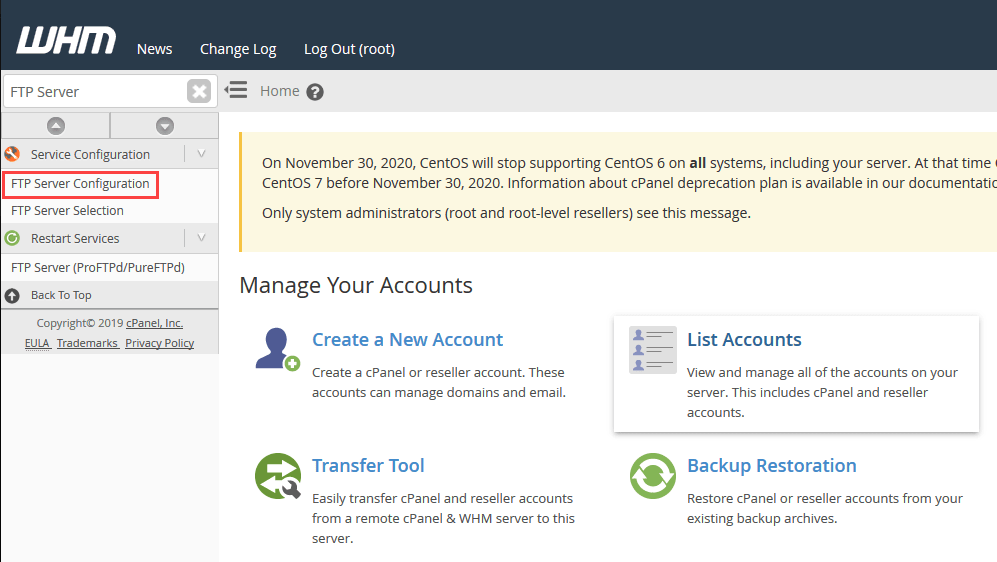
- Read each option. WHM shows a short note beside each one.
- Set Allow Anonymous Logins to No. Anonymous login lets anyone in without a password. It is risky.
- Set Allow Anonymous Uploads to No for the same reason.
- Check Maximum Number of Connections. This is how many people can connect at once. Pick a value that suits your server.
- Check TLS Encryption Support. TLS scrambles the data so others cannot read it. Choose an option that allows or requires it if your users' programs support it.
- Scroll to the bottom and click Save.
- Wait while WHM restarts the FTP service.
- Test a login with an FTP program.
Tip: Option names change a bit with the FTP server you use, such as Pure-FTPd or ProFTPD. The page shows only what your server supports.
Other things to check
- The server firewall must allow port 21 for FTP.
- Passive mode needs a range of ports open too. Ask your server admin or open a support ticket if you are unsure.
Quick recap
- Open FTP Server Configuration in WHM as root.
- Turn off anonymous logins and uploads.
- Set a sensible connection limit and use TLS.
- Save and test a login.