

Copy or move: what is the difference?
File Manager is a tool in cPanel. It lets you see and manage your website files in a web browser. cPanel is the control panel of your hosting account.
When you copy a file, you get a second one. The original stays where it was. It is like photocopying a page. When you move a file, it leaves the old folder and goes to the new one. It is like carrying a book to another shelf.
Before you start
Warning: moving files can break your website if pages look for them in the old place. If the files belong to a live site, take a backup first. Copying is the safer choice when you are unsure.
Steps to copy a file
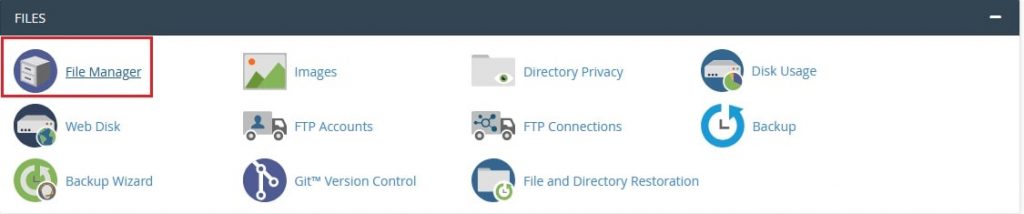
- Log in to cPanel and open File Manager.
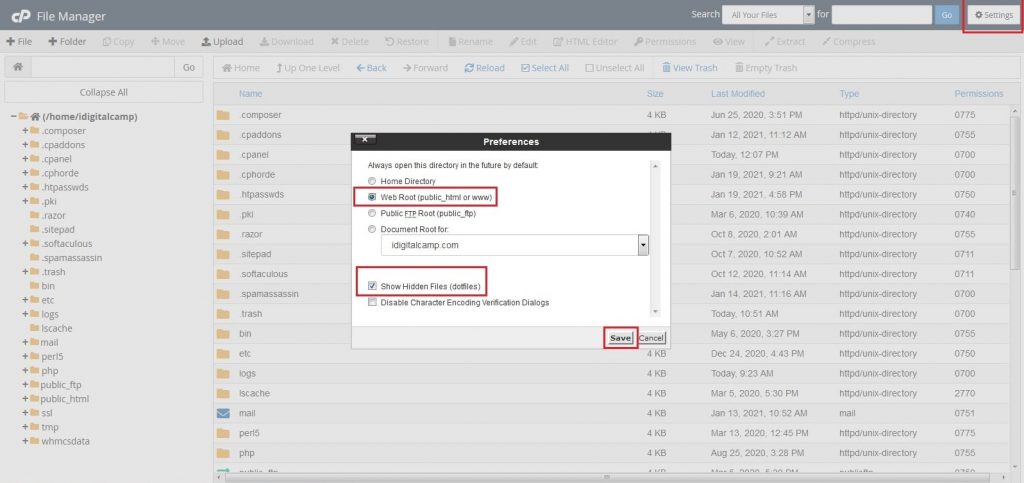
- Open the folder that holds the file. Most websites live in
public_html. - Click the file once to select it. Hold Ctrl and click more to select many.
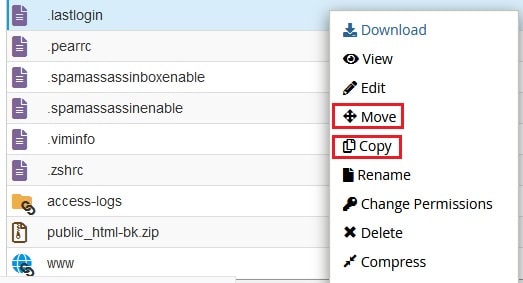
- Click Copy in the top toolbar.
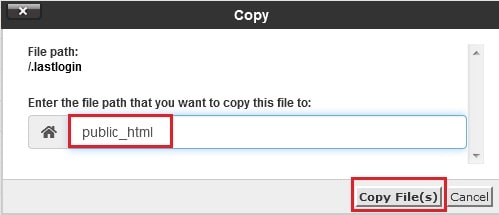
- In the box, check the destination path. Change it to the folder you want, for example
/public_html/images. - Click Copy File(s).
- Click Close. Open the new folder to check the copy.
Steps to move a file
- Select the file or files as above.
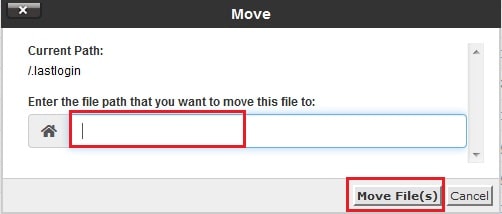
- Click Move in the toolbar.
- Type the new folder path in the box.
- Click Move File(s).
- Check the new folder to make sure the file arrived.
Drag and drop
You can also drag a file with your mouse and drop it on a folder in the left tree. This moves the file. Be careful not to drop it in the wrong folder.
Tip: If a file with the same name already exists at the destination, it may be replaced. Rename one of them first if you want to keep both.
If something goes wrong
- Move the file back using the same steps.
- Check the
.htaccessor settings files if a page now shows an error. - Open a support ticket if your site is down.
Quick recap
- Copy keeps the original. Move takes it away.
- Select the files, then click Copy or Move.
- Type the destination folder and confirm.
- Back up before moving files on a live site.