

What is File Manager?
cPanel is the control panel of your hosting account. File Manager is a tool in it. It works like the Files app on a computer, but it shows the files of your website. You can make, rename, edit and delete files without any extra program.
You may want a new file for a test page, a note, or a settings file like robots.txt.
Steps
- Log in to cPanel. You can find your hosting service through the client area.
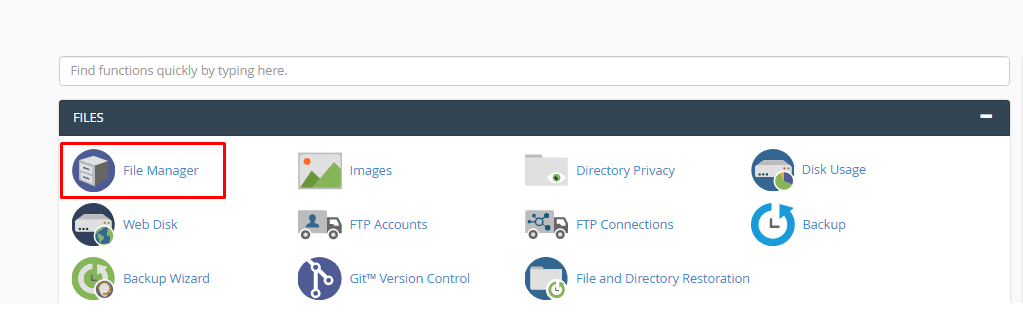
- In the Files section, click File Manager. It opens in a new tab.
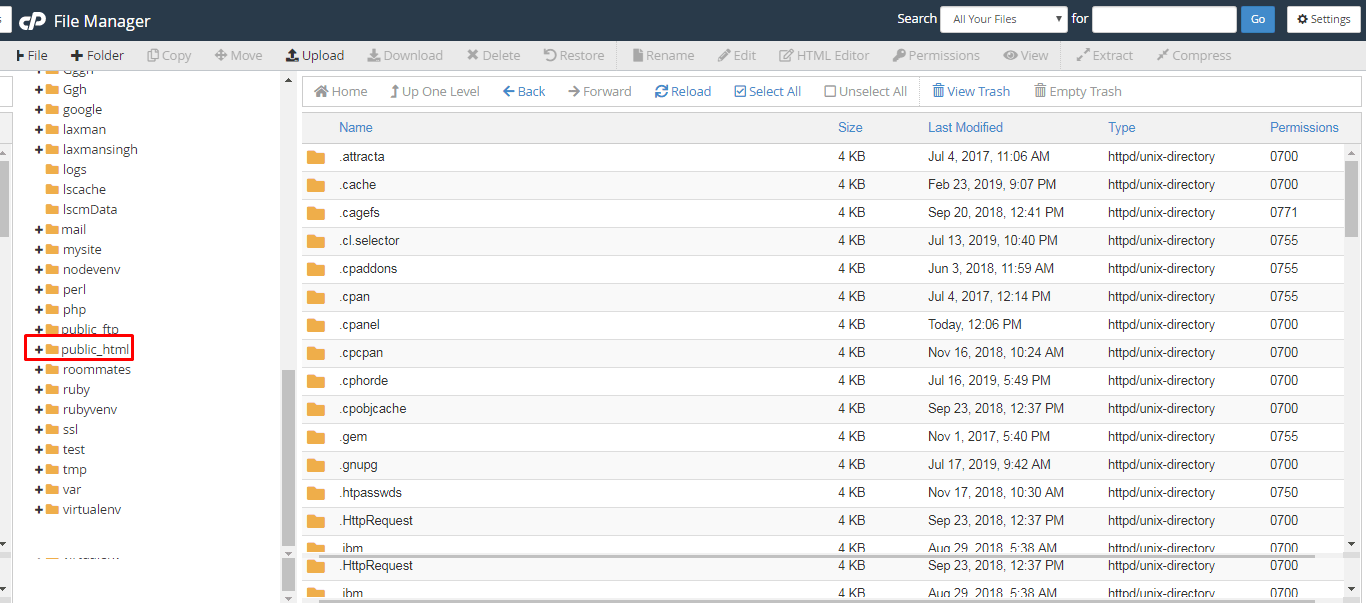
- In the left list, click the folder where the file should go. For your main website, open
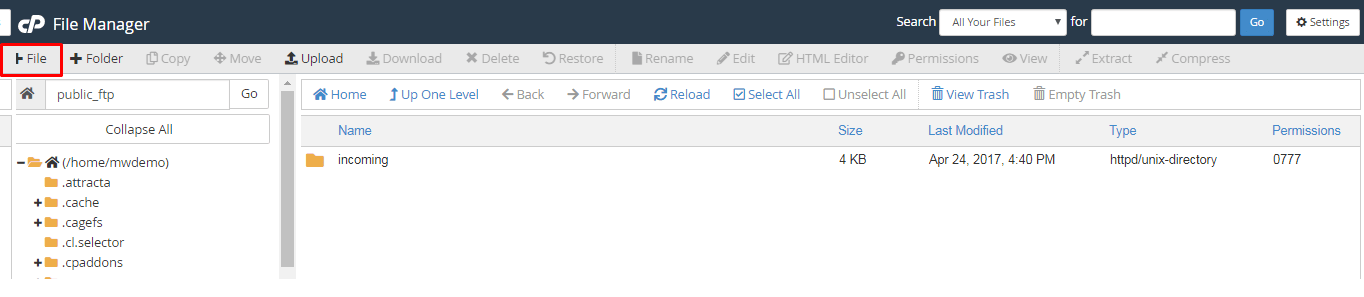
public_html. - Click + File in the top toolbar.
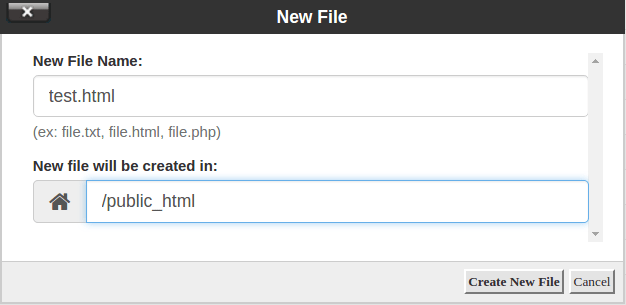
- In the box New File Name, type the name with its ending. Example:
test.html. The ending, such as.htmlor.txt, tells the computer what kind of file it is. - Check that the path under the name is the folder you want.
- Click Create New File.
- Find the new file in the list. It is empty for now.
Add some text to the file
- Right-click the new file.
- Click Edit. If a notice about encoding appears, click Edit again.
- Type your content. For a simple page, you can type:
<h1>Hello</h1>
<p>My first page.</p>
This is a tiny web page with a big heading and one line of text.
- Click Save Changes at the top right.
- Click Close.
Now open your website address followed by /test.html in a browser to see it.
Tip: File names are case sensitive on most servers.
Test.html and test.html are different files. Use small letters and no spaces.Warning: do not use the name of a file that already exists, such as index.php. Creating it again may replace your real page. Take a backup first if you are unsure.
Quick recap
- Open File Manager and pick the folder.
- Click + File, type a name with an ending, and create it.
- Right-click and Edit to add text.
- Click Save Changes.