

What is File Manager?
cPanel is the control panel of your hosting account. File Manager is a tool in it. It shows your website files in your browser, much like the folders on your own computer.
Deleting old files frees up space and keeps your site tidy.
Warning: deleting the wrong file can break your website. Files such as index.php, wp-config.php and .htaccess are important. Take a backup before you delete anything you are not sure about.
Steps
- Log in to cPanel.
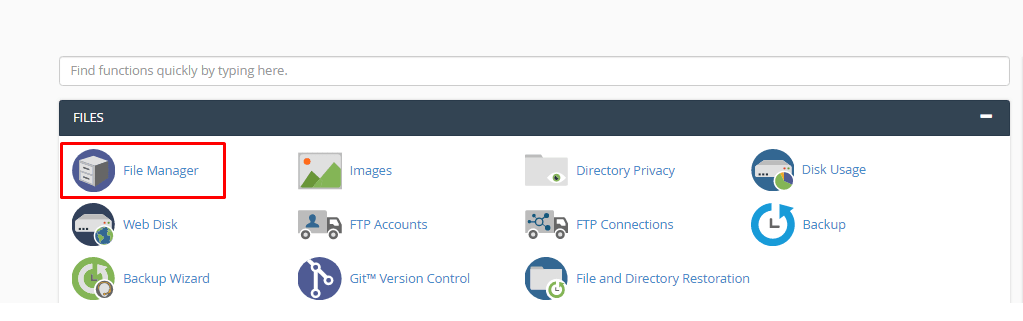
- Click File Manager in the Files section.
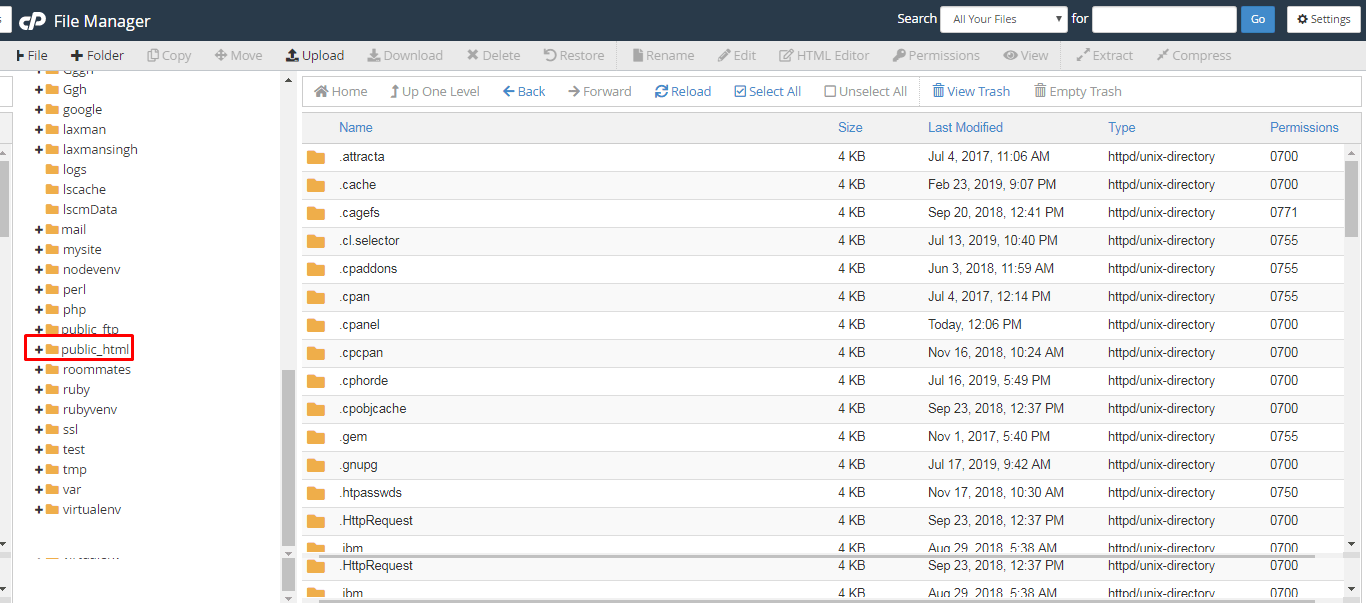
- Open the folder that holds the file. Most site files live in
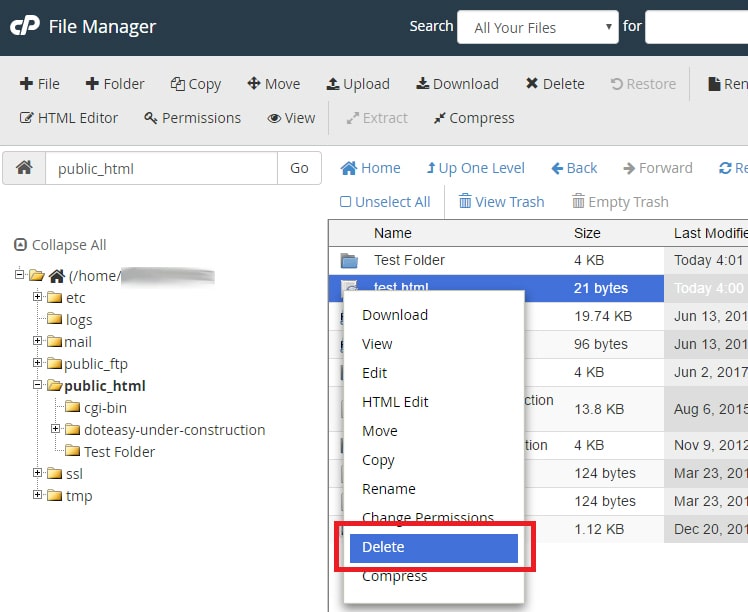
public_html. - Click the file once to select it. Hold Ctrl and click others to pick more.
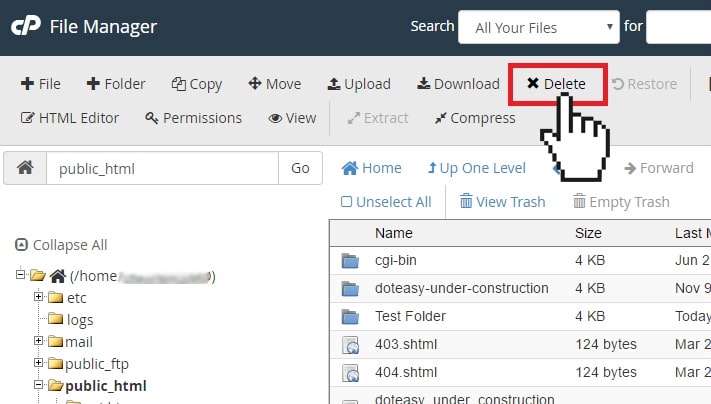
- Click Delete in the top toolbar.
- A box asks what to do. Leave Skip the trash and permanently delete the files unticked. This lets you recover the file.
- Click Confirm.
The file now goes to the Trash. It is gone from your site, but it can still be restored.
Bring a file back from the Trash
- In File Manager, click View Trash in the toolbar.
- Select the file.
- Click Restore.
The file returns to its old folder.
Empty the Trash
Files in the Trash still use space. To remove them for good, click Empty Trash and confirm. After that, they cannot be restored from there.
Tip: Not sure if a file matters? Rename it first, for example add
-old to the end. If the site still works after a day, delete it.If your site breaks
- Restore the file from the Trash.
- Or restore it from your backup.
- Open a support ticket if you need help.
Quick recap
- Select the file in File Manager and click Delete.
- Do not tick the permanent delete box if you may want it back.
- Use View Trash and Restore to recover files.
- Always back up first.