

What do you need to turn on?
FTP is a way to send files between your computer and your server. For it to work, three things must be ready. First, an FTP server program must be chosen and running. Second, the firewall must let FTP traffic in. Third, the user must have a working FTP account.
WHM is the admin panel for the whole server. Root access means you are the top administrator. VPS and dedicated server customers usually have it.
Step 1: choose an FTP server
- Log in to WHM as root.
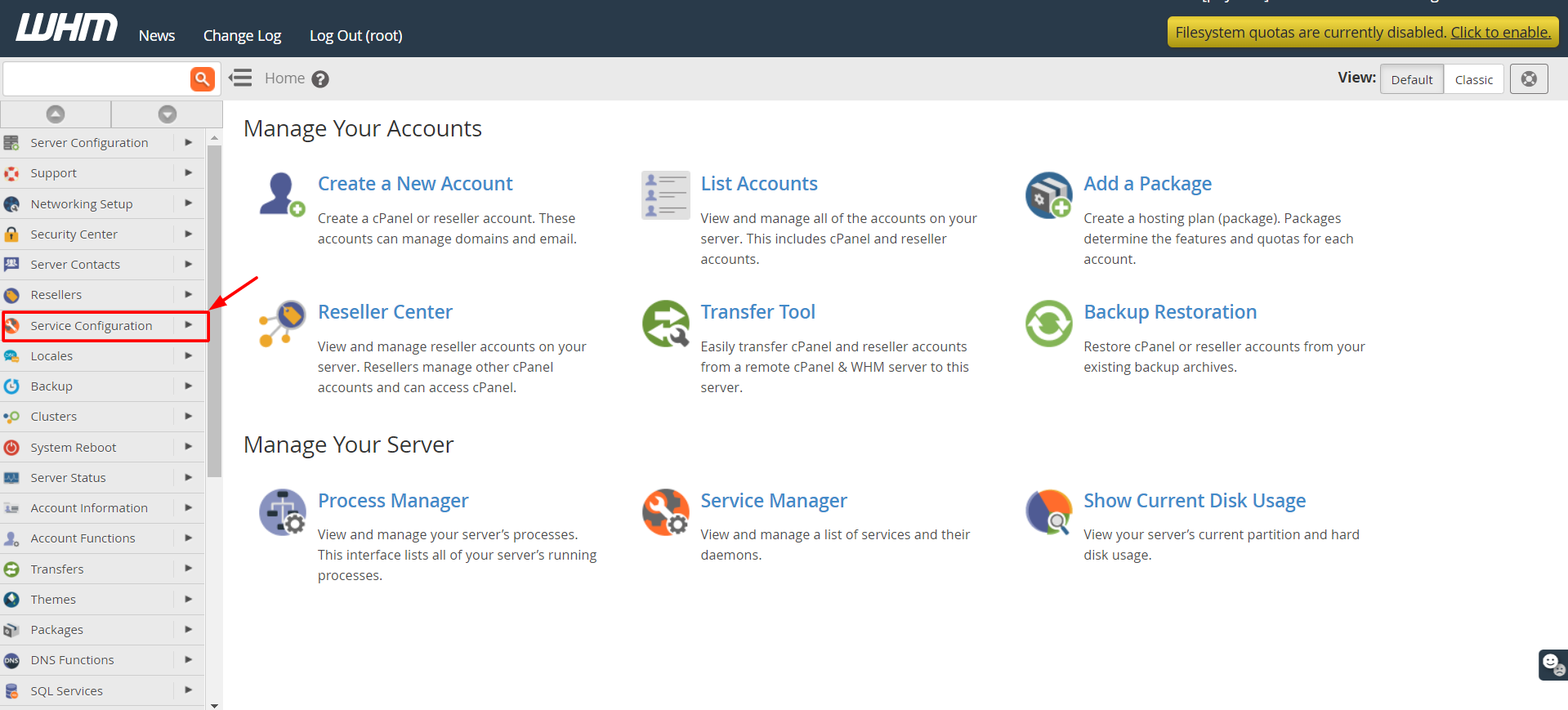
- Type "FTP" in the search box.
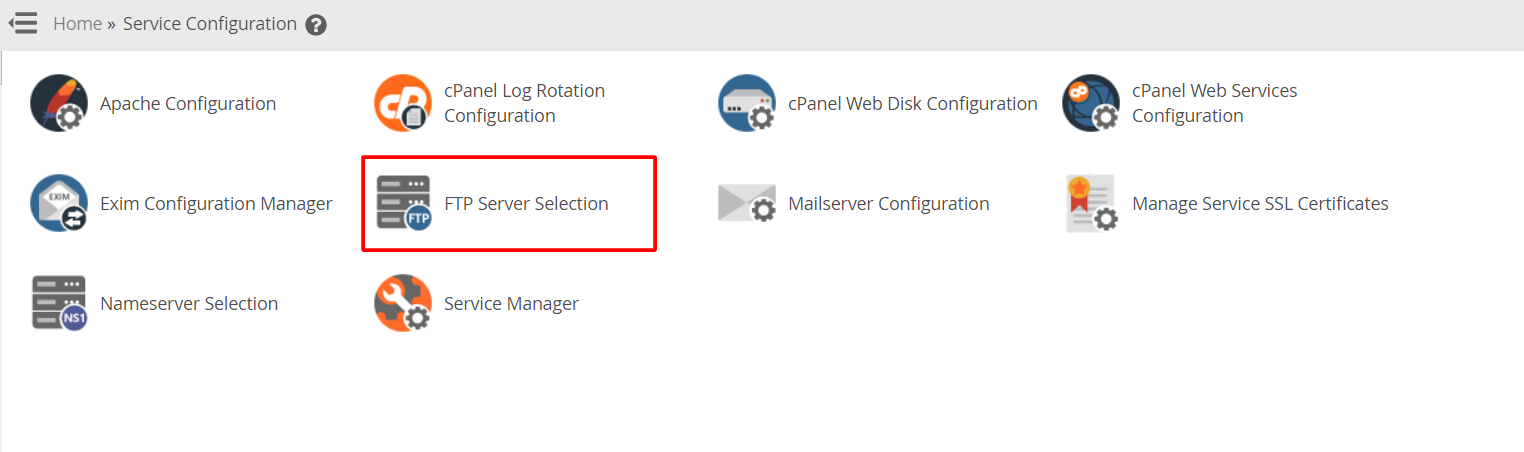
- Click FTP Server Selection.
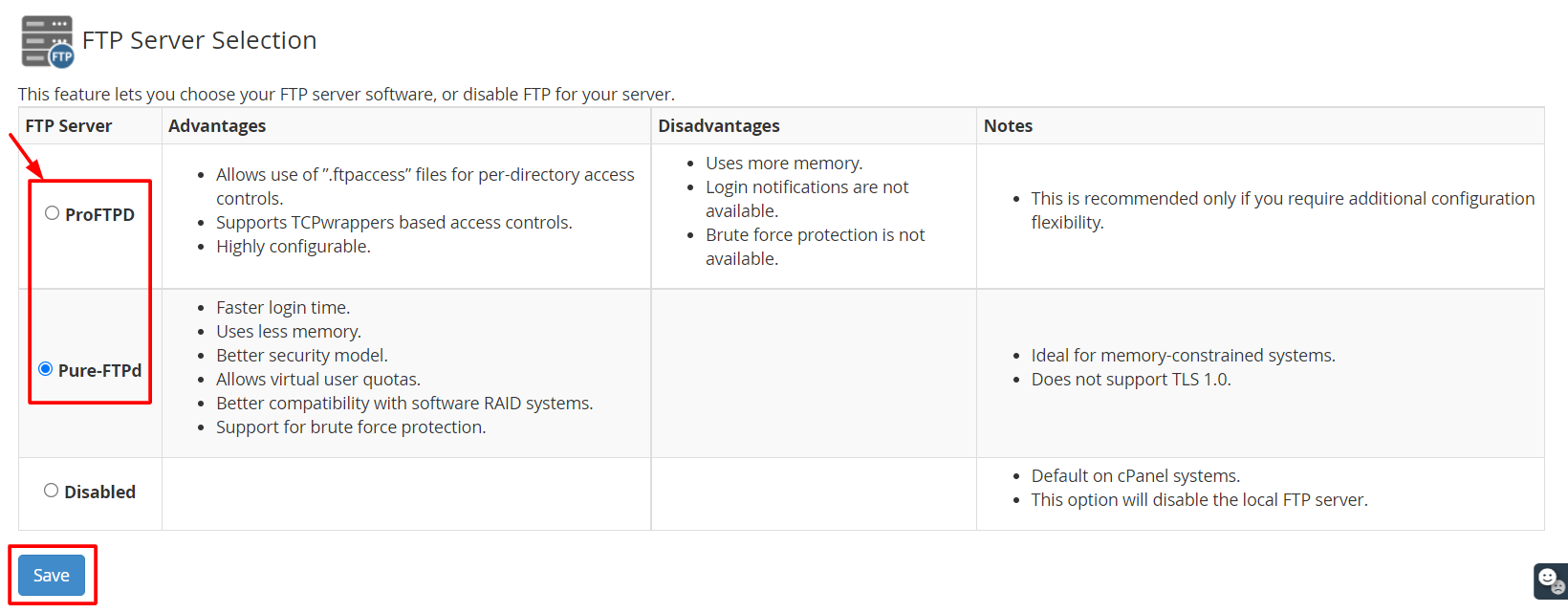
- Pick Pure-FTPd or ProFTPD. If Disabled is selected, FTP is off.
- Click Save.
Step 2: check the service is running
- Search for Service Manager in WHM.
- Find the FTP server in the list.
- Tick both Enabled and Monitor. Monitor makes WHM restart the service if it stops.
- Click Save.
Step 3: open the firewall
A firewall is a security guard that blocks or allows traffic. FTP uses port 21. A port is like a numbered door on the server.

- If you use a firewall tool such as ConfigServer Security & Firewall (CSF), open it in WHM.
- Check that TCP port 21 is allowed. Also allow your passive port range if you use passive mode.
- Restart the firewall if the tool asks you to.
Step 4: test
- Open an FTP program such as FileZilla.
- Enter your host, username, password and port 21.
- Click Quickconnect.
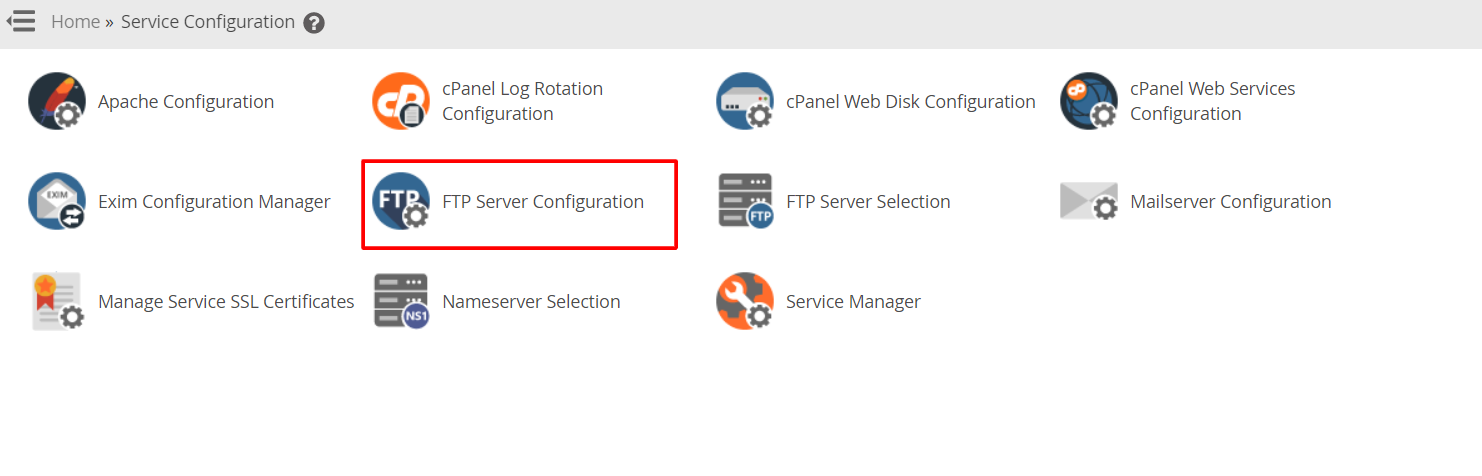
Warning: do not enable anonymous FTP unless you really need it. Anonymous FTP lets anyone in without a password. You can check this in FTP Server Configuration.
Tip: If you only want secure transfers, ask whether SFTP suits you. It uses port 22 and encrypts everything.
If it still fails, open a support ticket.
Quick recap
- Pick an FTP server in FTP Server Selection.
- Make sure the service is enabled in Service Manager.
- Allow port 21 in the firewall.
- Test with an FTP program.