

What is Web Disk?
Web Disk is a cPanel tool. It lets you open a folder on your hosting as if it were a drive on your computer. You can drag, drop and copy files with your normal file window. It uses a method called WebDAV. WebDAV is a way to work with files on a server over the web.
An additional Web Disk account is an extra login. It can reach only the folder you choose. This is handy for a helper who should not see everything.
Create an account
- Log in to cPanel.
- In the Files section, click Web Disk Accounts.
- Under Add Web Disk Account, type a Username. Choose the domain in the list next to it.
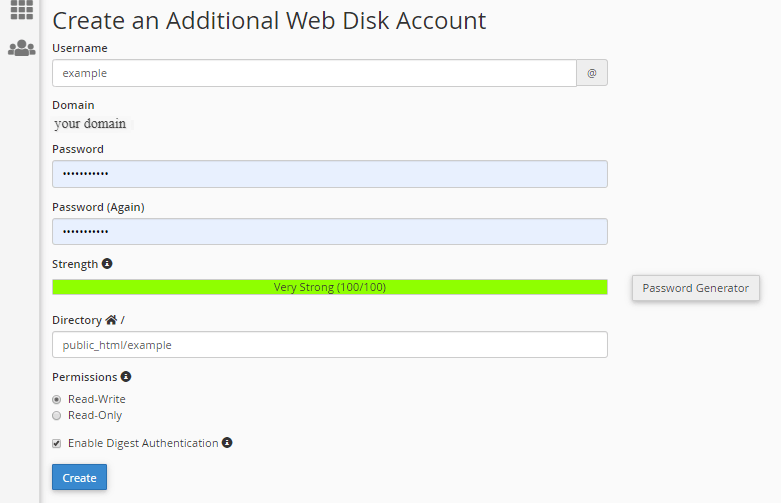
- Type the Directory, for example
public_html/shared. Only this folder will be reachable. - Type a strong Password, or use the password generator.
- Choose the Permissions. Read-Write lets the user change files. Read-Only lets them only look.
- Click Create.
Connect to it
- In the account list, click Access Web Disk beside the account.
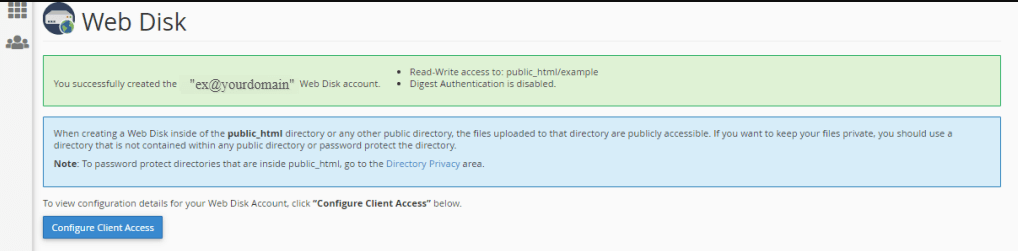
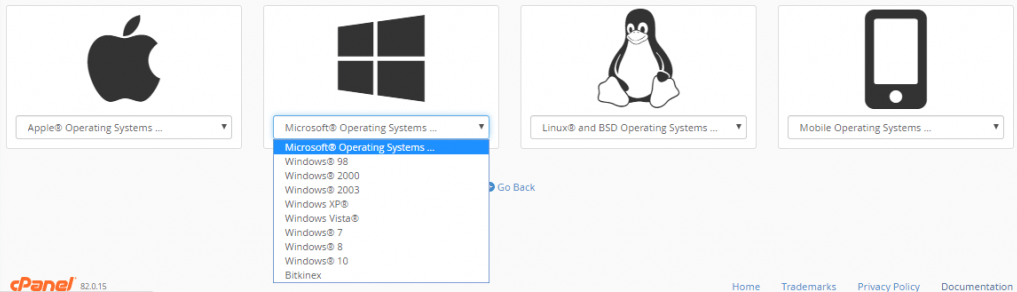
- Pick your computer type, such as Windows or Mac.
- Click Download the Web Disk Configuration Script, or follow the on-screen steps for manual setup.
- Run the file or follow the instructions.
- When asked, enter the Web Disk username and password.
On Windows, you can also open File Explorer, right-click This PC and choose Map network drive. Use the Web Disk address that cPanel shows. Windows may need SSL for the connection to work well. Many people find an FTP program simpler. Mac users can use Go then Connect to Server in Finder.
Remove or change an account
- Go back to Web Disk Accounts.
- Use Change Password, Change Permissions or Delete beside the account.
Warning: Read-Write users can delete files. Give out Read-Only access when possible. Take a backup before you share write access.
If the connection fails, open a support ticket.
Quick recap
- Web Disk shows your hosting folder like a drive on your computer.
- Create an account with Web Disk Accounts and limit it to one folder.
- Use Access Web Disk for connection help.
- Prefer Read-Only access for safety.