

What are hidden files?
On a Linux server, a file whose name starts with a dot is hidden. Examples are .htaccess and .user.ini. They are hidden on purpose. They hold settings, and hiding them keeps people from deleting them by accident.
These files are often called dotfiles, because of the dot at the start of the name.
cPanel is the control panel for your hosting account. A control panel is a website where you manage your hosting. File Manager is the tool inside it that lets you see and change your website files.
Why would you need them?
- You want to edit your
.htaccessfile to add a redirect. - A guide tells you to change a setting in a dotfile.
- You want to back up everything, including settings files.
Steps
- Log in to cPanel. You can find your login details in your Hostvento welcome email.
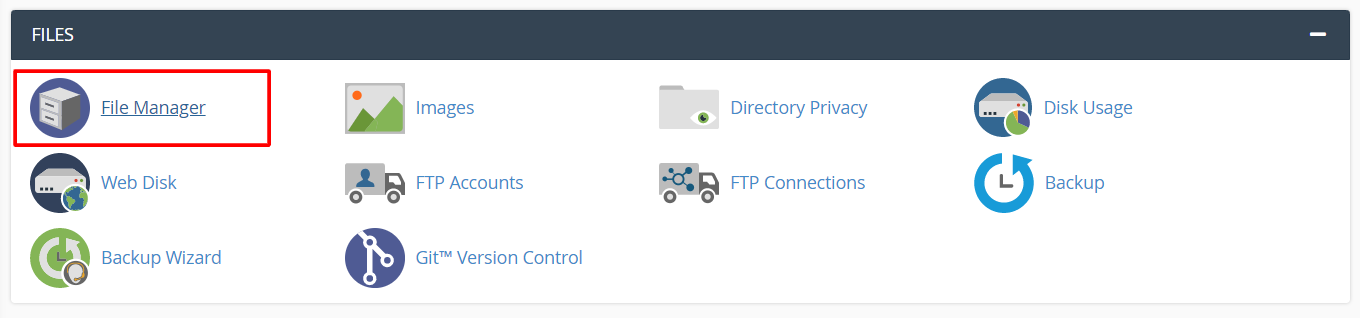
- In the Files section, click File Manager. It opens in a new tab.
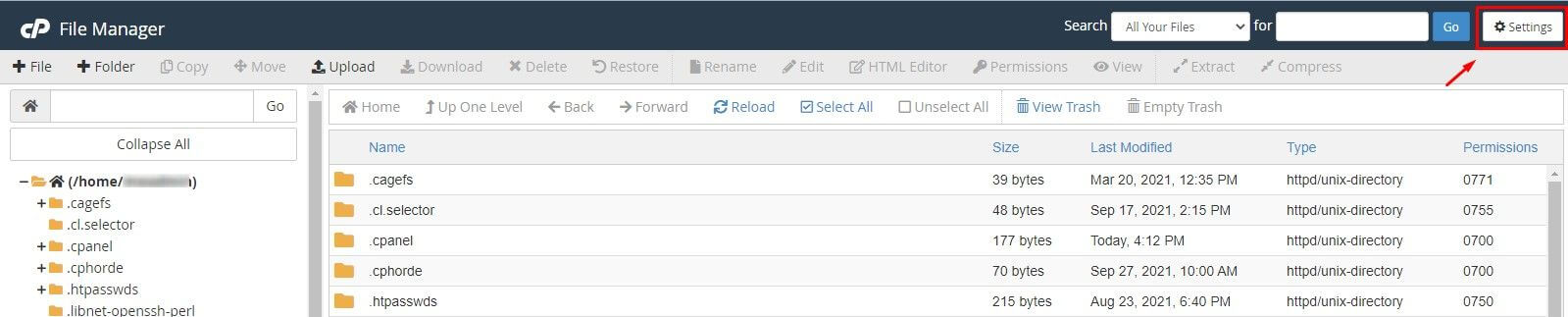
- Look at the top right corner. Click Settings.
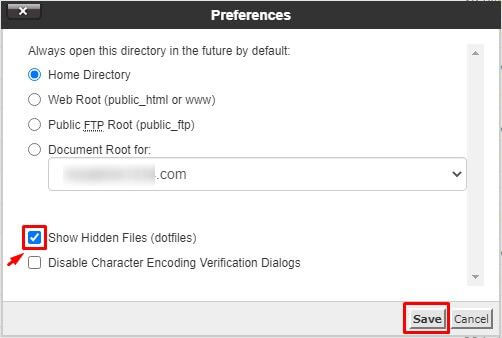
- A small window opens named Preferences.
- Tick the box Show Hidden Files (dotfiles).
- Click the blue Save button.
- The file list reloads. Now you can see the hidden files.
In the same window you can also choose which folder File Manager opens first. The choices include your home folder and your web root. The web root is the folder where your website files live, usually public_html.
Hide them again
You can turn the setting off any time.
- Click Settings again.
- Remove the tick from Show Hidden Files (dotfiles).
- Click Save.
What if I still cannot see the file?
- Check that you are in the right folder. A file in
public_htmlwill not show while you are looking at another folder. - Click the Reload button in the top menu.
- The file may not exist yet. Some sites do not have a
.htaccessfile until a program creates it. You can make one with + File.
If you still need help, open a support ticket.
Quick recap
- Hidden files start with a dot and hold settings.
- Open File Manager, then click Settings.
- Tick Show Hidden Files (dotfiles) and click Save.
- Be careful before you change or delete any hidden file.