

What does this error mean?
FileZilla is a free program that moves files between your computer and your website. It uses FTP, short for File Transfer Protocol. FTP is a set of rules for sending files over the internet.
A timeout means FileZilla called the server and nobody answered in time. It is like ringing a doorbell and waiting, but nobody opens the door.
You may see messages like these:
Error: Connection timed out after 20 seconds of inactivity
Error: Could not connect to server
Common causes
- A wrong host name, user name, password or port.
- Your firewall or antivirus blocks FileZilla. A firewall is a guard that decides which connections may pass.
- Your home internet or office network blocks FTP.
- The server's firewall blocked your IP address after several wrong logins. An IP address is the number that identifies your connection on the internet.
- The wrong connection mode (active instead of passive).
Steps to fix it
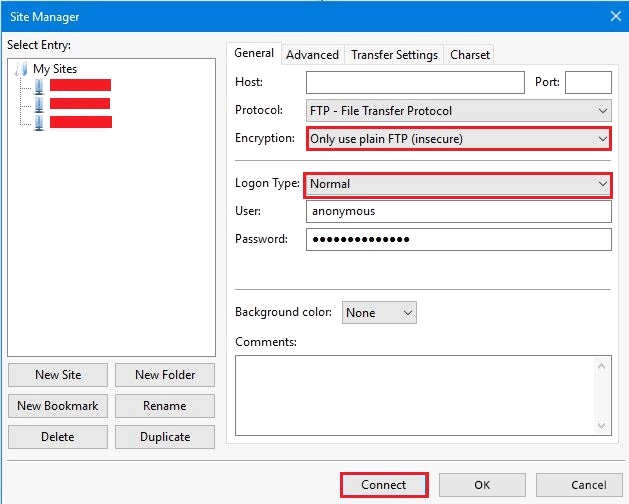
- Check your details. Open File, then Site Manager. Compare the host, user name and password with your Hostvento welcome email or the FTP account in your hosting panel.
- Use port
21for normal FTP, unless your welcome email says another number. - Switch to passive mode. Go to Edit, then Settings, then Connection, then FTP. Choose Passive (recommended). Click OK.
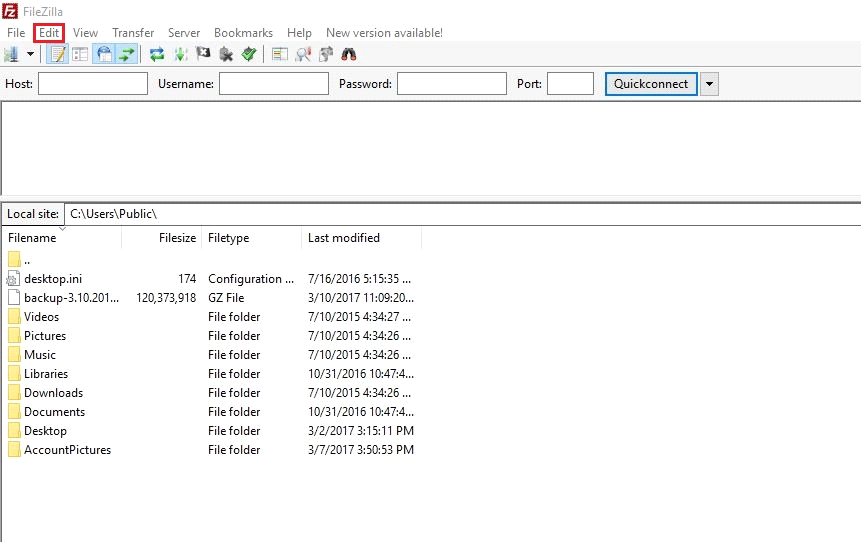
- Raise the timeout. In Settings, open Connection. Change Timeout in seconds to
60. Click OK.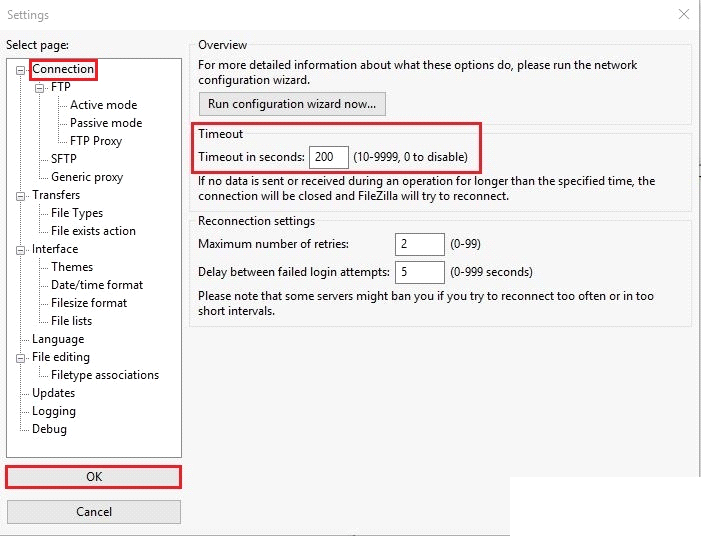
- Turn off your antivirus or firewall for a minute to test. If it works, add FileZilla to the allowed programs. Then turn protection back on.
- Try another network, such as your phone's hotspot. If it works, your first network blocks FTP.
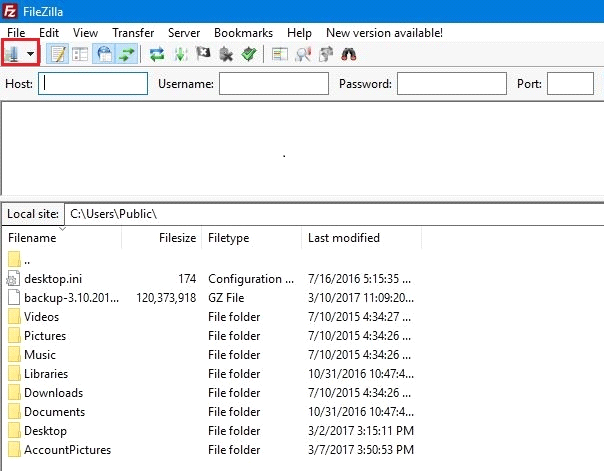
- Try again.
Tip: If you tried many wrong passwords, the server may have blocked your IP address for a while. Ask Hostvento support to check this. Include your public IP address, which you can find by searching "what is my IP" in a browser.
Still timing out?
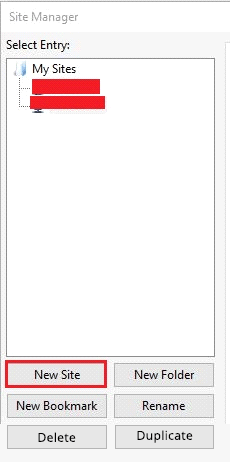
Try the Transfer settings tab in the Site Manager and limit the number of connections to 1. Some servers allow only a few at once.
If nothing helps, open a support ticket. Add the full FileZilla log from the top window. It helps support find the cause faster. Remove your password from the log before you send it.
Quick recap
- A timeout means the server did not answer in time.
- Check host, user name, password and port first.
- Use passive mode and a longer timeout.
- Test your firewall, antivirus and network.
- Ask support if your IP address may be blocked.