

In this guide, Machine A has the user linuxuser and IP 192.168.10.10, and Machine B has the user ubuntu and IP 192.168.10.8. Change them to your own values.
Method 1: rsync
rsync copies only changed parts of files, so it is fast for repeated copies. It uses SSH.
Step 1: Install rsync (on both machines)
sudo apt install rsync -yStep 2: Check SSH access
From A to B:
ssh ubuntu@192.168.10.8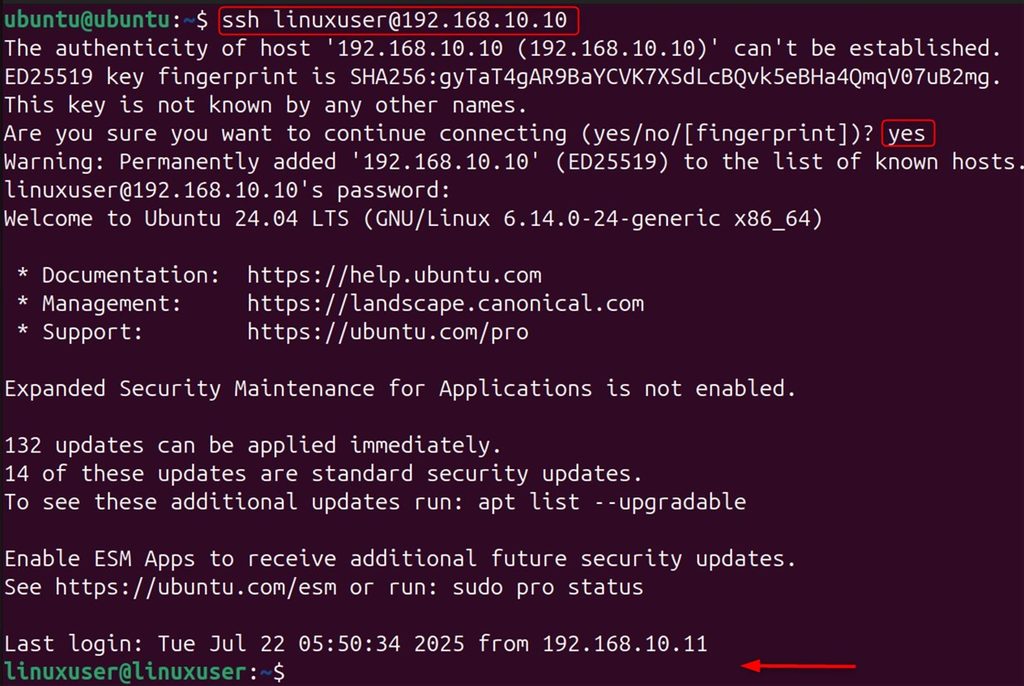
From B to A:
ssh linuxuser@192.168.10.10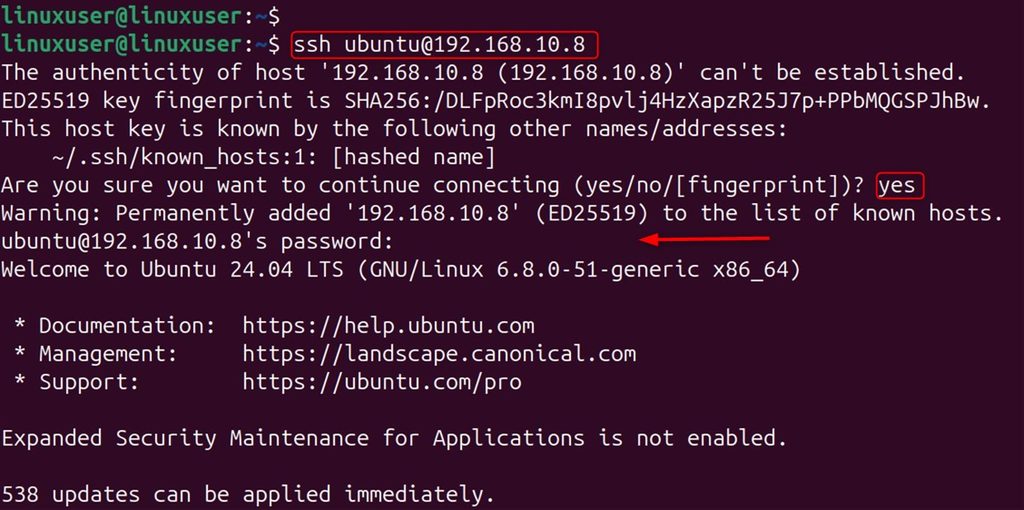
Step 3: Set up SSH keys (optional but better)
ssh-keygen -t rsa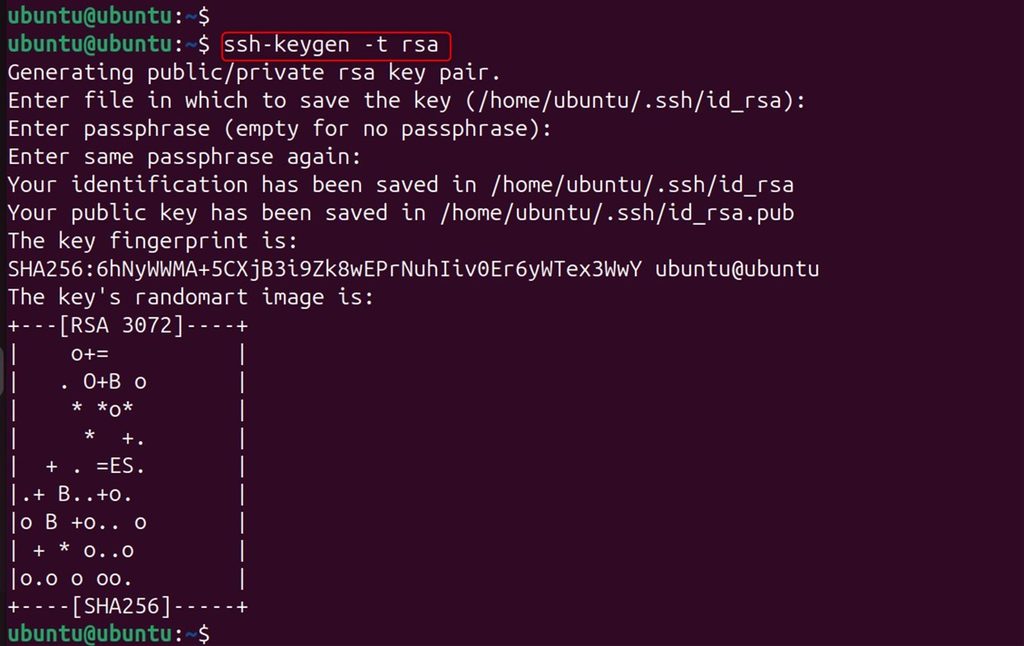
ssh-copy-id ubuntu@192.168.10.8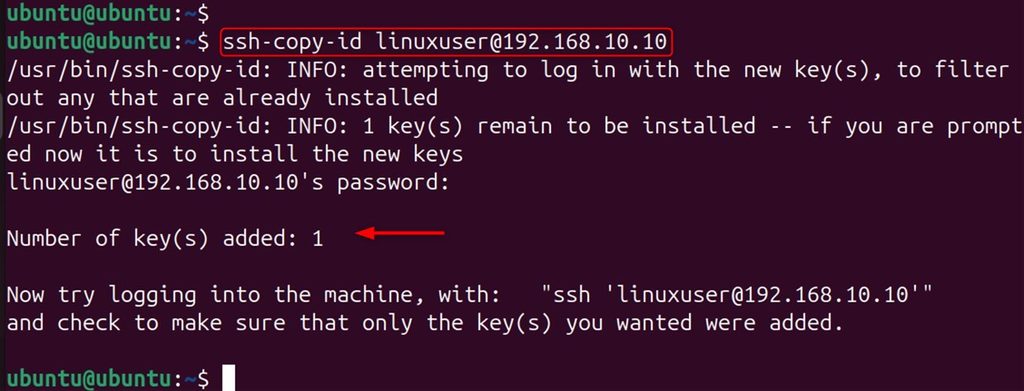
Step 4: Send a file from B to A (run on B)
rsync -avz /home/ubuntu/file.txt linuxuser@192.168.10.10:/home/linuxuser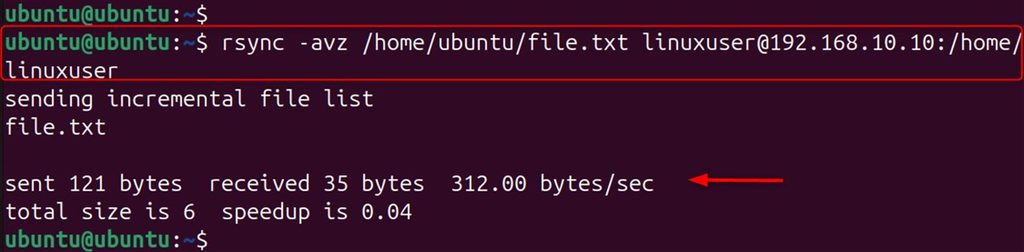
-akeeps permissions and times, and copies folders.-vshows the progress.-zcompresses the data while it travels.
Step 5: Send a folder from A to B (run on A)
rsync -avz /home/linuxuser/docs/ ubuntu@192.168.10.8:/home/ubuntu/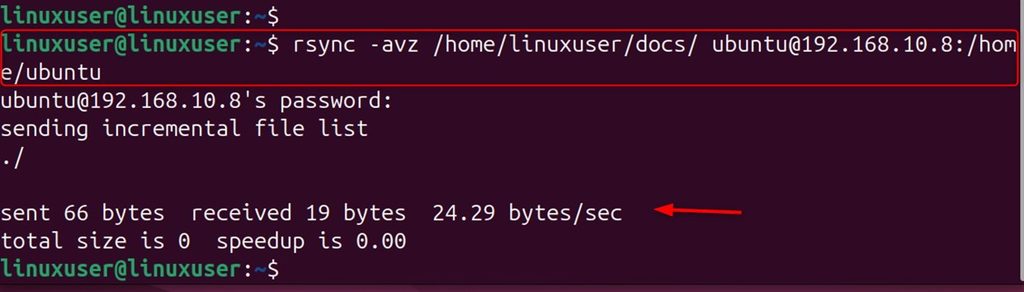
Step 6: Pull in the other direction
rsync -avz ubuntu@192.168.10.8:/home/ubuntu/file.txt /home/linuxuser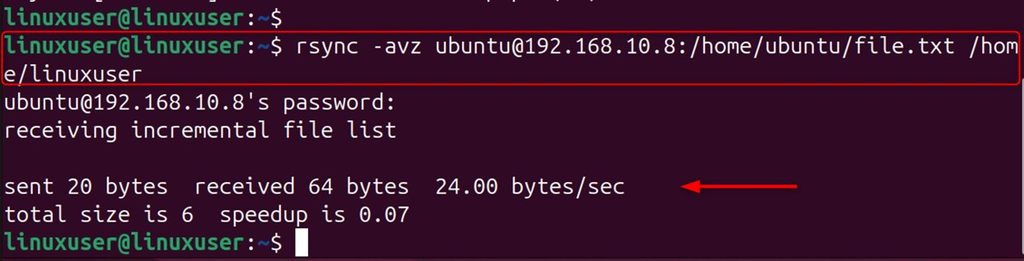
Method 2: FTP
FTP is a common way to move files, but it does not encrypt data by default. Use it only on a trusted network, or use SFTP.
Step 1: Install an FTP server (on the server machine, B)
sudo apt install vsftpd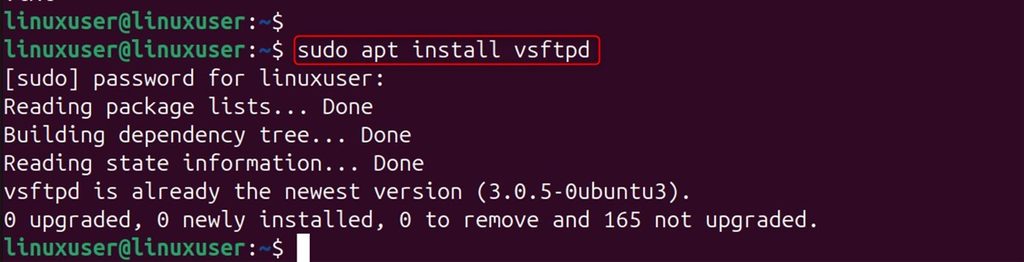
Edit /etc/vsftpd.conf and set write_enable=YES to allow uploads, then restart:
sudo systemctl restart vsftpdStep 2: Open port 21
sudo ufw allow 21/tcp
Step 3: Make a test file
echo "FTP test file" > /home/linuxuser/Documents/ftp-test.txt
Step 4: Connect from the client
ftp 192.168.10.8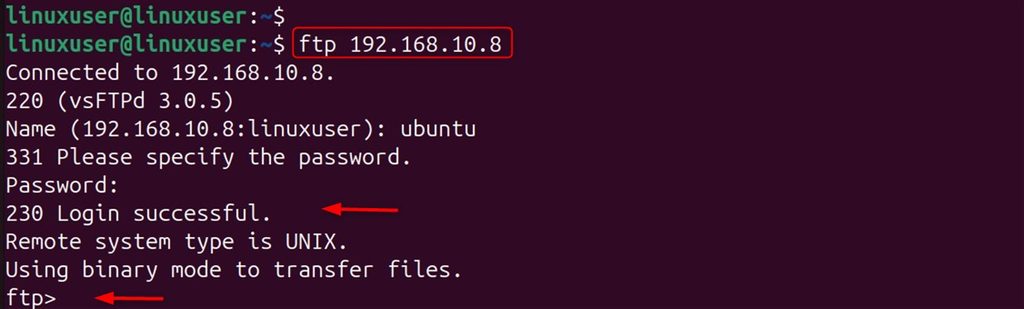
Enter the user name and password.
Step 5: Upload
put /home/linuxuser/Documents/ftp-test.txt ftp-test.txt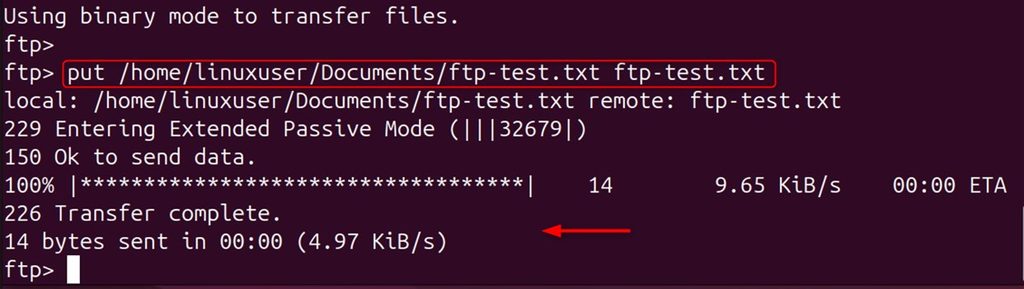
Step 6: Download
get ftp-test.txt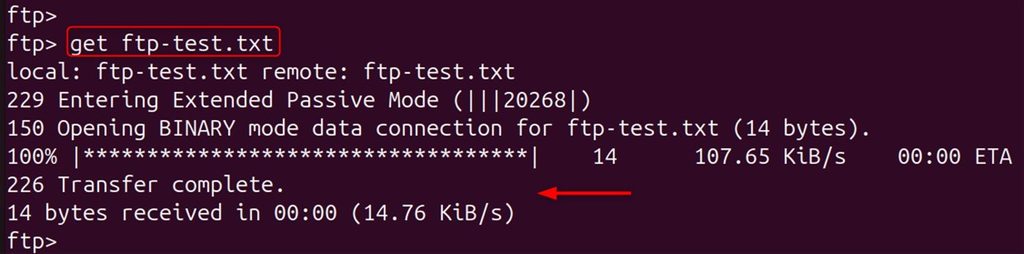
Method 3: Samba
Samba shares folders over SMB/CIFS. It is mainly for Windows, but it also works between Linux machines.
Step 1: Install Samba (on both)
sudo apt install samba smbclient cifs-utils -yStep 2: Share a folder on Machine A
mkdir -p /home/linuxuser/shared
chmod 775 /home/linuxuser/shared
Edit the config:
sudo nano /etc/samba/smb.confAdd this at the bottom:
[SharedFolder]
    path = /home/linuxuser/shared
    valid users = linuxuser
    read only = no
    browsable = yes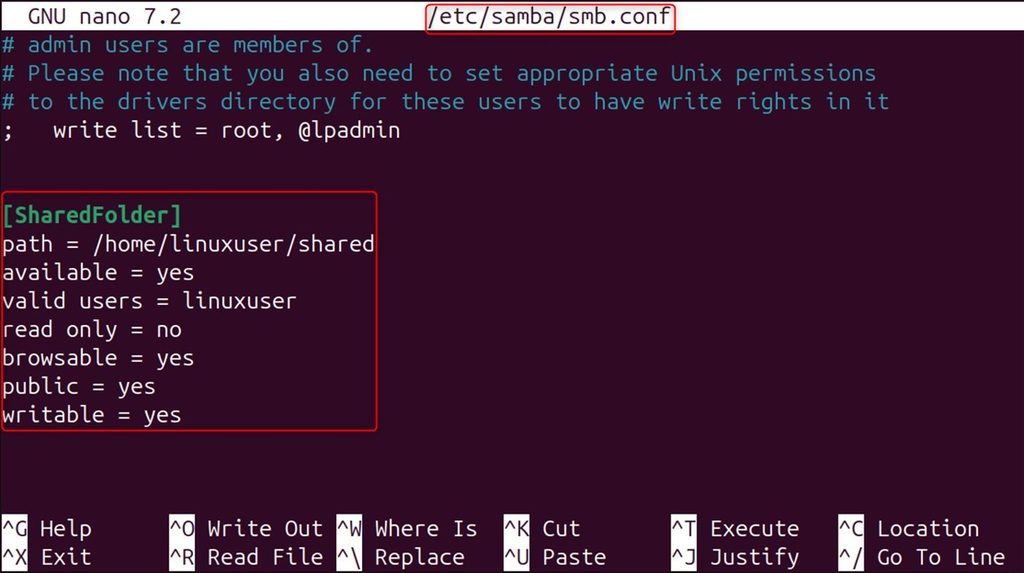
Set a Samba password for the user:
sudo smbpasswd -a linuxuser
Restart the service:
sudo systemctl restart smbd
Step 3: Access the share from Machine B
smbclient //192.168.10.10/SharedFolder -U linuxuser
At the smb: prompt use ls, put and get. Upload:
put /home/ubuntu/Documents/smb-test.txt smb-test.txt
Download:
get smb-test.txt
Step 4: Mount the share on Machine B
mkdir -p /home/ubuntu/mountA
sudo mount -t cifs //192.168.10.10/SharedFolder /home/ubuntu/mountA -o username=linuxuser
It asks for the Samba password. (Putting the password in the command line leaves it in your shell history.)
ls /home/ubuntu/mountA
Step 5: Copy files
sudo cp /home/ubuntu/smb-test.txt /home/ubuntu/mountA/

To copy from A to B, copy out of the mounted folder:
cp /home/ubuntu/mountA/filename.txt /home/ubuntu/Method 4: scp (secure copy)
scp copies over SSH, so the data is encrypted.
Step 1: Install OpenSSH
sudo apt update && sudo apt install openssh-server -yStep 2: Start SSH
sudo systemctl enable --now ssh && sudo systemctl status sshStep 3: Check the SSH connection
ssh ubuntu@192.168.10.8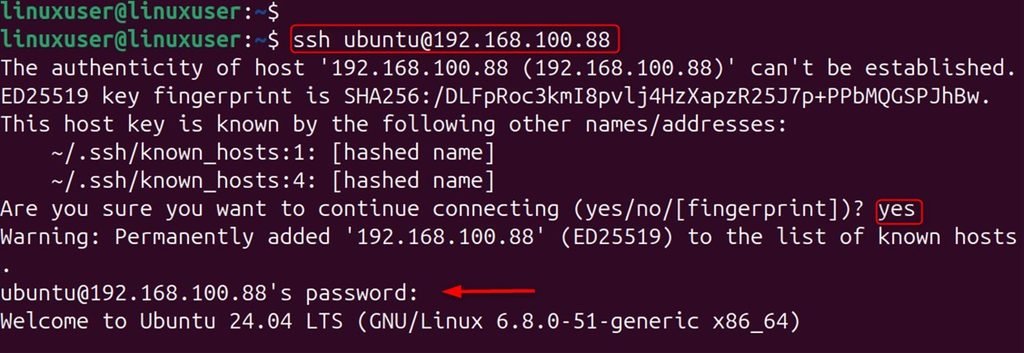
ssh linuxuser@192.168.10.10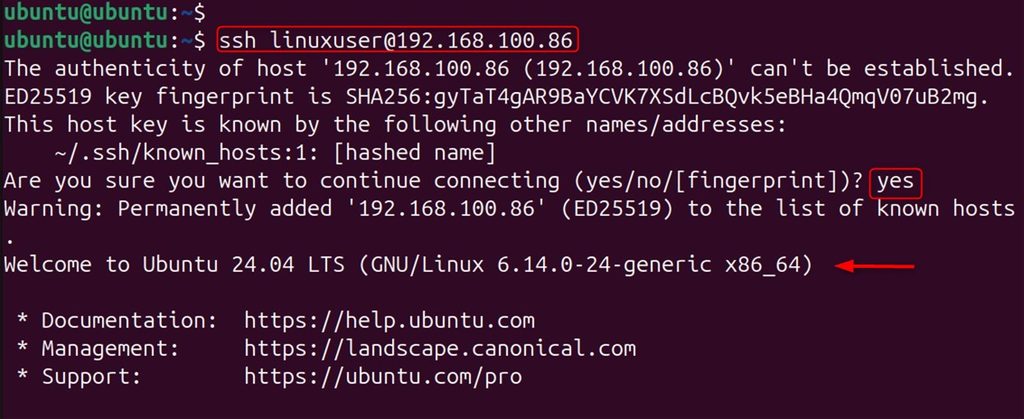
Step 4: Send a file from A to B
scp /home/linuxuser/localfile.txt ubuntu@192.168.10.8:/home/ubuntu/
Step 5: Send a file from B to A
scp /home/ubuntu/text.txt linuxuser@192.168.10.10:/home/linuxuser/
Step 6: Send a folder
scp -r /home/linuxuser/project ubuntu@192.168.10.8:/home/ubuntu/
scp -r /home/ubuntu/docs linuxuser@192.168.10.10:/home/linuxuser/
Method 5: SFTP
SFTP is the safe version of FTP and works through SSH.
Step 1: Make sure the SSH server runs on Machine B
sudo apt update && sudo apt install openssh-server -yStep 2: Allow port 22 in UFW
sudo ufw allow 22/tcpStep 3: Start a session from Machine A
sftp ubuntu@192.168.10.8
Step 4: Upload and download
put /home/linuxuser/file.txt
get /home/ubuntu/file.txtMethod 6: Python web server (quick)
This is handy for a one-time transfer on a trusted network.
Step 1: On the sending machine, open the folder and start a server
cd /path/to/files
python3 -m http.server 8000
Step 2: On the receiving machine, download the file
wget http://192.168.10.10:8000/file.txt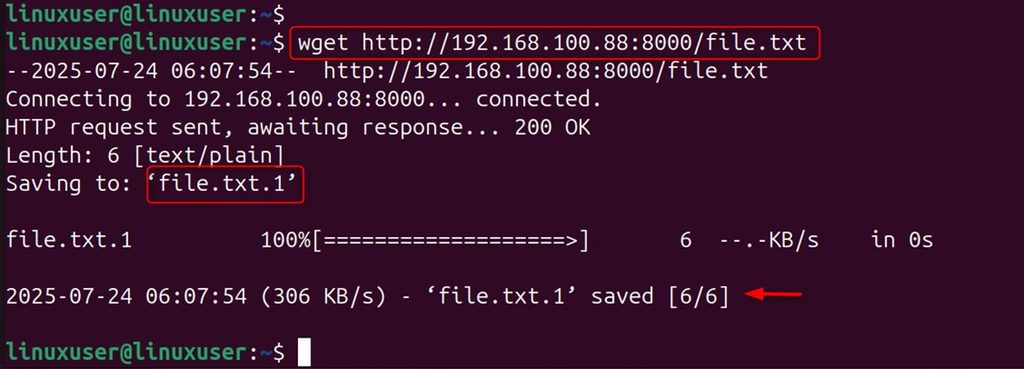
Press Ctrl+C on the sender when you are done.
Which method to use
| Method | Best for |
|---|---|
| rsync | Repeated or large copies, backups |
| scp | A quick, secure copy |
| SFTP | An interactive, secure session |
| Samba | A shared folder that stays mounted |
| FTP | Old setups on a trusted network |
| Python server | A one-time transfer |
Quick recap
- Use
rsyncorscpfirst. Both are encrypted. - Avoid plain FTP over the internet.