

What is the File Manager?
cPanel is the control panel for your hosting. File Manager is a tool inside it. It works like the Files app on a computer. You see folders and files, and you can move, copy, rename or delete them. A folder is also called a directory.
Warning: Moving the wrong file can break your website. If a page needs the file at its old place, it will fail. Back up first, or copy the file instead of moving it.
Steps: move with the menu
- Log in to cPanel from your client area, or with the link in your welcome email.
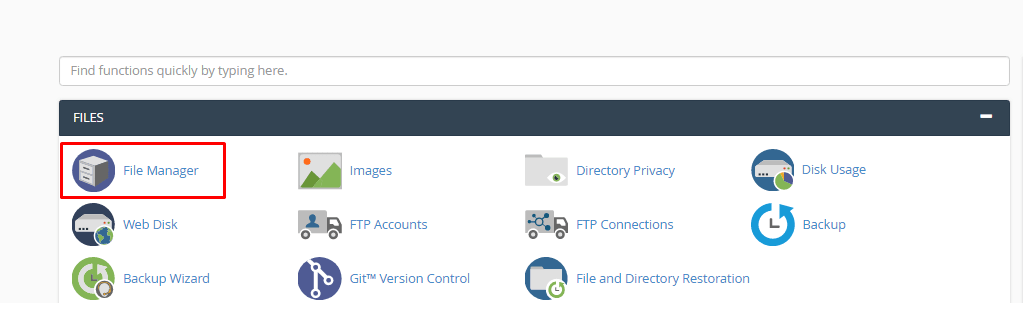
- In the Files section, click File Manager.
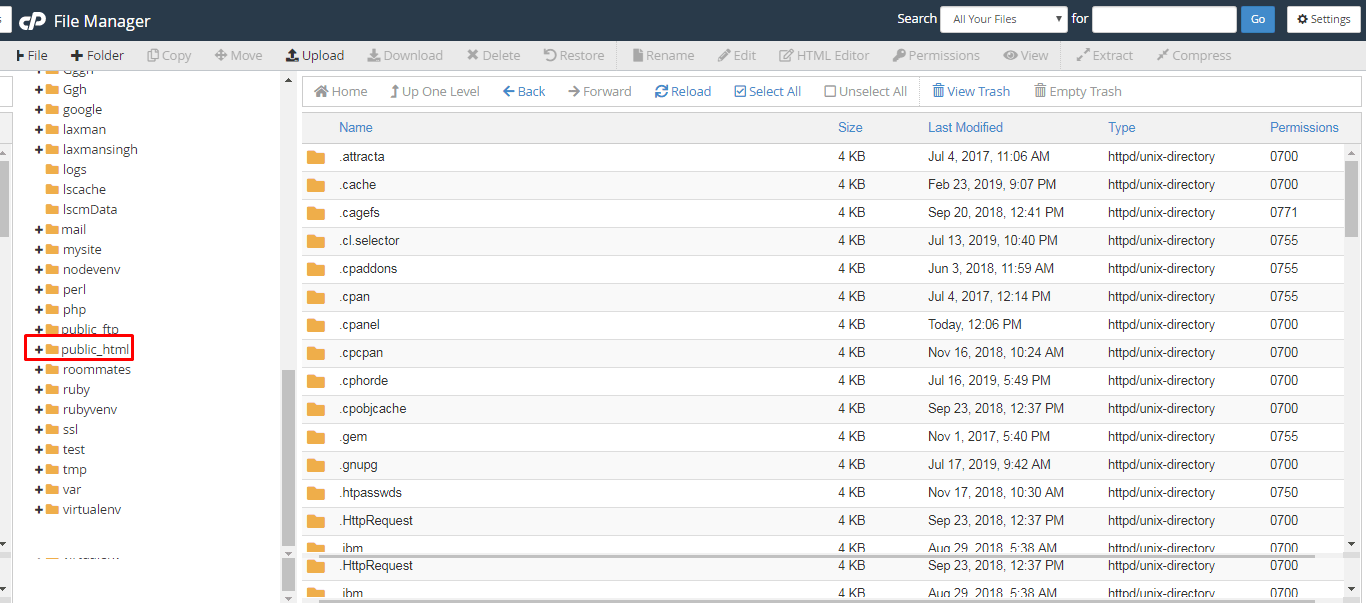
- A new tab opens. Click the folder on the left that holds your file. For websites, the main folder is
public_html. - Click the file once to select it.
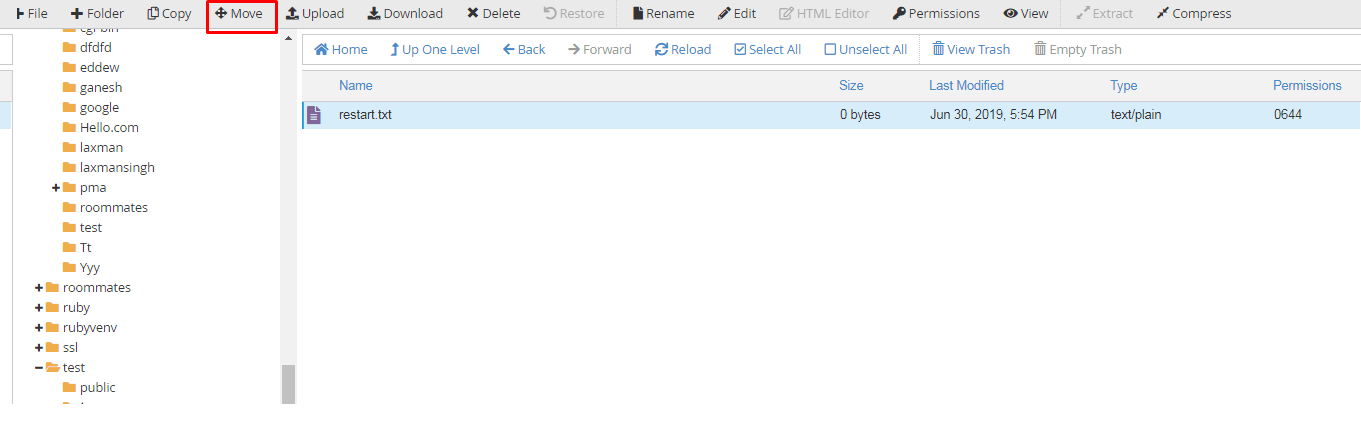
- Click Move on the top toolbar. A small window opens.
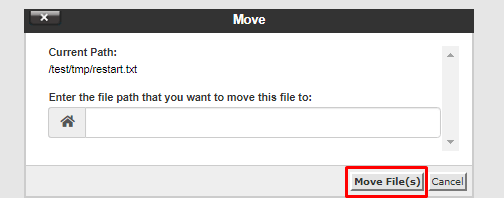
- In the box, you see the current path. A path is the address of a folder, like
/public_html/images. - Change the path to where you want the file to go.
- Click Move File(s).
- Open the new folder and check that the file is there.
Steps: move by dragging
- Select the file.
- Hold the mouse button down on it.
- Drag it onto a folder in the left list.
- Let go of the mouse button.
Moving more than one file at once works too. Hold Ctrl and click each file, then use Move.
Undo a mistake
Moving a file is not the same as deleting it. If you moved it by mistake, just move it back to its old folder.
Tip: If a file with the same name already exists at the new place, cPanel may ask before replacing it. Think before you say yes.
Quick recap
- Open File Manager in cPanel.
- Select the file, click Move, type the new path.
- You can also drag a file onto a folder.
- Back up before you move site files.