

How does it work?
cPanel is the control panel of your hosting. Its Directory Privacy tool locks whole folders. To lock only one file, you add a few lines to a file named .htaccess. This is a small settings file that Apache, the web server software, reads. Passwords for it are kept in a file named .htpasswd. The dot at the start of the name makes the file hidden.
Warning: A mistake in
.htaccess can break your whole site. Download a copy of the file first.Step 1: make the password file
- Log in to cPanel from your client area.
- Open Directory Privacy in the Files section. Choose any folder, such as the one with your file, and click Edit.
- Tick Password protect this directory and give it a name.
- Click Save.
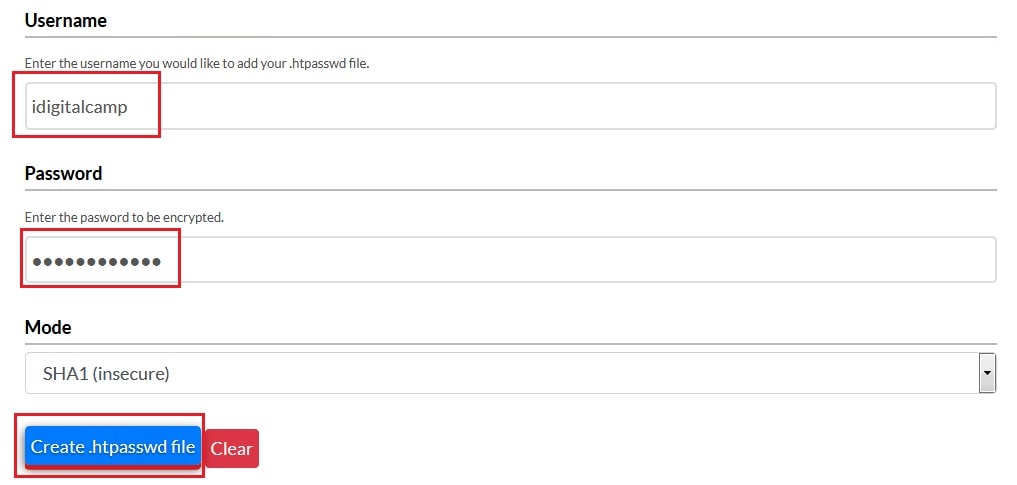
- Under Create User, type a user name and a strong password, then click Save.
This makes the user and the .htpasswd file. It also locks the whole folder, which we will fix in the next step.
Step 2: lock only one file
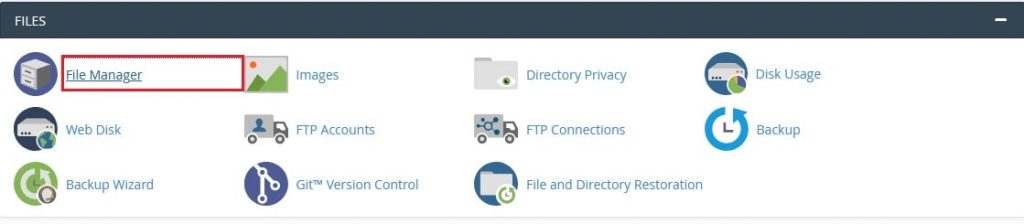
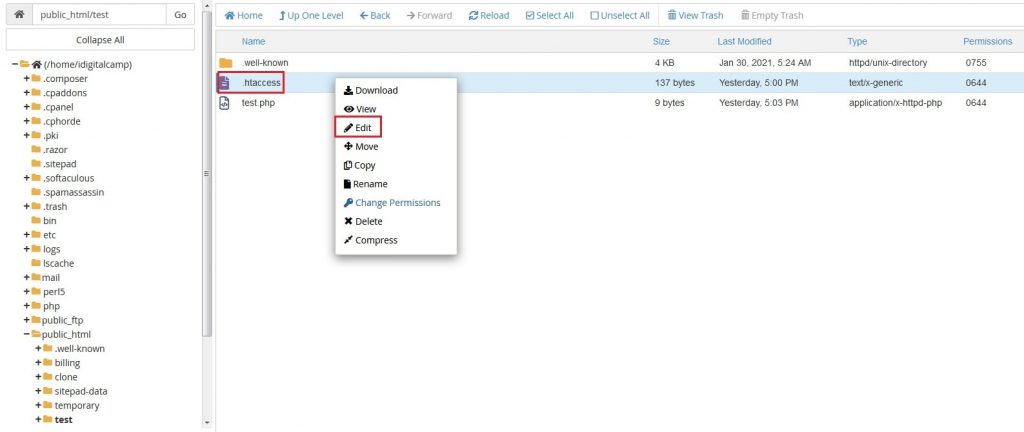
- Go back to cPanel and open File Manager.
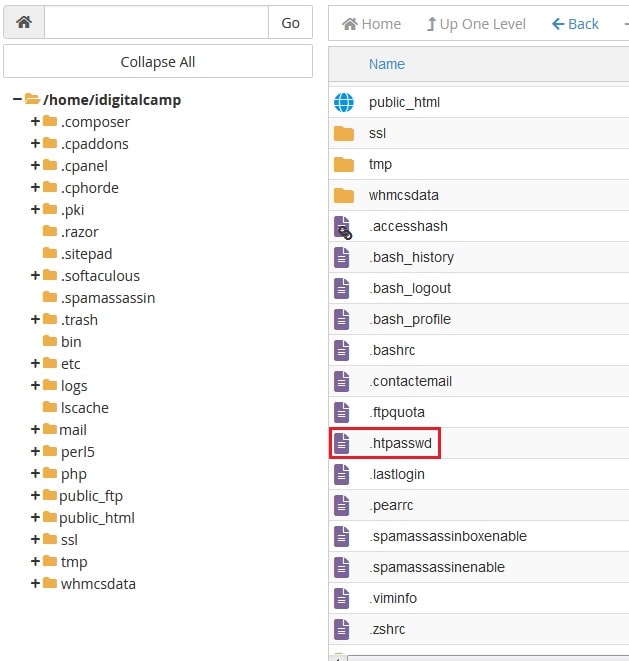

- Open the folder you chose. Click Settings at the top right and tick Show Hidden Files. Click Save.
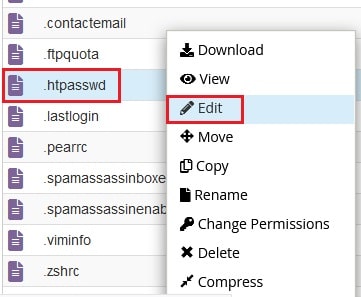
- Right-click
.htaccessand choose Edit.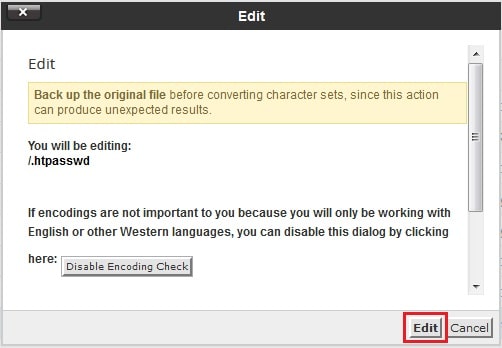
- Remove the lines added by Directory Privacy, or keep them and move them as shown below.
- Type the lines below. Replace
secret.pdfwith your file name, and use the path cPanel showed for your.htpasswdfile.
<Files "secret.pdf">
AuthType Basic
AuthName "Restricted File"
AuthUserFile /home/youruser/.htpasswds/public_html/passwd
Require valid-user
</Files>
This tells the server to ask for a password only when someone opens secret.pdf.
- Click Save Changes.
- Open the file link in a private browser window. A login box should appear.
- Open another file from the same folder. It should open freely.
Tip: The exact
AuthUserFile path can differ. Copy it from the lines cPanel wrote in .htaccess.Quick recap
- Use Directory Privacy to create the user and password file.



- Use a
<Files>block in.htaccessto lock one file. - Back up
.htaccessfirst. - Test in a private window.