

What is WinSCP?
WinSCP is a file mover for Windows. It shows your computer on one side and your server on the other. You drag files between them. It uses SFTP or FTP. These are two ways to send files over the internet. SFTP scrambles the data, so it is safer.
What you need
- WinSCP, downloaded from its official website and installed.
- Your server address (host name).
- Your username and password.
- The port number. SFTP usually uses 22. FTP usually uses 21.
These details are in your welcome email. If not, ask Hostvento support. SFTP may need to be enabled for your plan.
Steps
- Open WinSCP. The Login window appears.
- Click New Site.
- Next to File protocol, choose SFTP. Choose FTP only if SFTP is not available.
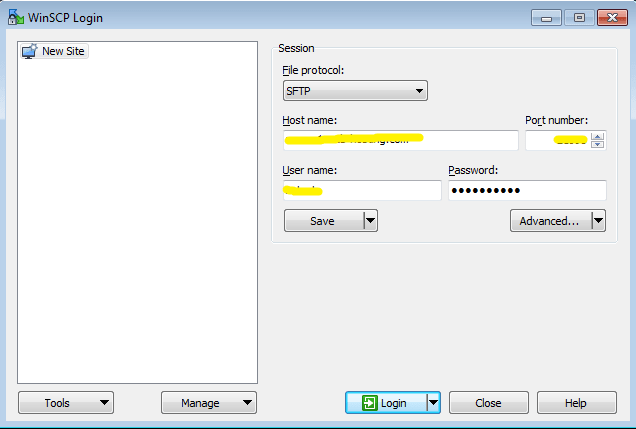
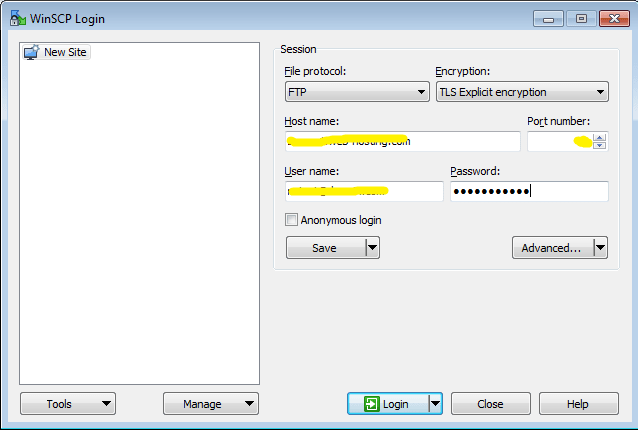
- In Host name, type your server address.
- In Port number, type the right port.
- Type your User name and Password.
- Click Save so you do not need to retype these next time. Give the site a name.
- Click Login.
- If a warning about an unknown server key appears, click Yes or Update if you trust the server.
Moving files
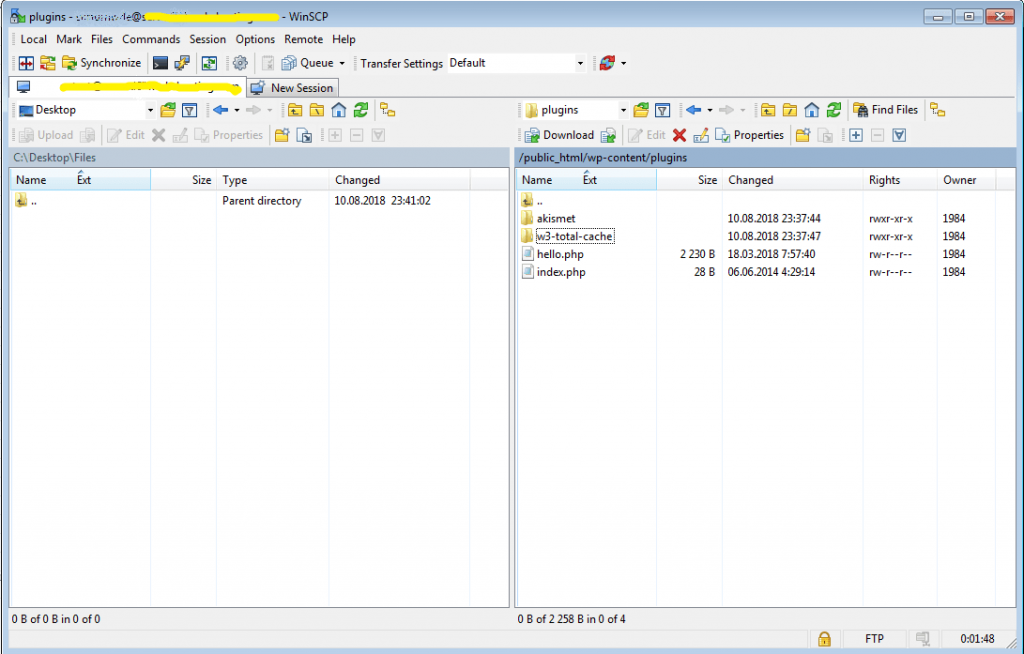
- The left panel is your computer. The right panel is your server.
- On the right, open the folder for your website. This is often named
public_html. - Drag a file from left to right to upload it.
- Drag a file from right to left to download it.
Warning: Deleting or overwriting files on the server cannot be undone. Download a backup copy first.
Tip: To see hidden files such as
.htaccess, open the Options menu, choose Preferences, then Panels, and tick the box to show hidden files.If login fails
- Check the host name, user name, password and port.
- Try again with FTP if SFTP is not on your plan.
- Check that your firewall does not block the port.
Still stuck? Open a support ticket.
Quick recap
- WinSCP moves files between your PC and server.
- Pick SFTP, enter host, port, user and password.
- Save the site for next time.
- Drag files between the two panels.
- Back up before you delete or overwrite.