

What are FTP and SFTP?
FTP stands for File Transfer Protocol. It is a way to copy files between your computer and a server. SFTP is the secure version. It scrambles your data, so no one can read it on the way. If you can choose, pick SFTP.
An FTP client is a program that does the copying for you. FileZilla and WinSCP are two free examples.
What you need
- Your host name (server address).
- Your FTP user name and password.
- The port. FTP usually uses 21. SFTP usually uses 22.
Find these in your welcome email. Or ask Hostvento support. Note that your hosting plan may not include SFTP.
Steps using FileZilla
- Install FileZilla and open it.
- Find the bar at the top with Host, Username, Password and Port.
- For SFTP, type
sftp://before your host name. For FTP, type the host name alone. - Fill in your user name, password and port.
- Click Quickconnect.
- If a window asks about an unknown key or certificate, check it and click OK.
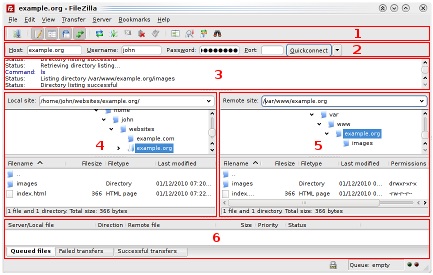
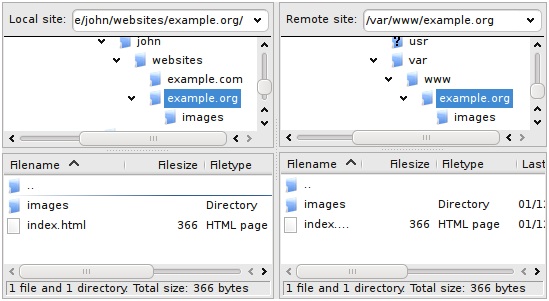
- The left side shows your computer. The right side shows your server.
- On the right, open your website folder, often
public_html. - To upload, drag a file from the left to the right.
- To download, drag a file from the right to the left.
Warning: If you upload a file with the same name as one on the server, it replaces the old one. Download a backup first.
Transfer modes
FTP programs can send files as ASCII (plain text) or binary (everything else). The Auto setting usually picks the right one. Using ASCII on pictures can damage them.
If the connection fails
- Check the host, user name, password and port.
- Check that your internet firewall allows the port.
- Try the other mode, FTP or SFTP.
Still stuck? Open a support ticket.
Tip: Use the FTP details of one account only for that account. Do not share them in emails or chats.
Quick recap
- FTP and SFTP copy files to and from a server.
- SFTP is safer than FTP.
- Use a client such as FileZilla.
- Drag files between the left and right sides.
- Back up before replacing files.